
| Attention Before you read this post, I highly recommend you check out my resources page for access to the tools and services I use to not only maintain my system but also fix all my computer errors, by clicking here! |
Are you trying to add a second display to your Windows operating system, only for it to display an “Input Signal out of Range” error message? This is not an uncommon circumstance, as it occurs on a wide range of operating systems and monitor brands. Those on older systems will probably be most familiar with it. In this tutorial, we’ll go through exactly what it is, along with some verifiable fixes.
A general scenario typically goes something like this:
“You’re on a laptop system, and you want to extend your display to an external monitor. However, when you connect the monitor to the VGA (or HDMI) port on the Laptop and Monitor, you’re greeted with the following error message”:
Input Signal Out of Range
Change Settings to XXXXxXXXX – 60Hz
In the past, computer monitors were very rigid, that means, the end user had to be sure the graphics card and monitor lined up with one another, that is, they supported the same resolution(s).
Today, you will find that graphics cards support a wide assortment of resolutions, making them far more flexible. However, in the odd circumstance where the user may set the wrong resolution or refresh rate, they are likely to see the “Input Signal out of Range” error message.
Depending on the brand and model of the monitor, it may or may not state the supported resolution and refresh to set it to. This makes alleviating the problem potentially much easier or harder.
That said, this error is less likely to occur on new, LCD screens, this is because they are usually capable of automatically circling through a series of resolutions and refresh rates until it discovers a configuration that is supported by your video card.
What Causes “Input Signal Out of Range” Errors?
This error was more common in the past, but it does still occur, from time to time. When looking at potential causes, we find the following:
- Incompatibility issue: The end user has attempted to connect a very old monitor to a new system or a new monitor to an old system.
- Support Mismatch: The graphics card does not support any of the resolution(s) supported by the monitor.
- GPU Requires an update: The graphics card drivers are either outdated or corrupted.
This is gist of what to consider, when looking at possible culprits.
Now that we have that out of the way, let’s go over the many solutions you can deploy right now to fix it.
How to Fix It
First things first, before you attempt any troubleshooting, you’ll want to ensure all cables are connected properly. That means, the cables connecting to and from the PC to the Monitor. Signal issues are oftentimes the result of loose cables.
If the cables are all where they should be, then consider restarting your system. Even through the error is related to your graphics card and monitor(s), it’s recommended that you give your system a reboot, just in case the issue is the result of your OS.
Rebooting your computer is simple enough, just select Restart from the Start menu.

To perform a Hard Restart, hold down the Power button, until the system powers down, then switch it back on, again.
If the above solutions fail to fix the “Input Signal out of Range” error, then I recommend you attempt the many solutions outlined below:
Update Graphics Card Drivers
Your graphics cards inability to connect to your secondary monitor, may be the result of incompatibility or a malfunction. Either way, updating the drivers for it, may be all that is required to fix it.
To do that, simply visit the website of the card manufacturer and download them off them. You will need to know the brand and model number of your card to do this.
Alternatively, you can simply use a driver automation tool. Just download, install and run it, and it will search the internet, locate and install the latest driver(s) for all the various devices attached to your system.
If such a tool interests you, then visit the link below:
CLICK HERE TO CHECK OUT THE DRIVER AUTOMATION TOOL
 The solution(s) below are for ADVANCED level computer users. If you are a beginner to intermediate computer user, I highly recommend you use the automated tool(s) above! The solution(s) below are for ADVANCED level computer users. If you are a beginner to intermediate computer user, I highly recommend you use the automated tool(s) above! |
Set Refresh Rate to 60Hz
The popularly supported refresh rate across all monitors is 60Hz. However, if you own a high performance gaming monitor and have thus, configured it to operate at higher fresh rates, i.e. 75Hz – 240 Hz, then the error could be a matter of the refresh rate being set higher than what the monitor supports.
To get things working, all you need to do is set it to the default standard of 60Hz, to do that, follow the steps below:
1. First, boot into your system as a full administrator.
2. Then press  + I, then click on System.
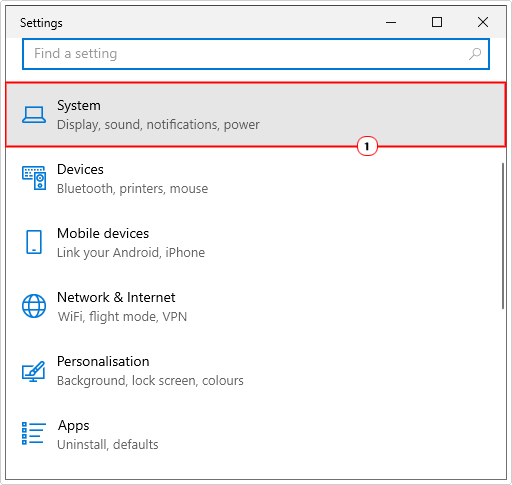
3. When System loads up, click on Display.
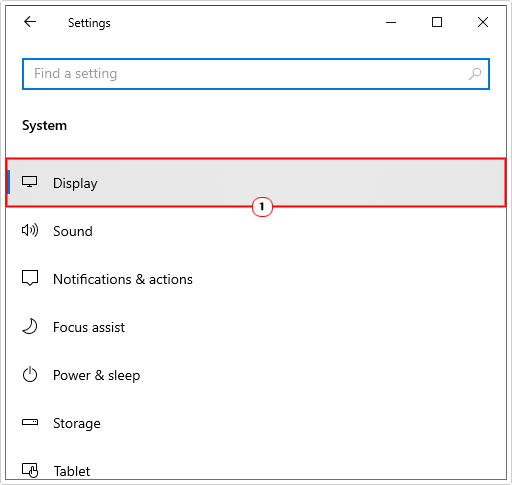
4. Now scroll down and click on Advanced display settings.
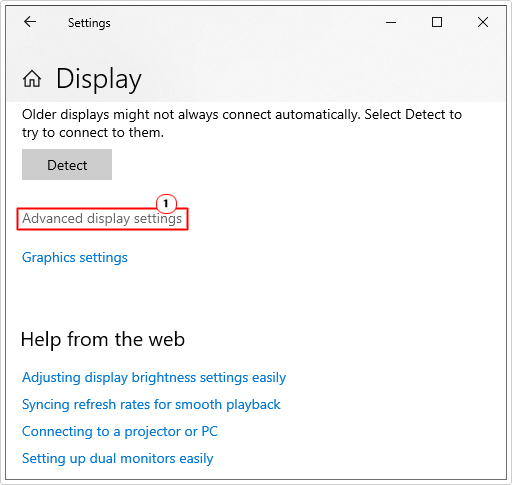
5. When Advanced Display Settings loads up, scroll down to Refresh Rate, then set it to 60.000 HZ.
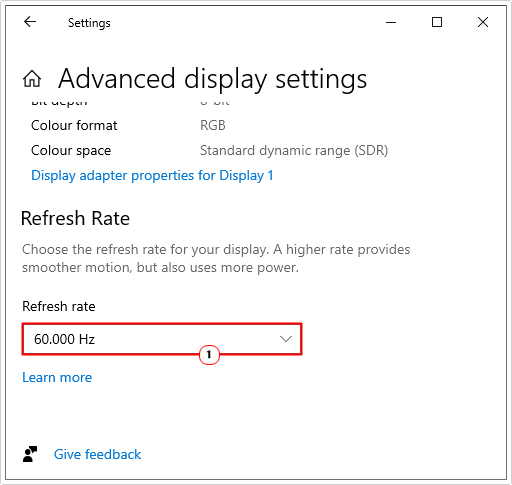
6. Close Advanced Display Settings and restart the system.
Use Recommended Monitor Resolution
If the “Input Signal out of Range” error continues to persist, even after setting the refresh rate to 60Hz, then you may want to try adjusting the monitor resolution.
In this case, you’ll want to set the monitor to its recommended resolution. You should already know the resolutions that your monitor supports, as such information would have been provided to you, prior to purchase.
Either way, you can find such information from the manufacturers website, all you need is the make and model number.
That aside, the operating system will have a recommended setting, one that will ensure compatibility, but not necessarily the best performance. You can simply use that in the meantime.
To do that, follow the steps below:
1. Follow steps 1 – 3 of Set Refresh Rate to 60Hz.
2. From the Display screen, scroll down to Display resolution then select the recommended resolution from the dropdown menu.
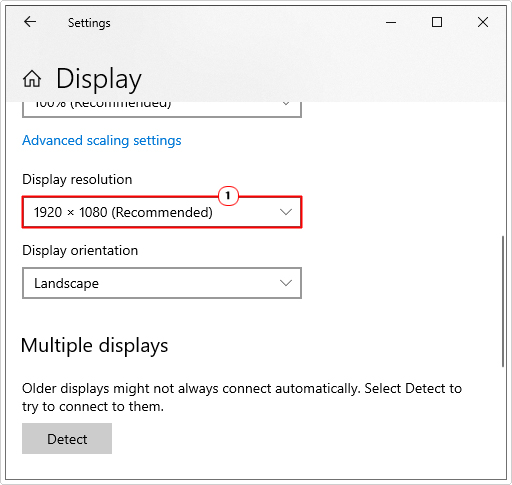
Note: If you’re using multi-displays then set the recommended resolution for both.
Alternatively, you can use the GPU applet, depending on its brand, it should have its own GUI (Graphical User Interface) that you can use to manage multiple displays.
For step-by-step instructions on how to do that, I suggest you visit the website of your GPU manufacturer.
Hardware Malfunction
If after attempting all the solutions above, you’re still greeted with the “Input Signal out of Range” error message, then you may want to consider a possible hardware malfunction at the root cause.
It’s possible either your video card is faulty or one or more of your monitors is not working correctly. It will be up to you to determine which is at fault.
To determine if your monitor is to blame, you will need to connect it to another working computer. This means, you will need an additional working system in your home, whether a desktop unit or a laptop.
If the monitor works without hiccup, then you know the problem is with the graphics card.
To determine whether or graphics card is faulty, you will need another working monitor. Simply, connect that to your system. If it works without any issues, then you know you have a bad monitor on your hands. In which case, you’ll need to purchase a new one.
Are you looking for a way to repair all the errors on your computer?

If the answer is Yes, then I highly recommend you check out Fortect.
Which is the leading registry cleaner program online that is able to cure your system from a number of different ailments such as Windows Installer Errors, Runtime Errors, Malicious Software, Spyware, System Freezing, Active Malware, Blue Screen of Death Errors, Rundll Errors, Slow Erratic Computer Performance, ActiveX Errors and much more. Click here to check it out NOW!