
| Attention Before you read this post, I highly recommend you check out my resources page for access to the tools and services I use to not only maintain my system but also fix all my computer errors, by clicking here! |
I guess it’s fair to assume you recently encountered the KERNEL_MODE_HEAP_CORRUPTION error. I’m also going to assume you would like to know what the error is, and how to rectify it. Well, if any of the things I’ve just written resonates with you, then I can say, categorically, “Yes”. First things first, do not worry. This issue is amongst the more common BSOD errors users are likely to encounter.
The whole purpose of an error message is to help the end user identify the root cause of a malfunction on their Windows based system. KERNEL_MODE_HEAP_CORRUPTION is a STOP or BSOD error that halts the system in place. Forcing a restart to regain access to the computer. BSODs can and do occur in a wide range of circumstances, from the launch of a program to a system start-up.
The HEAP_CORRUPTION part of the error refers to a system memory error. Which is commonly the result of driver issues, app conflicts, and hardware failure and memory leaks.
The exact error message may resemble the following:
The KERNEL MODE HEAP CORRUPTION bug check has a value of 0x0000013A. This indicates that the kernel mode heap manager has detected corruption in a heap.
So, what can you do about it? Before we get to the solutions, let’s go through its common causes.
What Causes KERNEL_MODE_HEAP_CORRUPTION Errors?
The KERNEL_MODE_HEAP_CORRUPTION error message indicates data corruption in the HEAP (or some other sensitive area of the system). The error occurs as a result of corrupted or missing Windows files or an issue with the system memory. Other known causes are as follows:
- System file(s) have been corrupted: A faulty hard disc drive is capable of corrupting or causing certain files to become corrupt over time.
- Damaged or failing hardware component(s): Certain computer components can become degraded over time due to repeated use. Depending on the component, you may be able to use specific software to determine its physical condition.
- Memory (RAM) issues: Fragmented RAM can oftentimes cause issues for your system. This occurs when running buggy apps that fail to release data chunks when they are no longer required.
- An unstable overclock: It’s also important that you stress test your system after an overclock. 100% stability is a must.
- Corrupt, outdated or incompatible drivers: Drivers belonging to your GPU or any number of devices may require an update.
- Program conflict(s): Two or more apps may be conflicting with one another, which may or may not be the result of a virus infection(s).
Now that you have a general understanding of what may be causing the KERNEL_MODE_HEAP_CORRUPTION error, it should put you in a much better position when attempting to fix it.
So let’s get to those solutions.
How to Fix It
As previously mentioned, the KERNEL_MODE_HEAP_CORRUPTION error may occur in a number of different circumstances. Users have reported seeing the error right after their system starts up, in other cases it’s occurred while playing a graphically intensive app (such as a game). So, the exact circumstances can differ quite significantly, making it difficult to pinpoint the root cause.
For this reason, it’s best that you look at a number of possible solutions. You want to attempt them all, in hopes that one of them sticks.
Note: If your system is incredibly unstable, then you may want to consider booting into Safe Mode.
Update Device Drivers
One of the more common causes of the KERNEL_MODE_HEAP_CORRUPTION error is a corrupt, outdated or incompatible device driver. The most difficult part of this possible cause, is isolating the culprit driver and updating it.
Seeing as there’s no real way of doing that, you will need to identify and download drivers for as many components as possible. The motherboard drivers should contain drivers for all the different components that make up the board.
Then you have the sound card (if it’s not integrated), GPU, CPU and any other internal or external devices you may use (such as Wi-Fi device(s), USB Game Controller etc…). Simply locate and download the most up-to-date drivers for all these components from the various manufacturer’s websites.
Alternatively, you can automate this entire process by using a driver automation tool. Just, download and run it, and it will scan, detect and download all the different drivers for all those components.
It’s very easy to use and very convenient, especially if you’re a beginner to intermediate PC user.
Anyway, if the driver finder tool is more to your liking, then visit the link below:
CLICK HERE TO CHECK OUT THE DRIVER FINDER TOOL
Use Windows Repair Tool to Fix KERNEL_MODE_HEAP_CORRUPTION Error
For those of you who don’t feel you’re up to all the system tampering, trying to manually fix this error, you have the Windows repair tool as a viable alternative.
This tool is multifaceted, capable of detecting and fixing a wide range of issues on your system.
From BSOD errors, to registry corruption, DLL errors, virus infections, runtime errors, appcrashes and much more.
It doubles as both a repair and maintenance tool, making it your ideal all-in-one solution.
If this tool by any chance interests you, then visit the link below:
CLICK HERE TO CHECK OUT THE ADVANCED REPAIR TOOL
 The solution(s) below are for ADVANCED level computer users. If you are a beginner to intermediate computer user, I highly recommend you use the automated tool(s) above! The solution(s) below are for ADVANCED level computer users. If you are a beginner to intermediate computer user, I highly recommend you use the automated tool(s) above! |
Run Windows Memory Diagnostic Tool
If there is a problem with your Memory modules, then you will need to replace them. However, making that determination can be very difficult. Fortunately, Windows has a built-in diagnostic tool, designed to test your RAM to make sure it is running or working, as it should.
For step-by-step instructions on how to use this tool, check out my post on fixing Bad Pool Header errors in Windows.
Roll Back Drivers
If you encountered the KERNEL_MODE_HEAP_CORRUPTION error right after a GPU driver update, then you should consider rolling the drivers back to the previous version.
To do this, you can use the built-in roll back feature.
Note: This feature only works when you updated the drivers through Device Manager.
You can find instructions on how to use this feature on my post on fixing NMI_HARDWARE_FAILURE errors.
Resolve App Conflict(s)
Another mentioned possible cause of the KERNEL_MODE_HEAP_CORRUPTION error is a software conflict. If the error occurred right after you installed and ran a new app, then it’s likely the culprit cause of the error.
That said, depending on the circumstance, simply uninstalling the new app may not be a viable option. In situations like that, you will need to identify the app that is conflicting with it.
First, you will need to verify whether a software conflict is at the heart of it.
So, do the following:
1. Close all apps, by clicking on the X icon for all running apps.

2. Close unnecessary app(s) running in the background by doing the following:
a. Right-click on Taskbar and click on Task Manager.
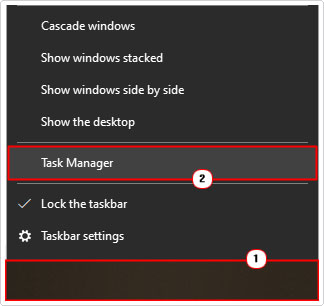
b. On the Processes Tab, right-click on a Program and select End task.

Note: To figure out which apps you can close, and which you cannot, simply do a quick Google search on the app. Accidently closing the wrong app, may force Windows to restart.
3. Now, wait to see if the error appears:
If the error does occur: Then it’s most the error is not caused by a program conflict.
However, if the error does not occur: Then you know two or more apps are conflicting with one another, resulting in the error and its inevitable system restart.
Identify the conflicting apps
If closing all active (and unnecessary) apps stops the KERNEL_MODE_HEAP_CORRUPTION error from reoccurring, then you can theorise that the error is the result of a conflict.
To figure out which one, you will need to start each app, one by one, and wait. If the app doesn’t cause the error to reoccur, then open another, and another, until you see the error.
When the error notification does eventually pop up, you will know which app(s) is causing the error, and what your next move is.
Note: Using this method can make it difficult to determine exactly which two (or more) apps are causing the conflict.
Remove the app(s)
Once you have pinpointed the exact conflicting app(s), you’re next cause of action should be to either, update the app(s) (which you can find on the developer’s website) or uninstall the app(s).
To uninstall the culprit software, just do the following:
1. First, boot into Windows as a full administrator.
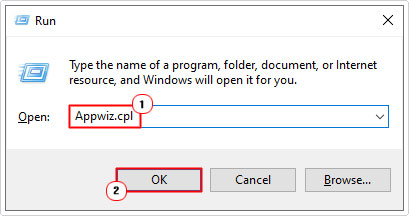
2. Next, press  + R, type Appwiz.cpl and click on OK.
3. When Uninstall or change a program loads up, click on the app(s) and select Uninstall.
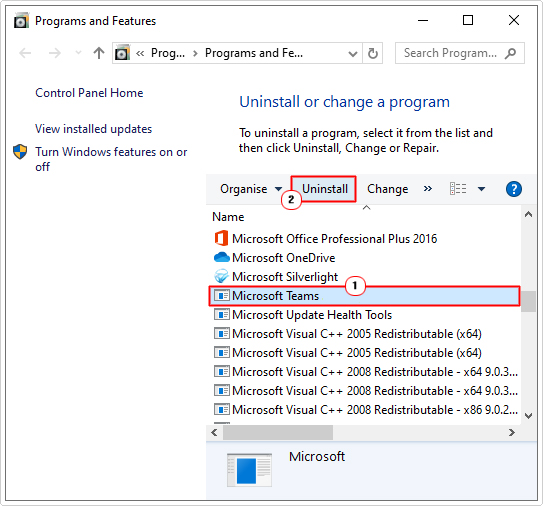
4. Now, restart the system, and the problem should be resolved.
Repair Corrupt Files
Other known causes of the KERNEL_MODE_HEAP_CORRUPTION error is the corruption of key system files.
To fix this problem, you have two built-in tools at your disposal.
The first is:
System File Checker (SFC)
SFC is a built-in Windows repair tool, designed to scan your Windows folder, to identify and replace missing or corrupt system files.
Deployment Image Servicing and Management (DISM)
DISM is the second tool, this one designed to scan and replace your Windows files. Essentially restoring the overall integrity of your operating system. Both tools are best used together.
You can find step-by-step instructions on how to use them, from my post on fixing MSVCR71.dll missing errors.
Check System Overheating
If you’re a relative newbie, then it’s probably best you don’t tinker around with the internal components of your computer. However, if you’ve been using computers for any real length of time, then you may feel comfortable opening it up, and checking there is no airflow issues.
Make sure there isn’t an excessive build-up of dust around the fans, if so, remove it (dust). This build-up is oftentimes the result of negative air pressure (more fans blowing air out of the case than inside of the case).
If you have an overclock, then consider removing it. There are stress testing software you can and should always use, after an overclock.
Are you looking for a way to repair all the errors on your computer?

If the answer is Yes, then I highly recommend you check out our 24/7 Live Support Service.
Which is the leading Online Support Service that is able to help you cure your system from a number of different ailments such as Windows Installer Errors, Runtime Errors, Malicious Software, Spyware, System Freezing, Active Malware, Blue Screen of Death Errors, Rundll Errors, Slow Erratic Computer Performance, ActiveX Errors and much more. Click here to check it out NOW!