
| Attention Before you read this post, I highly recommend you check out my resources page for access to the tools and services I use to not only maintain my system but also fix all my computer errors, by clicking here! |
Is your Windows Security app currently reporting that the Local Security Authority Protection is off? Do you recall disabling this feature? If so, then you can re-enable it within the options menu of the app. In this tutorial, I’ll go through a number of additional ways you can do that.
Local Security Authority Protection is a built-in Windows feature designed to enhance user credential protection, by blocking unsigned plugins and drivers, amongst other things. Local Security Authority or LSA also aids the system in verifying and validating user login and passwords changes. As it adds an additional layer of security through access tokens for Microsoft Accounts.
The effectiveness of this feature is undoubtable, despite that, there are times when users will find that the feature has been disabled. Sometimes this may have been done intentionally, in an attempt to speed up the system, while in other instances, it may be the result of a system change.
Either way, there are many users that have reported issues with the LSA feature. As the “Local Security Authority Protection is off” notification is known to appear, even when the feature is enabled.
Typical attempts of disabling and re-enabling it may prove futile. As the feature continues to read as “off” in the Windows Security applet.
This issue became most widespread during the introduction of the KB5007651 update around March 2023. However, other known causes of this error may include OS corruption, Windows policy problems and much more.
With all of that said, let’s discuss further, the many potential causes of this error.
What Causes “Local Security Authority Protection Is Off” Errors?
If you see a yellow exclamation mark in your Window Security applet, it’s possible a series of events may have inadvertently interrupted the LSA process.
It’s not uncommon for users to disable Local Security Authority Protection (LSA) has it can be a resource drain. However, if the user has not disabled the feature, and it is not running, there are several possible causes:
- Group Policy changes may have inadvertently disabled LSA.
- Secure Boot has been disabled or reset. Typically, this will affect other security related features.
- A recent Windows Update was corrupted, resulting in LSA being disabled.
- The Windows registry has been corrupted or improperly altered.
- A third-party tool is interfering with the feature.
Now that we have the possible causes out of the way, let’s get to the numerous ways you can fix this problem.
How to Fix It
There are some users that have reported the issue as a false flag, the result of a faulty or failed Windows Update. In short, the feature was enabled, despite it being reported as disabled.
For that reason, you want to ensure that the warning you are receiving is actually legitimate, and not a false flag. To do that, you will need to follow the steps below:
1. Boot into your system as a full administrator.
2. Then press  + R, type eventvwr.msc and click on OK.
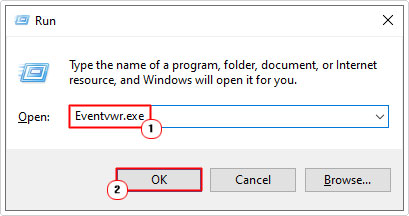
3. This will bring up Event Viewer, from here, go to:
Applications and Services Logs > Microsoft > Windows > LSA

4. Click on Operational and try to find an event with the ID 5004, and make sure it has been enabled and is operational.
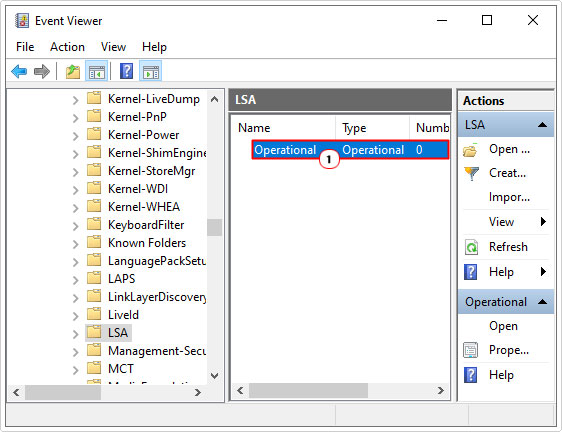
Note: If you cannot find any events, then it’s probably because the feature has been disabled. In which case you should apply the solutions below.
Run Windows Repair Tool to Fix Local Security Authority Protection Is Off
If your system isn’t running as fast as it once did, with a plethora of error messages popping up, every time you boot into Windows, then it’s probably best you used a Windows repair tool.
The tool I have in mind is a advanced repair solution, is a multifaceted program, capable of scanning, detecting and fixing various issues on your system. Such as malware infections, file loss, system file corruption and much more.
Additionally, it can fix previously damaged Windows features (such as LSA), as well as DLL errors, BSOD errors, registry corruption, app crashes, runtime errors and much more.
If any of this sounds interesting to you, then I suggest you visit the link below:
CLICK HERE TO CHECK OUT THE ADVANCED REPAIR TOOL
 The solution(s) below are for ADVANCED level computer users. If you are a beginner to intermediate computer user, I highly recommend you use the automated tool(s) above! The solution(s) below are for ADVANCED level computer users. If you are a beginner to intermediate computer user, I highly recommend you use the automated tool(s) above! |
Uninstall Recently Installed App(s)
Did you recently install an app? Did you check to ensure it was from a reputable sources? It not, then it is possible the app could be a malicious file, designed to infiltrate and steal sensitive information, such as login credentials and financial data – which could be the reason why it disabled LSA.
If you are up to speed on all the apps recently installed, then you should have no problems removing any one of them.
The most effective way of doing it, is by doing the following:
1. First, boot into your system as a full administrator.
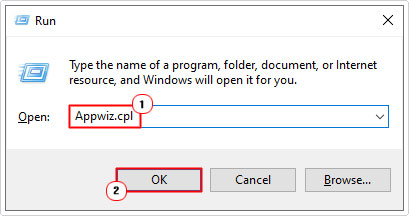
2. Now, press + R, type Appwiz.cpl and click on OK.
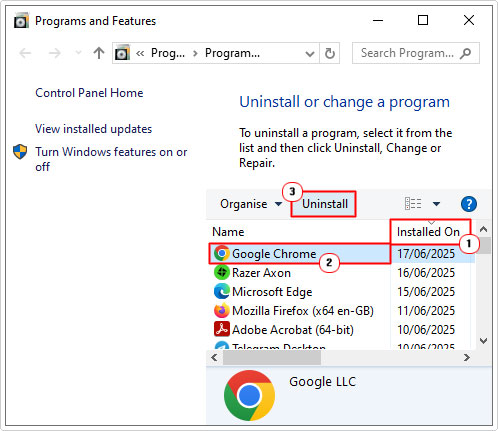
3. This will bring up Programs and Features, now, click on Installed On and it will arrange the apps in order of installed date. Simply, click on the most recently installed app, then click on Uninstall.
Enable Local Security Authority Protection
One of the most effective ways to fix the “Local Security Authority Protect is off” issue is simply to turn the feature back on. There are several ways you can do this, so we’ll start from the top.
Using Registry Editor
The first method and probably the most complex, is to use the Registry Editor. Simply follow the steps below:
WARNING: The Windows registry is a very sensitive area of the Operating System. Thus, any wrong modification to it can render your system inoperable.
1. Boot into your system as a full administrator.
2. Now press + R, type regedit and click on OK.
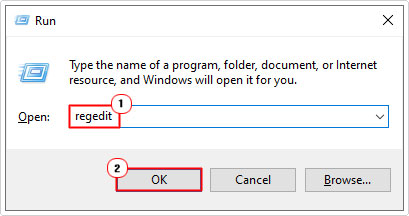
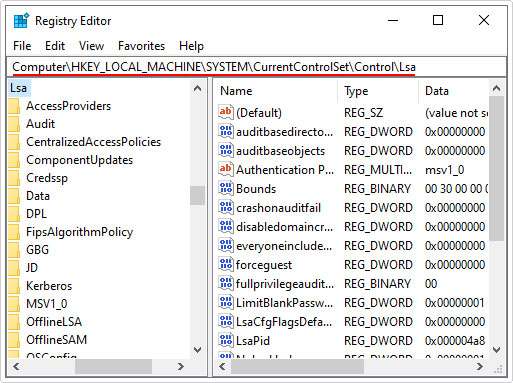
3. When Registry Editor loads up, navigate to the following path:
Computer\HKEY_LOCAL_MACHINE\SYSTEM\CurrentControlSet\Control\Lsa
4. Now, right-click in the right pane and select New -> DWORD (32-bit) Value, and name it RunAsPPL.
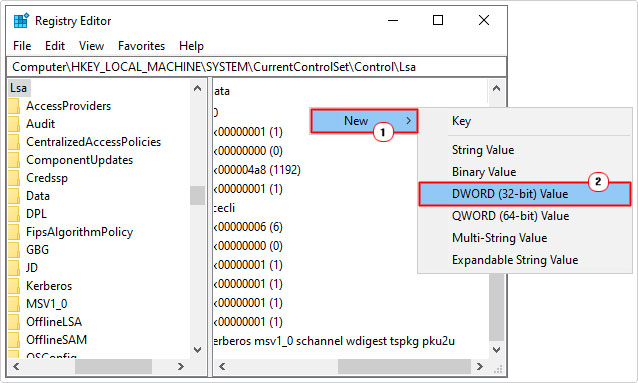
5. Repeat step 4, only this time name it RunAsPPLBoot.
6. Now, double-click on RunAsPPL, to open up the Edit DWORD (32-bit) Value dialog box, and type 2 into the Value data box.
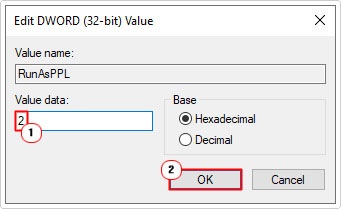
7. Repeat step 6 for RunAsPPLBoot.
8. Lastly close Registry Editor and restart your system.
Using Local Group Policy Editor
If you are on the Pro edition of Windows 10 or 11, then you can use the Local Group Policy Editor to enable the LSA feature. This is probably one of the easier methods of enabling this feature.
Just follow the steps outlined below:
1. Boot into Windows as an admin.
2. Then press + R, type gpedit.msc and click on OK.
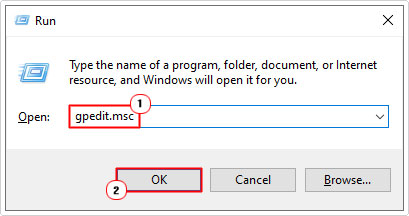
3. This will bring up the Local Group Policy Editor, from here go to the following location:
Computer Configuration > Administrative Templates > System > Local Security Authority
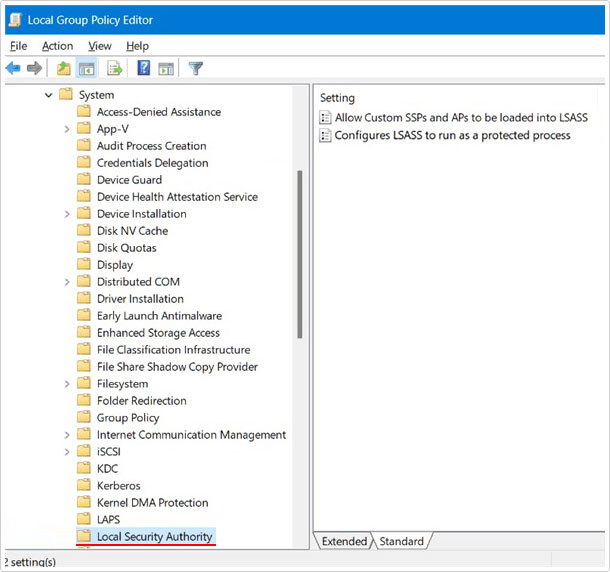
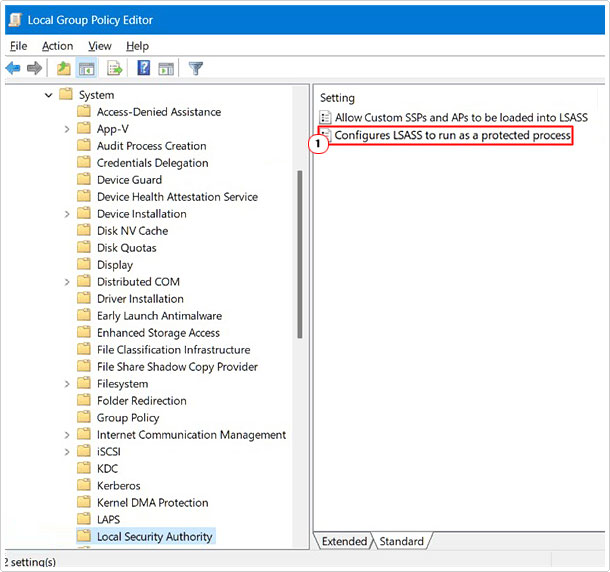
4. Now, double-click on Configures LSASS to run as a protected process.
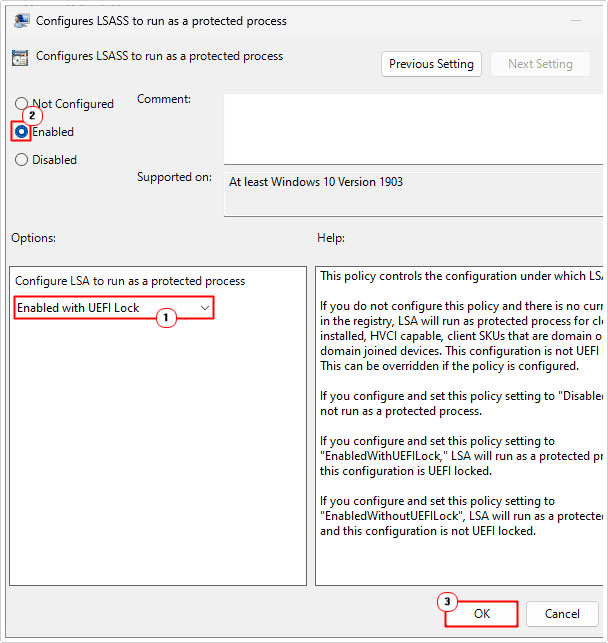
5. This will bring up the Configures LSASS to run as a protected process applet, from here, set Configure LSA to run as a protected process to Enabled with UEFI Lock. Then click on the Enabled option and click on OK.
Using Windows PowerShell
Another method you can use to turn on LSA is through the built-in Windows PowerShell feature. If the other two methods seem a little too complex for you, then this method may suit you best.
Just do the following:
1. Boot into Windows as an admin.
2. Then, right-click on the Start button and select Windows PowerShell (Admin).
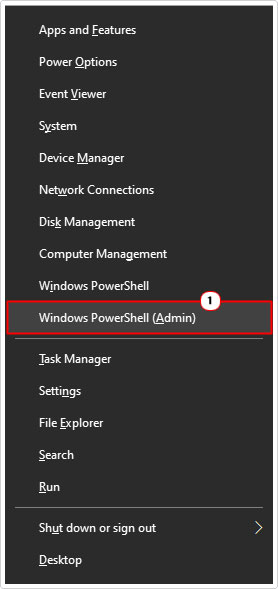
3. When Windows PowerShell loads up, copy and paste the following commands below, pressing Enter after each line.
reg add HKLM\SYSTEM\CurrentControlSet\Control\Lsa /v RunAsPPL /t REG_DWORD /d 2 /f
reg add HKLM\SYSTEM\CurrentControlSet\Control\Lsa /v RunAsPPLBoot /t REG_DWORD /d 2 /f
Repair Windows Security
Microsoft Windows has a built-in repair feature that can be used for apps that are not working properly. Fortunately, this feature is also available for Windows Security. So you may want to try utilising it.
To do that, follow the steps below:
1. Boot into Windows as an admin.
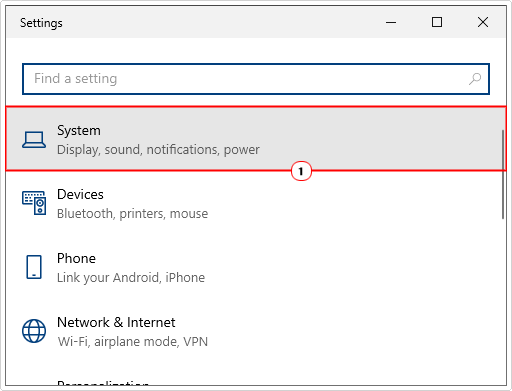
2. Then press + I, when the Settings applet appears, click on System.
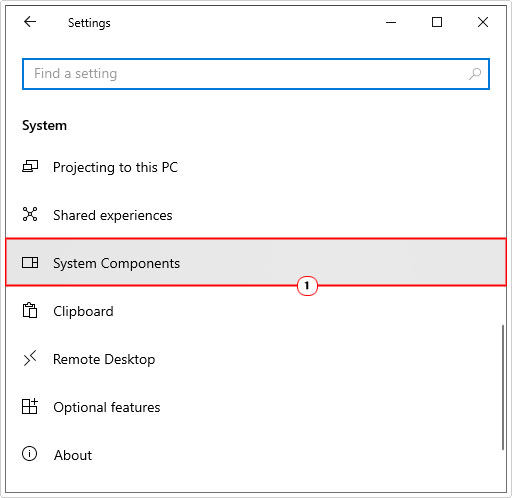
4. From the System menu, click on System Components.
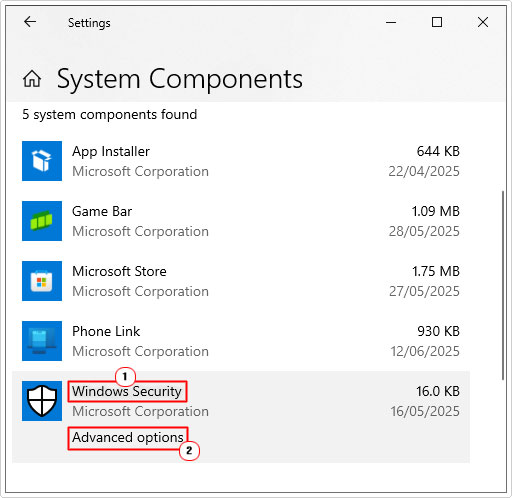
5. Click on Windows Security, then click on Advanced Options.
6. This will take you to the Windows Security Advanced Options screen. From here, click on Repair.
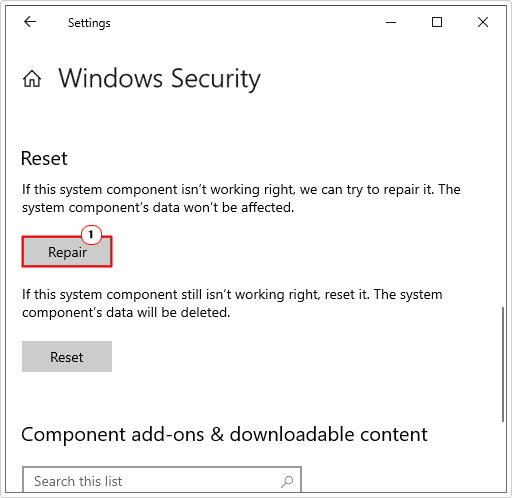
Note: If the Local Security Authority Protection Is Off issue persists, then repeat steps 1 – 6, only this time, click on Reset.
Are you looking for a way to repair all the errors on your computer?
If the answer is Yes, then I highly recommend you check out Advanced System Repair Pro.
Which is the leading registry cleaner program online that is able to cure your system from a number of different ailments such as Windows Installer Errors, Runtime Errors, Malicious Software, Spyware, System Freezing, Active Malware, Blue Screen of Death Errors, Rundll Errors, Slow Erratic Computer Performance, ActiveX Errors and much more. Click here to check it out NOW!