
| Attention Before you read this post, I highly recommend you check out my resources page for access to the tools and services I use to not only maintain my system but also fix all my computer errors, by clicking here! |
Would you like to know what MpCmdRun.exe is, along with a number of solutions you can adopt, when you encounter problems with it? If the answer to both of these questions is yes, then you’ve come to the right place. In this tutorial, we will go into depth on the MpCmdRun.exe process, outlining its usage and common issues.
Microsoft’s Windows operating systems come jam-packed with processes, programs and files. For this reason, it’s not uncommon for an end user to encounter a file, process or program they are unfamiliar with. MpCmdRun.exe is a relatively uncommon file, which is why most users have no idea what it is.
For starters, MpCmdRun is the Malware Protection Command Link Utility. A feature of Microsoft Windows, it is an executable file (defined by the .exe) that is part of the Windows Security Tool. It offers a wide range of functionalities that can be accessed through Command Prompt. Anything from automating to updating the Microsoft Defender app.
The primary function of this feature is to aid in the protection of your system. That is, to protect it from common and uncommon threats. MpCmdRun.exe can be used to operate, configure and manage Microsoft Defender.
Is MpCmdRun.exe Safe?
Providing the MpCmdRun.exe file is legitimate, then yes, it is safe. It is an official component of the Microsoft Defender security app.
This file should pose no threat to your system. However, it’s not uncommon for hackers to use the name of legitimate Windows processes for their viruses. So it is possible you could have a virus disguised as MpCmdRun.exe on your system.
The good news is that there are methods you can use to determine the authenticity of the MpCmdRun.exe file. They are as follows:
Check File Location
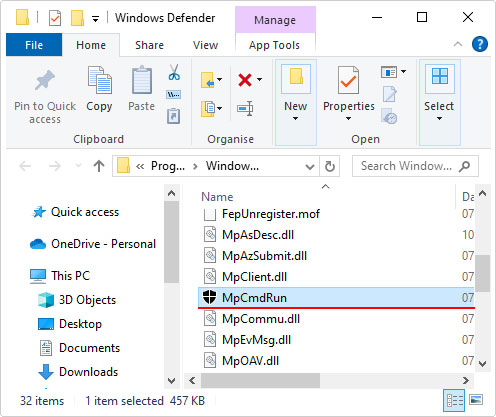
MpCmdRun.exe should be located in the following location:
%ProgramFiles%\Windows Defender\MpCmdRun.exe
1. To access it, press  + R, type %ProgramFiles%\Windows Defender\ and click on OK.
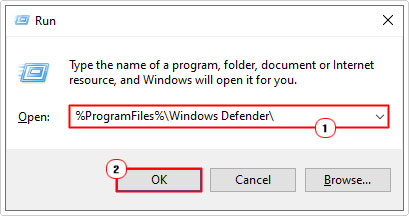
2. This will open the Windows Defender folder. You should be able to locate the MpCmdRun.exe file here.
Check Digital Signature
The Malware Protection Command Line Utility is a feature of Microsoft Windows. For this reason, it should only be found in the Windows Defender folder. Once you’ve opened up the folder, you can verify its authenticity by checking its digital signature.
This will help you determine whether or not the MpCmdRun.exe file is malicious. The steps to checking its signature is as follows:
1. Follow steps 1 – 2 of Check File Location.
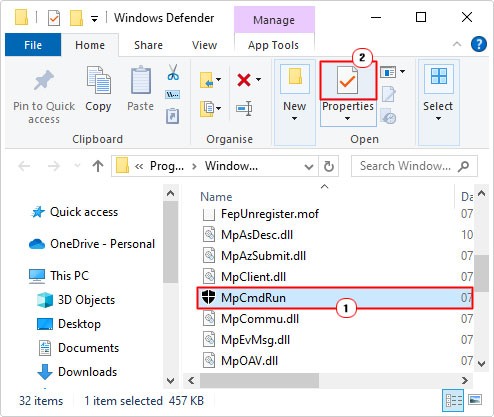
2. When the Windows Defender folder loads up, click on MpCmdRun.exe, then click on Properties.
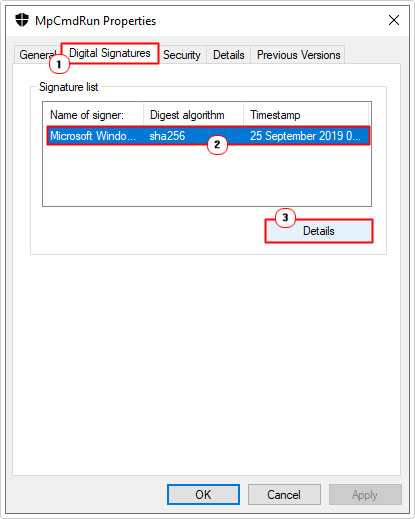
3. This will bring up the MpCmdRun Properties applet, from here, click on Digital Signatures Tab, then click on Microsoft Windows (under Name of signer), then click on Details.
4. The Digital Signature Details page should appear, click on View Certificate.
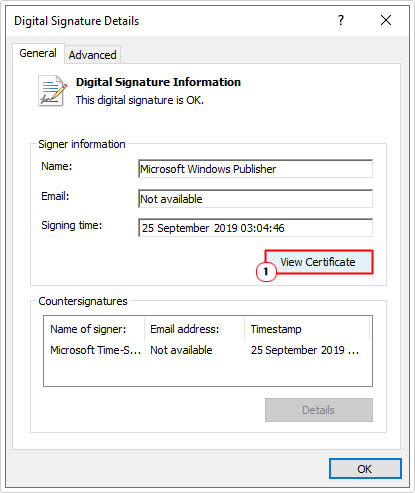
5. This will bring up the Certificate. On the General Tab, it will show the Issued to, Issued by and Valid from information. Which you can use to verify the files authenticity.
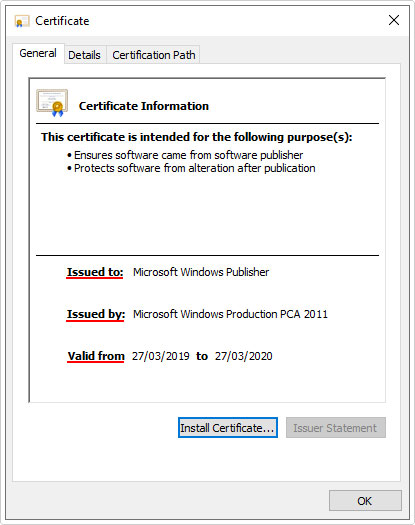
If the information in the Certificate does not indicate it was issued by Microsoft nor does it show a valid certificate date, then you can be sure you have a malicious file disguised as a legitimate file on your system. You’re immediate action should be to run a thorough virus scan.
What Does MpCmdRun.exe Do?
If you need to deploy advanced configuration controls to the Microsoft Defender app, then MpCmdRun.exe is what will allow you to do that. Typical usage of this file are as follows:
- Updating: It’s possible to update Microsoft Defender’s virus definition files through this tool. Ordinarily, this should be done automatically, but it’s reassuring to know you can run an update whenever you need it.
- App Configuration: Via the Command Line, it’s possible to make settings changes to network protection, cloud security and real-time scanning.
- Virus Scan: Through the MpCmdRun.exe command line feature, it’s possible to run a scan of drives, files or folders. This can be in the form of a Quick Scan, Full Scan or Custom Scan.
- File Quarantining: Using this feature allows the end user to take full control of quarantined files, choosing whether to manually Restore or Erase such files.
Now that you have a general idea of how the MpCmdRun.exe process works, let’s get into how to use it.
Accessing MpCmdRun.exe
MpCmdRun.exe is a command-line utility, which means it doesn’t come with its own Graphical User Interface (GUI). The only way to use it is through Command Prompt.
To access it, follow the steps below:
1. Boot into Windows with full administrative rights.
2. Then press + R, type cmd and press CTRL + Shift + Enter.
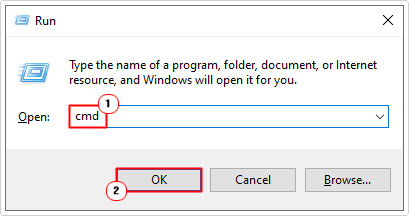
3. When Command Prompt loads up, type the command below and press Enter.
“%ProgramFiles%\Windows Defender\MpCmdRun.exe”
A display of all the command operations of the Malware Protection Command Line Utility should appear. Through these options, you should be able to identify the operation you require and type the correct parameters into the command line.
In order to correctly use one of the command operations you will need to type the following:
"%ProgramFiles%\Windows Defender\MpCmdRun.exe" <Command-Operation>
With the specific command operation positioned as highlighted.
So if you wanted to carry out a Full Scan, you would type this command and press Enter:
"%ProgramFiles%\Windows Defender\MpCmdRun.exe" -Scan -ScanType 2
Note: Ending the command line with a 1 (instead of 2) will carry out a Quick Scan.
Microsoft Defender will scan your entire system. After it has finished, it will generate a Windows Security notification.
If you would like to do a Custom Scan, use the following command (and press Enter):
"%ProgramFiles%\Windows Defender\MpCmdRun.exe" <Custom-Path>
Note: You will need to enter the Path location in the Custom Path area.
If you would like a detailed report of the scan, click on the notification box, which should appear in the Windows Action Center area.
You can find full documentation on all the various command operations and how to use them, from Microsoft’s official website, here.
Fix MpCmdRun.exe Errors
If the MpCmdRun.exe is a malicious threat, then the Malware Protection Command Line Utility will fail to run during attempts to execute the commands outlined above. This failure to execute may be accompanied with corresponding error notification(s).
In situations like this, you can fix the situation by carrying out one or more of the solutions below:
Restart Your System
Probably the most obvious. If MpCmdRun.exe is not working, then it’s recommended that you restart your system. The most effective way to do this, is by holding down the power button, until the system shuts down (make sure you have no apps running). Then power it back on.
Use Windows Repair Tool to Fix MpCmdRun.exe Error(s)
If the simple solution above fails to fix the MpCmdRun.exe error, then you may want to try something more holistic, but at the same time, very easy, by using a Windows Repair Tool.
The tool I specifically have in mind, is highly advanced, capable of detecting a plethora of issues on your system, including .exe errors. Additionally it can, when run, identify, locate and fix, known malicious threats as well as common Windows errors.
It’s fully automated, so all you need to do is run it.
If by any chance, that interests you, then visit the link below:
CLICK HERE TO CHECK OUT THE ADVANCED REPAIR TOOL
Update Windows
If the MpCmdRun.exe error is followed up with an error code 0x80070667, this issue has already been identified as an outdated OS issue. To fix this problem, you will need to update Windows 10 to at least Version 1703.
To do that, follow these simple steps:
1. Boot into Windows as an Admin.
1. Now, press + I, and click on Update & Security.
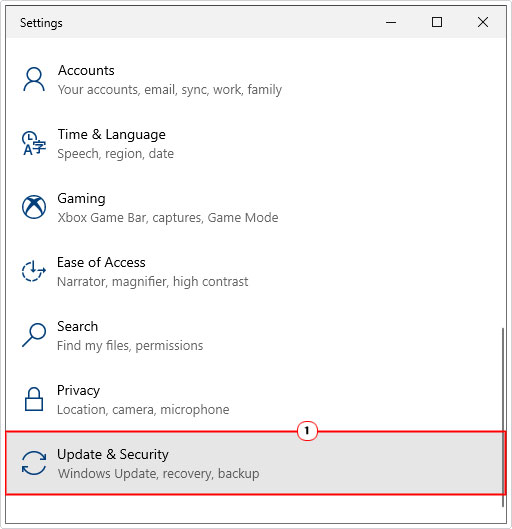
2. When Update & Security loads up, click on Windows Update.

3. When Windows Update loads up, click on Check for updates.

Regularly updating your operating system is crucial to ensuring it is always safe from security vulnerabilities and malicious threats.
Run System File Checker
System File Checker or SFC, like MpCmdRun.exe is a command-line tool, designed to fix your operating system by replacing missing or corrupt system files. If the MpCmdRun.exe error is the result of a virus infection, a virus scan would naturally need to be applied. In addition, you may also need to run a SFC scan, to restore the integrity of your OS.
Anyway, instructions to using this built-in tool can be found on my post titled how to run SFC Scannow.
Are you looking for a way to repair all the errors on your computer?

If the answer is Yes, then I highly recommend you check out our 24/7 Live Support Service.
Which is the leading Online Support Service that is able to help you cure your system from a number of different ailments such as Windows Installer Errors, Runtime Errors, Malicious Software, Spyware, System Freezing, Active Malware, Blue Screen of Death Errors, Rundll Errors, Slow Erratic Computer Performance, ActiveX Errors and much more. Click here to check it out NOW!