
| Attention Before you read this post, I highly recommend you check out my resources page for access to the tools and services I use to not only maintain my system but also fix all my computer errors, by clicking here! |
Did you recently come face to face with an MSVCP100.dll is missing error while attempting to run a game or application? You must be at least curious to know exactly what went wrong. DLL missing errors can occur in many different circumstances, such as when running (or attempting to) an app or game, and when starting and shutting Windows down. They are also known to occur when installing a new program. General causes of this error range from data corruption to an outdated OS.
If the MSVCP100.dll file is missing from your system it can cause the operating system to display the following error message:
The program can’t start because MSVCP100.DLL is missing from your computer. Try reinstalling the program to fix this problem.
Of course, this is dependent on several circumstances.
MSVCP100.dll is a DLL or Dynamic Link Library file, which is most commonly used in applications developed (or programmed) in Visual C++. It is not a system file, which means, the OS can run and function optimally, without it. However, some apps and programs will not work without it. MSVCP100.dll encompasses features along with specific code that is required for a wide range of apps to work.
The MSVCP100.dll file can typically be found in the location below:
C:\Windows\System32
File size may vary, but you’re looking at a file size of 400,000 to 700,000 bytes. This is the only location you should, ordinarily find the file. If you notice it anywhere else, then it could potentially be an illegitimate virus file.
What Causes MSVCP100.dll Is Missing Errors?
There are a wide range of malicious files and threats, from worms, to ransomware to Trojan horses that can and oftentimes do use .DLL files to carrying out their nefarious activities. In some cases, it’s not uncommon for cybercriminals to name their malware after legitimate executables and DLL files. A very clever way of disguising it.
However, in additional to the potential of the error being malware, you also have the following to consider:
- The MSVCP100.dll file was corrupted or accidentally erased.
- Microsoft’s Visual C++ redistributable package is outdated.
- The Windows registry has been corrupted.
- One or more device drivers is outdated or corrupted.
There may be more, but ultimately, the above causes are found to be the culprit in the vast majority of cases.
So, what can you do to fix it? Continue reading to find out.
How to Fix It
It’s possible your hard disc drive or memory modules are to blame for the MSVCP100.dll error. These are fairly simple devices to test, which is why it’s recommended you get them out of the way first.
To test your memory you will need to use the Windows Memory Diagnostic tool. If you don’t know how to access or use this tool. Check out my post on fixing error code 0x8007025D.
For your hard disc drive, you will need to use the solution provided. It should have its own tool, (which you will likely need to download from the manufacturers website) to test the integrity of the device.
The next possible cause is the accidental erasure of the MSVCP100.dll file. In circumstances like this, you should be able to retrieve the file from the recycle bin.
The whole process is fairly simple, just do the following:
1. Ensure you’ve booted into Windows as an admin.
2. Then, double-click on the Recycle Bin (on the Desktop).

3. When the Recycle Bin loads up, click on the MSVCP100.dll file and click on Restore the selected items.
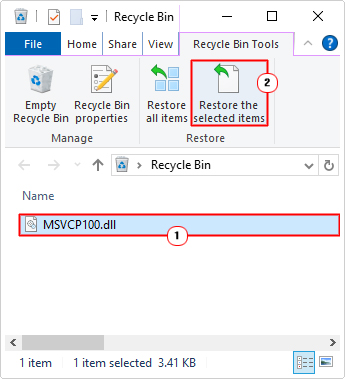
If the MSVCP100.dll file is not in there, it means the file has been permanently erased – or maybe it wasn’t erased at all.
Either way, if the error persists, then I suggest you attempt the more sophisticated solutions outlined below.
Run Windows Repair Tool to Fix MSVCP100.dll Is Missing Errors
The next most efficient and proficient way of fixing the MSVCP100.dll is missing error is to use a professional Windows repair tool. One capable of scanning, detecting and fixing such errors.
The tool I have in mind is not only proficient in fixing DLL errors, but also equally adept at repairing registry corruption, BSOD errors, runtime errors and much more.
System optimisation is another capability of this tool, which means, a faster system within a single scan.
If by any chance that interests you, then visit the link below:
CLICK HERE TO CHECK OUT THE ADVANCED REPAIR TOOL
Update Device Drivers
Another known and common cause of MSVCP100.dll errors is outdated device drivers.
As an example, it’s possible the drivers for your graphics card are too outdated to run the game in question.
For that reason, I recommend you consider a driver update.
To do that, visit the website of your graphics card manufacturer. You will need to know the make and model to do this.
However, if you lack this information or lack the expertise in general, there is an easier method available in the form of a driver automation tool.
Simply, download, install and run it, and it’ll do the rest, search the internet and update the drivers for all your most crucial hardware devices (including the graphics card).
If the driver automation tool is the preferable option, then visit the link below:
CLICK HERE TO CHECK OUT THE DRIVER FINDER TOOL
 The solution(s) below are for ADVANCED level computer users. If you are a beginner to intermediate computer user, I highly recommend you use the automated tool(s) above! The solution(s) below are for ADVANCED level computer users. If you are a beginner to intermediate computer user, I highly recommend you use the automated tool(s) above! |
Install Microsoft Visual C++ Redistributable Package
One of, if not the most common cause of an MSVCP100.DLL is missing error is the erasure or corruption of said file. The best approach to this error cause is to re-download the C++ redistributable package.
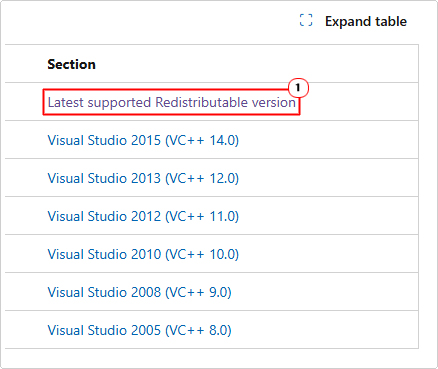
It’s a fairly simply process, just visit the following page: https://learn.microsoft.com/en-us/cpp/windows/latest-supported-vc-redist?view=msvc-170
Then, click on Latest supported Redistributable version.
Now click on the appropriate version: X86 or X64, and save it to Desktop.
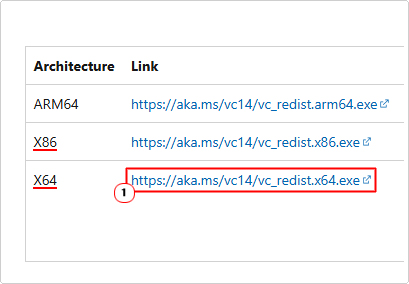
Note: X86 is for 32-bit operating systems and X64 is for 64-bit Windows.
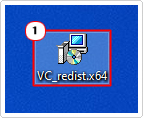
Double-click on .exe file to begin installation.
Download MSVCP100.dll
If the redistributable package fails to rectify the MSVCP100.dll error, then you can try downloading and installing the file manually. To do that, follow the steps below:
1. First, boot into your system as an administrator.
2. Then download the MSVCP100.dll file from the corresponding link:
32-bit: https://www.mediafire.com/file/qbrf44tc3febdkv/msvcp100+32.zip/file
64-bit: https://www.mediafire.com/file/npvu2okrhy2drg5/msvcp100+64.zip/file
Note: Make sure you download the appropriate version for your OS architecture.
3. Next, double-click on MSVCP100.zip file, and select Extract To.
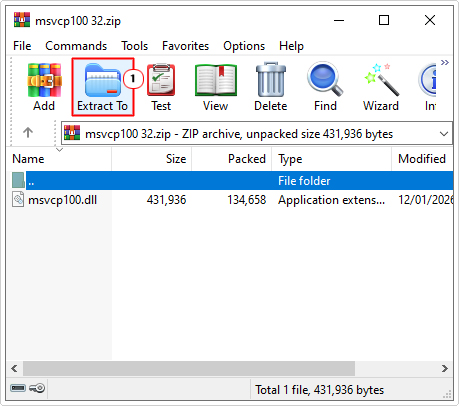
Note: I am using WinRAR for this tutorial.
4. This will bring up the Extraction path and options applet. From here, type C:\Windows\System32 into the Destination path box and click on OK.
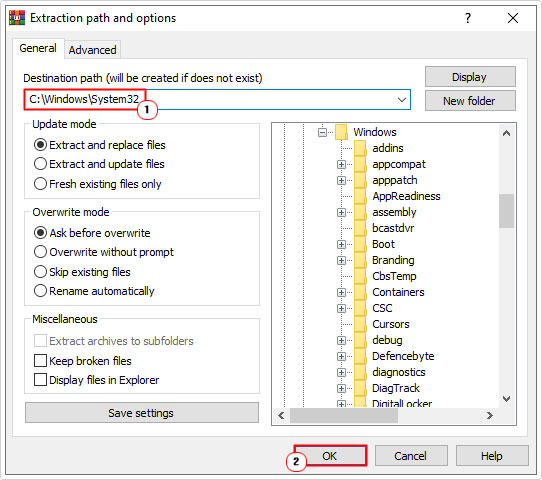
5. Restart your computer and retry the app (or game).
Use System Restore
If the above solution(s) fail to fix the MSVCP100.DLL is missing error, then you can try the System Restore tool. The objective is to restore your system back to a point, prior to the MSVCP100.DLL error. Whether or not this will work, is dependent on whether the restore point(s) are available.
For more information on how to use this tool, check out my post titled what is a restore point.
Repair Windows
If the problem has still not been resolved, then you may want to try repairing the integrity of your operating system. There are several ways that you can do this. You can use Windows Recovery and go through the restoration process.
An ideal, though time-consuming method.
Another option you have available are the tools SFC and DISM. These are built-in tools, designed to repair and/or restore missing or corrupted Windows files. Depending on the cause of the error, this may or may not fixed the error.
Anyway, for more information on how to use these tools, check out my post on fixing Msinfo32.exe “Can’t Collect Information” errors.
Are you looking for a way to repair all the errors on your computer?

If the answer is Yes, then I highly recommend you check out Advanced System Repair Pro.
Which is the leading registry cleaner program online that is able to cure your system from a number of different ailments such as Windows Installer Errors, Runtime Errors, Malicious Software, Spyware, System Freezing, Active Malware, Blue Screen of Death Errors, Rundll Errors, Slow Erratic Computer Performance, ActiveX Errors and much more. Click here to check it out NOW!