
| Attention Before you read this post, I highly recommend you check out my resources page for access to the tools and services I use to not only maintain my system but also fix all my computer errors, by clicking here! |
DLL errors, such as those that allude to the inability to locate a specific file, are relatively common. General symptoms include an inability to load specific apps and sluggish system performance. In this tutorial, we will be focusing specifically on the MSVCP120.dll file and its associated error(s). So continue reading for that.
Like many DLL files, MSVCP120.dll is one of many files that makes up the Microsoft Redistributable Package, making it a requirement for a whole slew of applications programmed in Microsoft Visual Studio. Visual Studio is essentially a development environment. Used to develop mobile apps, websites, web services and much more.
The MSVCP120.dll error message, in most circumstances will responsible something like the following:
The code execution cannot proceed because MSVP120.dll was not found. Reinstalling the program may fix this problem.
DLL or Dynamic Link Library files are unique in that they contain data or functions that are sourced by multiple apps. They are created so that they can be loaded (into memory) as and when an app requires them. Without these files, programs may not run smoothly to not running at all.
What Causes MSVCP120.dll Is Missing Errors?
In many situations, the MSVCP120.dll file may simply be the result of an app not being installed correctly. So, going through the installation process (as stated in the error message) will oftentimes fix the error.
However, there are times when the error still persists. This is likely due to the cause being one of the following:
- The Windows registry is corrupted: The registry for your operating system can be damaged (or corrupted) due to a virus infection or an irregular shutdown.
- Virus infection: A virus infection can cause a wide range of problems for your system, depending on the virus type and the intent of the cybercriminal.
- Corrupt application: An application could become corrupt as the result of a conflict. Two files attempting to share the same resources (DLL files) can sometimes cause issues to arise.
So, now we have a general idea of what causes these errors, let’s take a look at the various ways you can fix this problem.
How to Fix It
When it comes to fixing the MSVCP120.dll error, and DLL errors in general, there are a number of things you can do.
So to begin, we’ll start with the simple stuff.
The first thing you should do, is as the error message states, reinstall the application. In many circumstances end users have reported they were able to fix the error, simply by reinstalling the program that caused the error.
Reinstallation is a very simple process. The most important aspect of it however, is the removal of all remnants of the program before you begin the install phase.
For step-by-step instructions on how to properly uninstall an app, check out my post on fixing Ucrtbased.dll was not found errors.
Another thing I noted was that the MSVCP120.dll file belongs to the redistributable package. For that reason, it’s recommended that you reinstall it (Microsoft Visual C++ Redistributable).
The simplest way to do that is to download the file package from the following link and run the installer: http://www.microsoft.com/en-us/download/details.aspx?id=40784
Scan For Viruses
A malicious file can get onto your system and corrupt important system files, resulting in various issues and errors. For this reason, it’s recommended that you run a full scan of your system using your internet security solution.
If you don’t have internet security software or, you’re interested in using something better, then I recommend you check out my post on the best antivirus software.
Use Windows Repair Tool to Fix MSVCP120.dll Is Missing Errors
If the above mentioned solutions all fail to fix the MSVCP120.dll is missing error (on your system), then the next recommended viable solution for this problem is the use of a Windows repair tool.
The tool I have in mind is especially adept at fixing DLL errors, as well as app errors, registry corruption, and much more.
An error free system is a faster system, which means, it will also make your system perform more optimally. Making it both a maintenance and repair suite.
If, by any chance that interests you, then visit the link below:
CLICK HERE TO CHECK OUT THE ADVANCED REPAIR TOOL
 The solution(s) below are for ADVANCED level computer users. If you are a beginner to intermediate computer user, I highly recommend you use the automated tool(s) above! The solution(s) below are for ADVANCED level computer users. If you are a beginner to intermediate computer user, I highly recommend you use the automated tool(s) above! |
Install MSVCP120.dll
If all of the solutions up to this point have failed to fix the MSVCP120.dll error, then you may want to try manually installing the file to your system.
It’s not as complicated as it sounds. Just do the following:
1. First, boot into Windows as an admin.
2. Next, download the appropriate MSVCP120.dll file from the following links:
32-bit Version: https://www.mediafire.com/file/ion6wd9z812r9ej/msvcp120+32.zip/file
64-bit Version: https://www.mediafire.com/file/igc8uikddxpvxgn/msvcp120+64.zip/file
3. Now open the MSVCP120.zip file and click on Extract To.
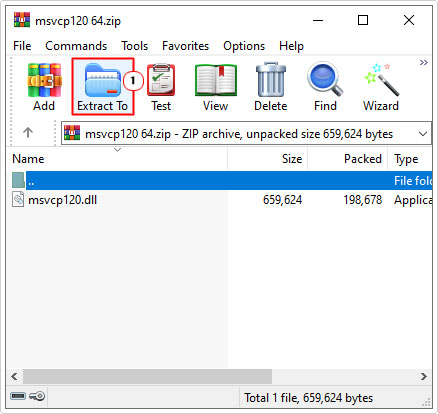
Note: In this tutorial, I’m using WinRAR.
4. When the Extraction path and options applet pops up, type C:\Windows\System32 into the Destination path box and click on OK.
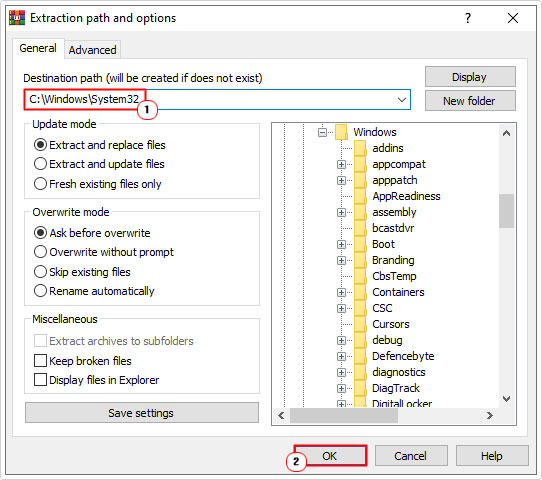
5. Once that’s complete, restart your computer.
You can now check whether or not the error has been fixed.
Update Windows
It’s crucial that your system is kept up-to-date with the latest patches and security updates. To determine whether or not that is the case, you will need to occasionally run Windows Update, if it isn’t already set to automatically update (default).
Anyway, the quickest way to check for an update is by doing the following:
1. Boot into Windows as an admin.
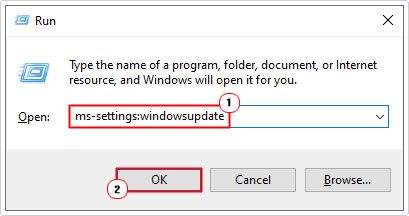
2. Then press  + R, type ms-settings:windowsupdate and click on OK.
3. When Windows Update loads up, click on Check for updates.
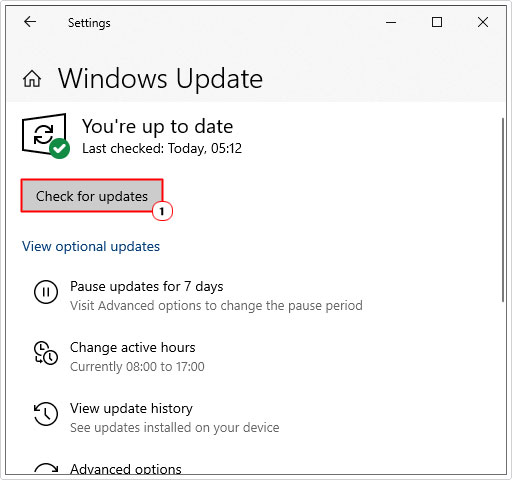
If it finds an update, simply click on Update to begin the installation process.
Run SFC and DISM
SFC (System File Checker) and DISM (Deployment Image Servicing and Management) are two maintenance tools built into the Windows operating systems. Which means they are free to use. Both have different primary functions which is why it’s recommended that you run them both. For instructions on how to use these tools, check out my post on fixing D3dx9_43.dll is missing errors.
Use System Restore
If the available restore point exists on your system, then you may want to use it to set your system back to before the error first occurred. Of course this is dependent on a number of factors, many of which are likely out of your control.
Anyway, as far as System Restore is concerned, you can learn more about it, as well as the various steps you will need to take to use it, from my post on what is a restore point.
Repair Windows
If the MSVCP120.dll error is still present on your system even after attempting all the listed solutions, then you may want to try a Windows repair. This is a built-in feature, designed to restore your system back to its original configuration with or without erasing your personal contents (that option is up to you).
For instructions on how to repair Windows, check out my post on fixing FAULTY HARDWARE CORRUPTED PAGE.
Are you looking for a way to repair all the errors on your computer?

If the answer is Yes, then I highly recommend you check out Fortect.
Which is the leading registry cleaner program online that is able to cure your system from a number of different ailments such as Windows Installer Errors, Runtime Errors, Malicious Software, Spyware, System Freezing, Active Malware, Blue Screen of Death Errors, Rundll Errors, Slow Erratic Computer Performance, ActiveX Errors and much more. Click here to check it out NOW!