
| Attention Before you read this post, I highly recommend you check out my resources page for access to the tools and services I use to not only maintain my system but also fix all my computer errors, by clicking here! |
Microsoft’s Windows operating system comes jam-packed with features designed to make carrying out your daily tasks a much more efficient and engaging process. However, it’s not without its flaws as “msvcp140.dll is missing errors” is just one of a multitude of issues an end user can encounter.
DLL files are relatively small in size, but are crucial for certain apps to run in Windows. If a certain DLL file is missing or corrupted, then the app that needs it may function but in an unstable fashion or in more extreme cases, the app may not work at all. Fixing this issue can be quite tricky, because the file in question, can’t simply be reinstalled, like a broken app. These files form part of a library of files that typically cannot be acquired separately.
It goes without saying that you’re looking for a solution to the msvcp140.dll missing error on your system. However, the circumstances in which it occurred may vary. Maybe you were trying to play a video game or just boot up your system, when you encountered the following error message:
The code execution cannot proceed because MSVCP140.dll was not found. Reinstalling the application may fix this problem.
There are a number of apps and games that require this file, with the most notable being Apex Legends. If the msvcp140.dll file is misplaced for one reason or the other, it could have been moved or deleted during an uninstallation.
The good news is that there are ways around these kinds of errors. In this tutorial, I will guide you through them, however, before we get to the solutions, let’s take a look at its common causes.
What Causes Msvcp140.dll Is Missing Errors?
Msvcp140.dll is a very crucial DLL file that is featured as part of the Visual C++ Redistributable package.
This particular package is required for your operating system to run apps that are coded in Visual Studio. Visual Studio is a coding language used to develop apps. However, Visual Studio itself does not need to exist on the target machine for it to run these apps.
When it comes to the msvcp140.dll missing error, there are several common causes you must look out for. These are as follows:
- The msvcp140.dll file has been corrupted: If the DLL file was mistakenly erased or corrupted, then the app(s) that require it may not be able to launch.
- Your system has been infected with a malicious file: Malicious files, such as worms, viruses and Trojan horses are capable of infiltrating your system and corrupting system files.
- Uninstallation issue: It’s possible when you uninstalled a program, it accidently erased the msvcp140.dll file along with it. If the msvcp140.dll file is no longer present on your system, then all the other apps that require it may stop working.
- Accidental removal: You or another may have mistakenly erased the file from your system.
- Windows system files have been corrupted: The system files are integral to the smooth operation and functionality of Windows. If these files are corrupted for any reason, they can and oftentimes do manifest in the form of errors.
Now that we have a general understanding of what may be causing this error, let’s go through the select solutions you can deploy right now.
How to Fix It
There are a variety of things you can do to rectify this problem, fortunately. But as always, it’s best to start with the simplest solutions, then slowly move towards the more sophisticated ones.
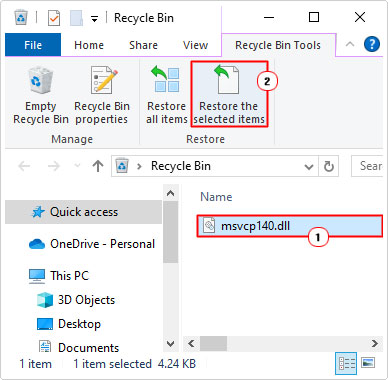
So, to begin with, I’d recommend you checked your recycle bin. An msvcp140.dll is missing error, indicates that the operating system is unable to locate the file. This could mean, that the file was mistakenly deleted. If so, then it could be in the recycle bin.
Simply do the following:
1. Boot into Windows as a full administrator.
2. Then double-click on the Recycle Bin.

3. When the Recycle Bin opens, locate and click on msvcp140.dll then click on Restore the selected items.
Download Visual C++ Redistributable
Msvcp140.dll is missing errors are typically caused by the corruption or deletion of the DLL file itself. Thus, the second most effective method in tackling this issue, is to download and install the Visual C++ Redistributable. Why? Because the msvcp140.dll file forms part of the redistributable, which means, installing it, should restore the file and access to it!
Instructions are as follows:
1. Ensure you’ve booted into Windows as an admin, then visit the following Microsoft link: https://www.microsoft.com/en-gb/download/details.aspx?id=40784
2. Simply select the appropriate language, then click on Download.

Once you’ve downloaded the installer to your system, double-click on it to begin the installation process. Follow the onscreen instructions to complete this process.
Scan For Viruses
It’s possible that your system was infected with a malicious file that has corrupted a number of files on your system (including msvcp140.dll).
For this reason, it’s recommended that you scan your system for viruses, using whatever antivirus solution you have on your system.
However, if you don’t have an antivirus scanner or you simply want to try something better, then I’d recommend you gave System Mechanic a try, and that’s because it is undoubtedly one of the very best antimalware tools in the only marketplace today.
You can learn more about this tool and how it can help you, from the link below:
CLICK HERE TO CHECK OUT SYSTEM MECHANIC
Use Windows Repair Tool to Fix Msvcp140.dll Is Missing Errors
If the solutions outlined above failed to fix the Msvcp140.dll error, then you may want to consider using the automated solution through the use of a Windows repair tool.
This tool is designed to scan your operating system and detect faults and carry out repairs were applicable.
Errors such as DLL, game, BSOD, update, app, browser and much more can be fixed with this tool. It’s also capable of making previously inaccessible files accessible, as well as making your system perform faster.
All you need to do is download, install and run the tool, and it will do the rest.
If by any chance this interests you, then visit the link below:
CLICK HERE TO CHECK OUT THE ADVANCED REPAIR TOOL
 The solution(s) below are for ADVANCED level computer users. If you are a beginner to intermediate computer user, I highly recommend you use the automated tool(s) above! The solution(s) below are for ADVANCED level computer users. If you are a beginner to intermediate computer user, I highly recommend you use the automated tool(s) above! |
Reinstall App
Typically, the error message will state that reinstallation may solve the program error. So for this solution, I’d suggest you gave that a try.
The most important aspect of this process is the removal of the app before the reinstallation.
The steps are as follows:
1. Boot into Windows as a full admin.
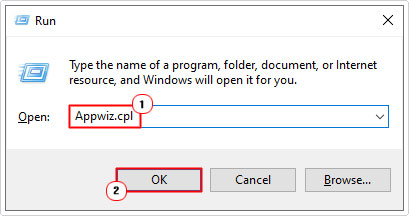
2. Then press  + R, type Appwiz.cpl and click on OK.
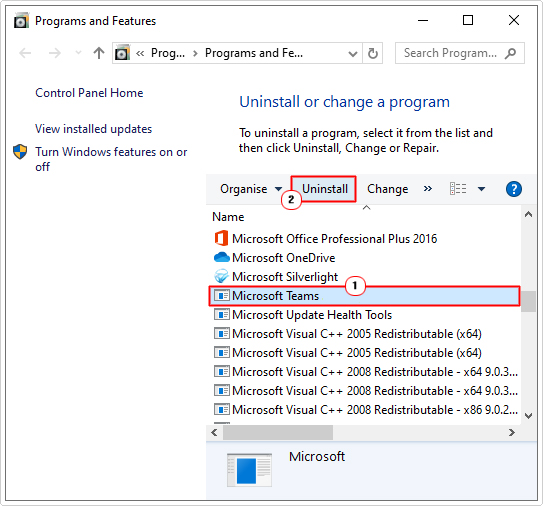
3. This will bring up Program and Features, simply click on the App then click on Uninstall.
4. Once the uninstallation has ended, restart your system. Then reinstall the app.
You can now verify whether or not it fixed the msvcp140.dll missing error.
Re-Register Msvcp140.dll
DLL missing errors can oftentimes be fixed simply by re-registering the DLL file in the Windows registry. However, this method is only ever successfully if the target file still exists on your system and is intact.
Anyway, the instructions are as follows:
1. Boot into Windows as an admin.
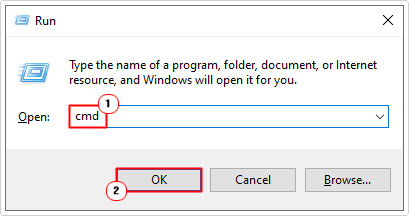
2. Then press + R, type cmd and press CTRL + Shift + Enter.
3. When Command Prompt loads up, type the commands below pressing Enter after each line:
regsvr32 /u msvcp140.dll
regsvr32 msvcp140.dll
4. Close Command Prompt, then restart your system.
Now you can check if it worked or not.
Replace Msvcp140.dll
If you’re still getting the msvcp140.dll missing error notification, even after attempting all the solutions above, then you may want to consider manually downloading and replacing the file on your system.
The instructions are as follows:
1. First, boot into Windows as an admin.
2. Then download the appropriate msvcp140.zip file from the following links:
32-bit version: https://www.mediafire.com/file/csgz18nn6frokla/msvcp140+32.zip/file
64-bit version: https://www.mediafire.com/file/1moavhx6nrft1le/msvcp140++64.zip/file
3. Once you’ve saved the msvcp140.zip file to your system, double-click on it, then click on Extract To.
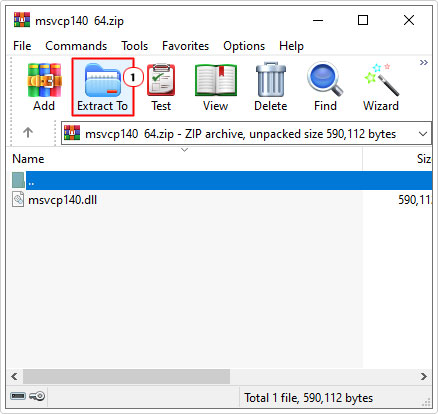
Note: I am using WinRAR for this tutorial.
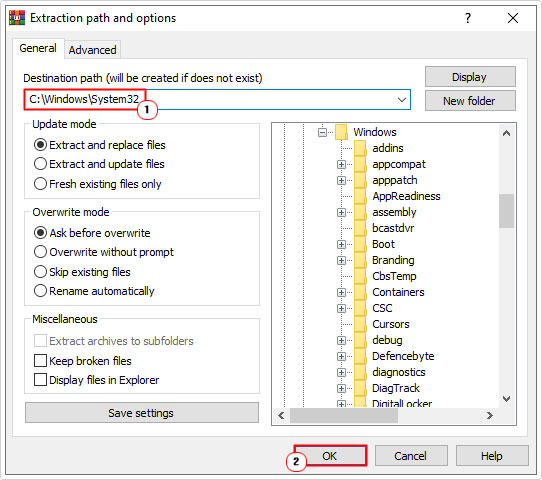
4. This will bring up the Extraction path and options applet. Type C:\Windows\System32 into the Destination path box and click on OK.
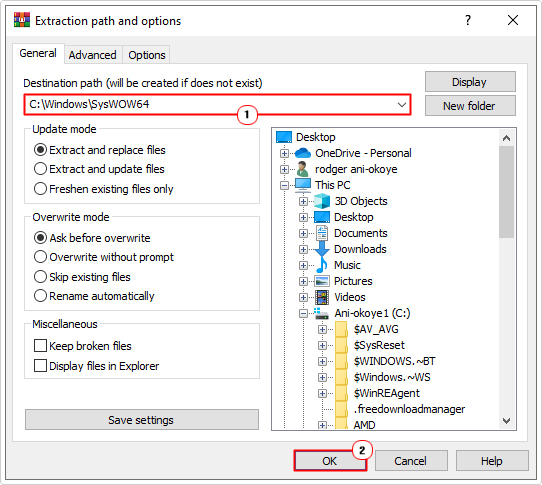
5. Follow steps 3 – 4 again, only type C:\Windows\SysWOW64 into the Destination path box and click on OK.
6. Lastly, follow steps 2 – 3 of Re-Register Msvcp140.dll.
Update Windows
Many end users have discovered that they were able to fix the msvcp140.dll error simply by updating their operating system. Windows Update is an essential component, used to keep the system up-to-date with the latest feature updates and security patches.
Depending on the circumstances that led up to the error, it’s possible this solution may fix it.
For step-by-step instructions on how to update Windows, check out my post on fixing MSVCP120.dll is missing errors.
Are you looking for a way to repair all the errors on your computer?

If the answer is Yes, then I highly recommend you check out our 24/7 Live Support Service.
Which is the leading Online Support Service that is able to help you cure your system from a number of different ailments such as Windows Installer Errors, Runtime Errors, Malicious Software, Spyware, System Freezing, Active Malware, Blue Screen of Death Errors, Rundll Errors, Slow Erratic Computer Performance, ActiveX Errors and much more. Click here to check it out NOW!