
| Attention Before you read this post, I highly recommend you check out my resources page for access to the tools and services I use to not only maintain my system but also fix all my computer errors, by clicking here! |
Do you currently have a PCI device driver missing issue on your Windows based system? Is there a yellow exclamation mark next to the PCI component in Device Manager? If you answered yes to any one of these questions, then you’ve come to the right place. Driver issues are all too common in Windows. Fortunately, there are many ways that you can overcome them. So continue reading to find out.
PCI stands for Peripheral Component Interconnect and it is amongst the oldest (after ISA) local computer busses, used for attaching or connecting hardware devices to your system. Today, it is still a bus standard, which means many external components you can purchase today are manufactured using this architecture. Depending on your motherboard configuration, you can have anywhere from one to as many as five or more PCI slots embedded on the board. These slots can be used to connect sound cards, graphics cards, network cards, disk controllers and much more.
If you see any iteration of the “PCI device driver missing” message in the status area of the component in Device Manager, it means Windows is unable to properly recognise the device. This can be due to a malfunction or a lack of proper drivers.
Because of Windows inability to properly identify and use the PCI device, it can prohibit other PCI devices (connected to your system) from working. For this reason, it’s crucial that you figure out how to rectify this issue.
General symptoms of a PCI device driver problem may include:
- The systems inability to find or recognise a hardware device.
- Common components such as your Wi-Fi device, Bluetooth device or sound card, no longer working.
What Causes PCI Device Driver Missing Errors?
Your system is the perfect balance of both software and hardware devices. The PCI hardware device is just one example of many in your system. In order for it to work, Windows must first be able to identify it. This can only be done with fully functional drivers. Without these drivers, you get the following errors.
However, there are instances, when “drivers” may not be the cause of the error. In situations like this, you’re looking at the following causes:
- The motherboard is faulty.
- Your Windows operating system is corrupted.
- A Windows update replaced your original motherboard drivers.
- The chipset drivers (for your motherboard) are corrupted or missing altogether.
So, what can you do to fix this problem? Quite a few things.
How to Fix It
First things first, to ensure PCI driver issues do not occur, there are several things you must do and be cognizant of. These are:
- After a fresh Windows install, you must immediately install your motherboard (chipset) drivers.
- Consider investing in a driver tool, so that your current drivers are regularly backed up and updated when needed.
- Make sure you install a legitimate copy of Windows on your system.
That said, if you have a PCI device driver is missing error in Windows, then you should see a Yellow Exclamation Mark right next to the PCI device. Under that, when you click on the > icon, it may list several (or all) Unknown devices. The PCI device is made up of several features that are typically listed under in Device Manager.
If the drivers for the PCI device are literally just missing, then you should be able to download them from the appropriate source. There are several ways you can do this, which will discuss.
Use Driver Finder Tool to Fix PCI Device Driver Missing Issue
If you are relatively new to components or aren’t exactly an advanced user, then the manual methods may not be to your liking. Fortunately, there is a quick and easy method of rectifying this problem. That is to use a driver automation tool to search the internet, locate, then download and install the appropriate drivers for you.
Such a tool will make the whole process significantly easier for you, as you won’t need to do any of the heavy lifting yourself. Just download, install and run the tool and it will do the rest.
So, to start things off, I recommend you use a driver automation tool. The one I have in mind can be acquired from the following link below:
CLICK HERE TO CHECK OUT THE DRIVER FINDER TOOL
 The solution(s) below are for ADVANCED level computer users. If you are a beginner to intermediate computer user, I highly recommend you use the automated tool(s) above! The solution(s) below are for ADVANCED level computer users. If you are a beginner to intermediate computer user, I highly recommend you use the automated tool(s) above! |
Update PCI Device Drivers via Website
If you feel you have the expertise to do it, then you can try locating and downloading the drivers manually. To do this, you will need to know the brand and model number of your motherboard.
Depending on how your system was acquired, you may be able to find the motherboard manual for your computer, which should outlined exactly what you need.
However, if you’re unable to locate your manual, then you can acquire this information using the steps below:
1. First, boot into Windows as a full administrator.
2. Then press  + R, type devmgmt.msc and click on OK.
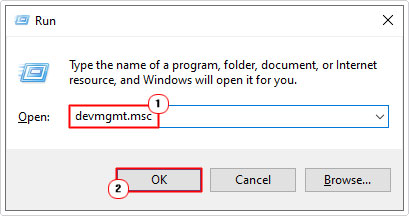
3. This will load up Device Manager, click on the > icon next to System devices.

Note: Depending on the severity of the issue, you may need to click on the > icon next to Other devices.
4. You should see a yellow exclamation mark next to PCI Device, double-click on it, to bring up its properties applet.

Note: The name of your PCI device may vary, depending on the brand and version.
5. When the PCI Device Properties applet pops up, click on the Details Tab, then select Hardware IDs from the drop down menu. Lastly, right-click on the first line (in the Value box) and click on Copy.

6. Now, open up Google Search and paste the Value data into the Search box and click on the Search Icon.

7. This should being up the appropriate driver(s) for your PCI Device. Download and install these drivers.
Once you have successfully installed the drivers, you will need to restart the component to finish of the process.
Update PCI Device Drivers Using Device Manager
It is possible, however to install the appropriate drivers for the PCI Device using Device Manager itself. However, this method is quite spotty, as its Windows driver set can be quite limited. So the possibility of it finding and installing appropriate drivers is quite low, especially if you’re system is relatively new.
Anyway, to use this method, follow the steps below:
1. First, follow steps 1 – 3 of Update PCI Device Drivers via Website.
2. Next, right-click on the PCI Device and select Update drivers.

3. This will bring up the Update Drivers – PCI Device applet. From here, select Search automatically for drivers.

Note: The search feature will attempt to locate and download appropriate drivers for the device using available drivers stored on your system.
4. If it reports that “The best drivers for this device are already installed”, then click on Search for updated drivers on Windows Update.

5. This will bring up the Windows Update applet. From here, click on Check for updates.
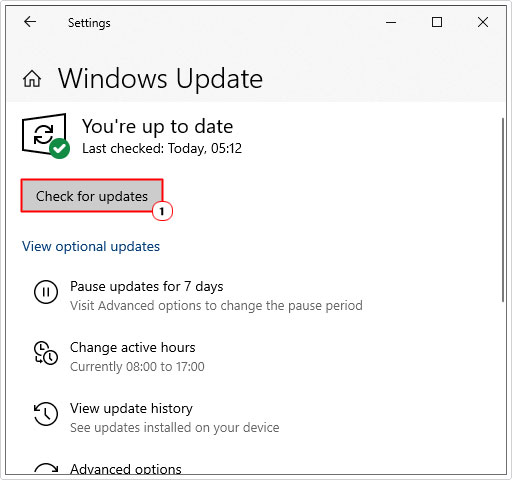
6. If it finds appropriate drivers, it will prompt you to install them. Once that has finished. Restart your system.
If done correctly, the “PCI Device Driver Missing” issue should no longer appear in Device Manager.
Are you looking for a way to repair all the errors on your computer?

If the answer is Yes, then I highly recommend you check out Fortect.
Which is the leading registry cleaner program online that is able to cure your system from a number of different ailments such as Windows Installer Errors, Runtime Errors, Malicious Software, Spyware, System Freezing, Active Malware, Blue Screen of Death Errors, Rundll Errors, Slow Erratic Computer Performance, ActiveX Errors and much more. Click here to check it out NOW!