
| Attention Before you read this post, I highly recommend you check out my resources page for access to the tools and services I use to not only maintain my system but also fix all my computer errors, by clicking here! |
Did you recently encounter a driver issue with Qualcomm Atheros Qca61x4a on your system? This can be a major problem, as it can prevent wireless connectivity from working. This is not an uncommon issue, as many users in various forums across the internet complain about this very problem.
Qualcomm Atheros, which was formerly known as Atheros Communications is a semiconductor developer that makes primarily wireless network communication technologies. The company was originally founded in 1998, but in 2011 it was acquired by Qualcomm (hence the Qualcomm Atheros name), it now forms an integral part of its connectivity and networking sector.
Qualcomm Atheros typically describes the wireless device connected to your motherboard, Qca61x4a refers to the exact model. Atheros is synonymous with Wi-Fi connectivity, issues referencing this device are almost exclusively driver related problems. This is because specific drivers are required for the device to work correctly.
Issues with your network chipset (or adapter) can result in intermittent internet connections and in more severe cases, loss of internet connection altogether. In this tutorial, we will first, go through its most common causes and then finish things off with verifiable solutions you can use right now.
What Causes Qualcomm Atheros Qca61x4a Errors?
Error with the Qualcomm Atheros Qca61x4a are almost always related to the drivers, whether it’s a compatibility problem or stability issue. If you are unable to connect to the internet wirelessly, then there are a number of things you must consider are causing it.
The most common of which are outlined below:
- The drivers for the Qualcomm adapter need updating or are corrupted.
- A recent Qualcomm Atheros driver update failed, resulting in the Qualcomm Atheros Qca61x4a no longer working.
- The Qualcomm Atheros adapter has been disabled.
These are just some of the more common causes of this error.
So, what can you do about it? Continue reading to find out.
How to Fix It
The general cause of this error is fairly straightforward. You’re looking at a driver issue, ultimately, but there are other circumstances and situations that could be at play.
All-in-all, I’d suggest you started with the more obvious and easiest solutions and worked your way down.
So, continue reading, and I suggest you attempt the solutions ideally, in the order that they appear.
Use Windows Repair Tool to Fix Qualcomm Atheros Qca61x4a Errors
If your computer is no longer running as fast as it once did, with annoying issues and errors constantly rearing its ugly head, then you must consider using a Windows repair tool.
The one I have in mind is a highly advanced, multifaceted tool, capable of scanning, detecting and fixing a wide range of issues on your system.
With this tool you can expect that it will fix registry errors, DLL errors, BSOD errors, virus infections, appcrashes, and much more.
It’s very easy to get to grips with, making it your ideal first solution.
Additionally, it’s also capable of speeding up your system, making it an optimisation and maintenance suite.
If by any chance this interests you, then visit the link below:
CLICK HERE TO CHECK OUT THE ADVANCED REPAIR TOOL
Update Qualcomm Atheros Drivers
Probably the most common cause of this error is an outdated or corrupted driver. In situations like this, you’ll want to update the drivers.
To do that, follow the steps below:
1. First, boot into Windows as an admin.
2. Then press  + R, type devmgmt.msc and click on OK.
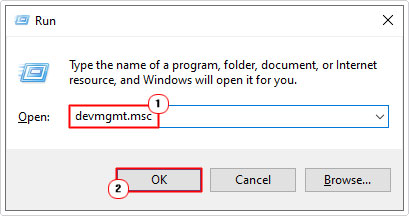
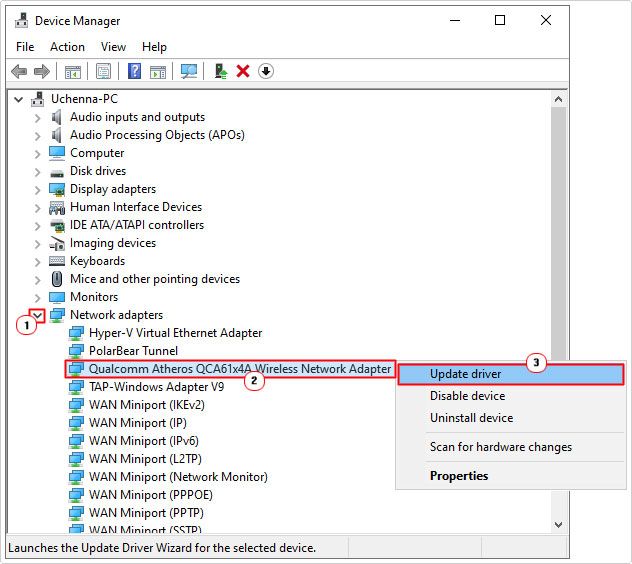
3. When Device Manager loads up, click on the > icon next to Network adapters, then right-click on Qualcomm Atheros Qca61x4a Wireless Network Adapter and select Update driver.
4. This will bring up the Update Drivers applet, from here, click on Search automatically for drivers.
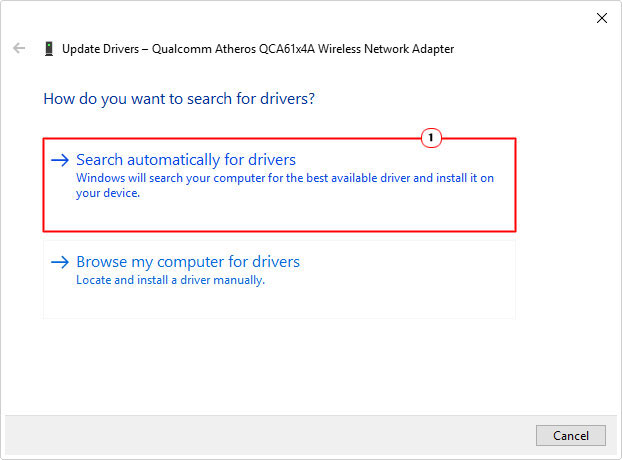
Note: It will attempt to locate the most up-to-date drivers.
However, if it’s unable to locate latest drivers, then you can try the automated approach.
Manually updating the drivers can be time-consuming, and in many instances, quite complicated, especially if you’ve never done it before. You’ll need to download the exact driver set that works for your specific version of Qualcomm Atheros.
As a convenient workaround, you have driver automation tools, that can do all of this, within a couple of clicks. It can, scan your system (to determine what devices are present on your system), then search the internet for the most up-to-date drivers for all the devices in your system. Then download and install them at your request.
If, by any chance the driver updater tool favours you, then visit the link below:
CLICK HERE TO CHECK OUT THE DRIVER FINDER TOOL
 The solution(s) below are for ADVANCED level computer users. If you are a beginner to intermediate computer user, I highly recommend you use the automated tool(s) above! The solution(s) below are for ADVANCED level computer users. If you are a beginner to intermediate computer user, I highly recommend you use the automated tool(s) above! |
Manually Update Qualcomm Atheros Drivers
If the drivers for your Qualcomm Atheros is out of date, then it can, in some circumstances halt all wireless connectivity. If you do have a later driver set running on your system, then you may want to consider a reinstallation, as that could potentially fix the problem.
If you would like to carry out this update process manually, then it can be done, with very little difficulty.
1. First, boot into Windows as an admin.
2. Then download the appropriate drivers from the following Microsoft Link: https://www.catalog.update.microsoft.com/Search.aspx?q=Qualcomm+Atheros+QCA61x4A
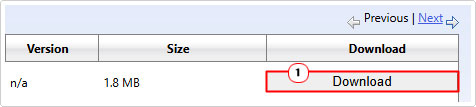
3. The drivers are arranged by date, so the one at the top should be the latest version. Simply click on Download.
4. Then click on the .cab file from the pop up and save the file to your Desktop.
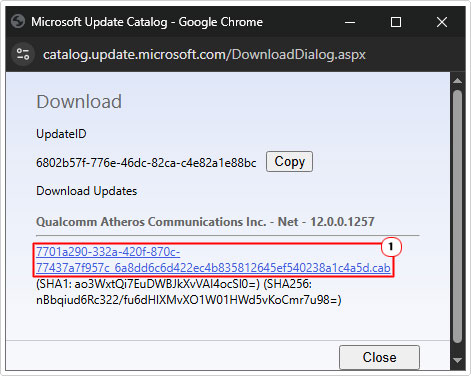
5. Double-click on the .cab file, then click on Extract All.
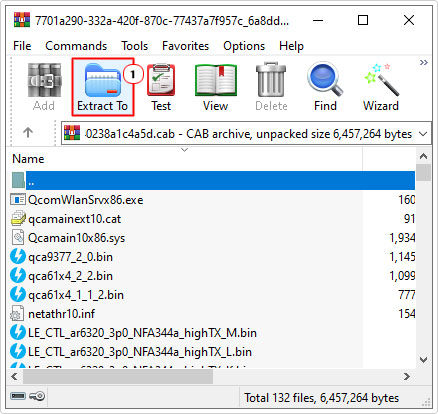
Note: For this tutorial, I’m using WinRAR to open the .cab file.
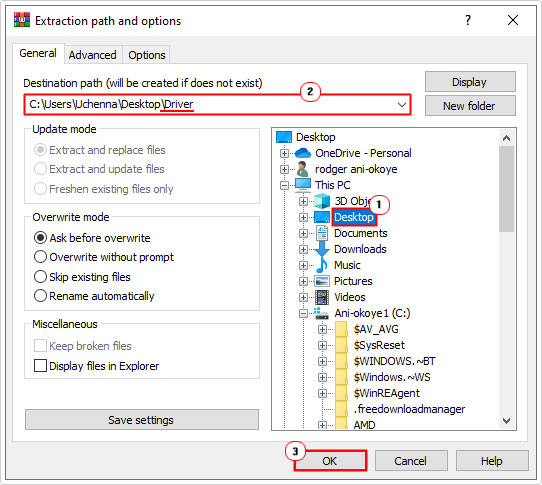
6. This will open the Extraction path and options dialog box. Click on Desktop then type \Driver at the end of Desktop in the Destination path box, and click on OK.
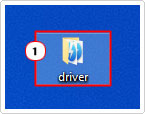
7. Now, double-click on the Driver folder (on your Desktop).
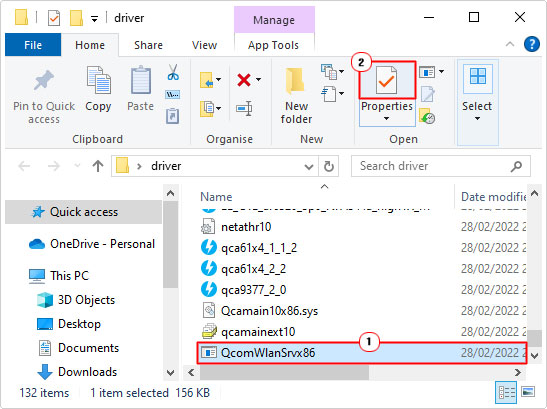
8. When the Driver folder opens, click on the QcomWlanSrvx86.exe file and select Properties.
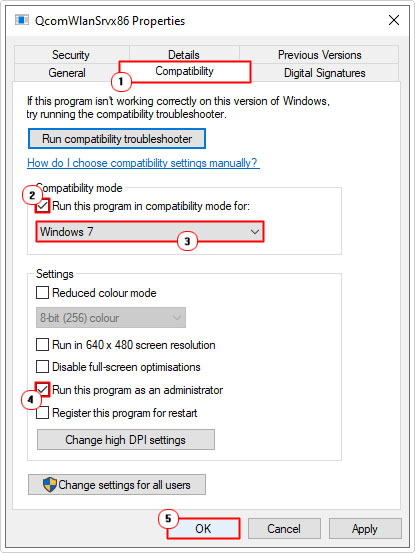
9. When the QcomWlanSrvx86 Properties applet pops up, click on the Compatibility Tab, then tick the box for Run this program in compatibility mode for: and Select Windows 7, tick the box for Run this program as an administrator. Then click on OK.
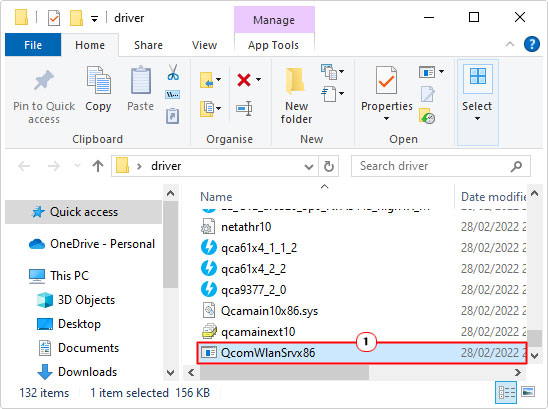
10. Lastly, double-click on QcomWlanSrvx86.exe to begin the driver installation process.
Rollback Drivers
It’s not uncommon for a driver to become corrupted during the installation or update process. In circumstances like this, you can attempt to fix the problem by rolling the drivers back to an older version.
To do that, follow the steps below:
1. Follow steps 1 – 2 of Update Qualcomm Atheros Drivers.
2. When Device Manager pops up, click on > next to Network adapters, then double-click on Qualcomm Atheros Qca61x4a Wireless Network Adapter.
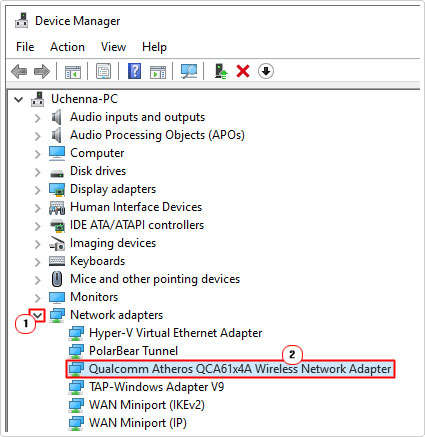
3. When the Qualcomm Atheros Qca61x4a Wireless Network Adapter Properties applet appears, click on the Driver Tab, then click on Roll Back Driver.
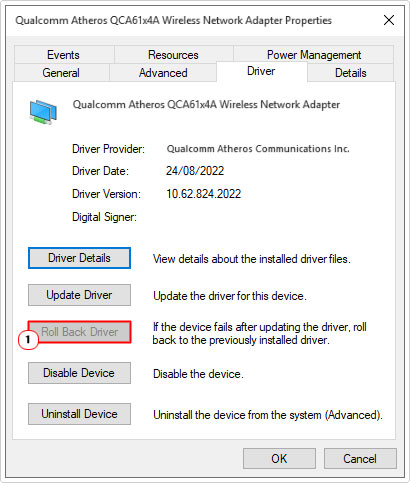
4. Follow the onscreen instructions to complete the process.
Disable & Enable the Device
Sometimes when you’re network connection suddenly breaks, you can fix it simply by switching the appropriate device off and on in Device Manager.
In this case, you’ll want to restart the Qualcomm Atheros Qca61x4a Wireless Network Adapter.
To do that, follow the steps below:
1. Follow steps 1 – 2 of Update Qualcomm Atheros Drivers.
2. From Device Manager, click on the > icon next to Network adapters, then right-click on Qualcomm Atheros Qca61x4a Wireless Network Adapter and select Disable Device.
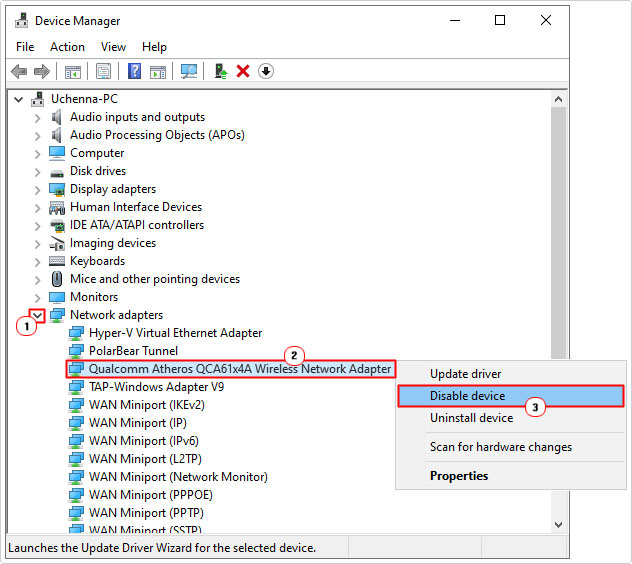
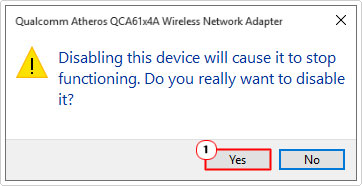
Note: If you are asked to confirm your choice, click on Yes.
3. Wait a couple of seconds, then right-click on Qualcomm Atheros Qca61x4a Wireless Network Adapter again, and select Enable device.
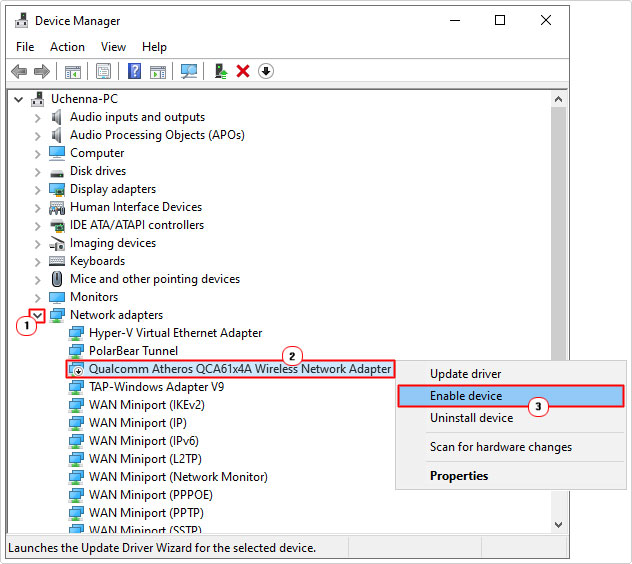
Are you looking for a way to repair all the errors on your computer?

If the answer is Yes, then I highly recommend you check out Fortect.
Which is the leading registry cleaner program online that is able to cure your system from a number of different ailments such as Windows Installer Errors, Runtime Errors, Malicious Software, Spyware, System Freezing, Active Malware, Blue Screen of Death Errors, Rundll Errors, Slow Erratic Computer Performance, ActiveX Errors and much more. Click here to check it out NOW!