
| Attention Before you read this post, I highly recommend you check out my resources page for access to the tools and services I use to not only maintain my system but also fix all my computer errors, by clicking here! |
If you, like most web surfers out there use Google Chrome as your main browser, then you’ve probably stumbled upon “Server IP address could not be found” more times than you can count. The typical symptoms of this notification is an inability to access the site in question. This can be the result of a number of things, such as router issues, malfunctioning network card(s), incorrect settings, etc.
Google Chrome is one of the better web browsers out there, jam-packed with a wide range of features and capabilities. Chrome currently leads the browser market share with over 70% patronage.
That is, 7 out of every 10 people, use Google Chrome to surf the web. But, despite its obvious popularity, it’s not without its problem. Be it, its insatiable RAM requirements, or its occasional random crashing. Google Chrome has come a long way to establish itself at the top of the heap.
But of the many issues you may encounter on it, the “Server IP address could not be found” error has to be amongst the most popular. It’s the type of issue that causes both dread and frustrating; depending on how important it is that you access the site in question. Fortunately, however, there are things you can do, which are much simpler than you think, to solve this problem.
What Causes “Server IP Address Could Not Be Found” Errors?
Before we get to any of those solutions, the first thing you must establish is the severity of the problem. Does the problem appear when attempting to access all sites or just the one website? If it’s one specific site, then it could simply be technical problems with that site.
“Server IP address could not be found” indicates that the IP address for the sites domain name could not be found by the DNS lookup. This error may be accompanied by a “This site can’t be reached” and DNS_PROBE_FINISHED_NXDOMAIN error notification.
So, what exactly is the cause of this problem? In short, we’re looking at the following:
- Router Problems: It’s possible your router crashed, in which case, restarting (resetting) it, could do the trick.
- Firewall (Antivirus) Software: Your internet security software could be blocking access to the web. You’ll have to disable it to determine whether or not that is the case.
- Caching Problem: The browser may be using old cached records when attempting to access the site(s).
Any one of these causes listed above may be the catalyst for this error. Thus, for the sake of efficiency, you’ll want to check every possibility.
That said, continue reading for those much desired solutions.
How to Fix It
As I previously mentioned, you want to ensure that the “Server IP address could not be found” error occurs when trying to access the web in general. If it’s just the one site, that’s typically an indication of the site possible being down or experiencing technical problems.
Additionally, you’ll want to check whether or not the same problem occurs when attempting to access the web through other web browsers: Microsoft Edge, Mozilla Firefox, Safari etc.
If you haven’t already, disable your internet security tool, then verify whether or not the problem was resolved. Next, check your internet connection. Just because you have a working connection to your router, it doesn’t mean your router has an established connection to the WWW.
It’s possible you may no longer be connected to the web, and if that’s the case, then your web browser isn’t to blame. No connection, no internet.
The quickest way to establish whether or not your internet connection is active, is to use the ping command via Command Prompt.
To do that, follow the steps below:
1. First, boot into your system as a full administrator.
2. Then press  + R, type cmd and press CTRL + Shift + Enter.
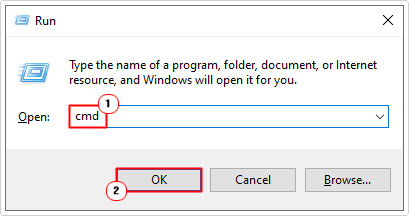
3. When Command Prompt loads up, type the command below and press Enter.
Ping google.com
Google.com will be pinged four times. If the ping command receives a reply within an allotted time, then it means the connection is okay. If there’s too much time between ping and response, it will time out. In which case, your connection may need further investigation. Consider contacting your ISP.
Restart Google Chrome
The next thing you’ll want to do (which is probably the first thing) is restart Google Chrome. In most cases, a simple app restart will fix most problems with it.
So, just click on the X button and wait a couple of seconds for it to close.

Note: Google Chrome will continue to run in the background for a couple more seconds, so it’s best to wait 2 – 3 minutes before relaunching it.
Now you can restart Google Chrome and see whether or not it fixed the error.
Use Windows Repair Tool to Fix “Server IP Address Could Not Be Found”
If your system is no longer running like it did when you first purchased it, that is, it’s constantly crashing, lagging intermittently and showing random error notifications (like “Server IP address could not be found”), then you definitely want to use a Windows repair tool.
The tool I have in mind was developed by experts in the field, with the explicit purpose of fixing a wide range of common Windows issues. Within a single scan, it will detect and fix a number of problems.
These are as follows: BSOD errors, registry corruption, DLL errors, browser problems, data corruption, Windows Update errors, virus infections and much more.
If that interests you by any chance, then visit the link below:
CLICK HERE TO CHECK OUT THE ADVANCED REPAIR TOOL
 The solution(s) below are for ADVANCED level computer users. If you are a beginner to intermediate computer user, I highly recommend you use the automated tool(s) above! The solution(s) below are for ADVANCED level computer users. If you are a beginner to intermediate computer user, I highly recommend you use the automated tool(s) above! |
Clear Browsing Data
As you surf the internet, your web browser accumulates data, this data is stored for a wide assortment of purposes. However, over time this data can become corrupted, resulting in sites failing to load, random crashing a virus infections.
To eliminate corrupt cached data as the possible cause of the error, clear your browsing data.
For instructions on how to do that, check out my post on fixing error 0x800700E1.
Check Proxy Settings
Another potential cause of the “Server IP address could not be found” error is an improperly configured proxy server. It’s possible the proxy server you or an app setup, was not done correctly.
In situations like this, you may want to consider disabling it, just to be sure. For step-by-step instructions on how to disable your proxy server, check out my post titled Windows Could Not Automatically Detect Network’s Proxy Settings.
Restart DNS Client Service
In order to cache the DNS your system uses a service called DNS client. It’s possible that this service has either crashed or become corrupted. In either case, you may want to consider restarting it. To do that, follow the steps below:
1. Boot into Windows as a full administrator.
2. Now, press + R, type Services.msc and click on OK.
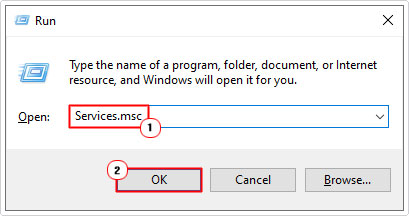
3. When Services loads up, right-click on DNS Client and select Restart.
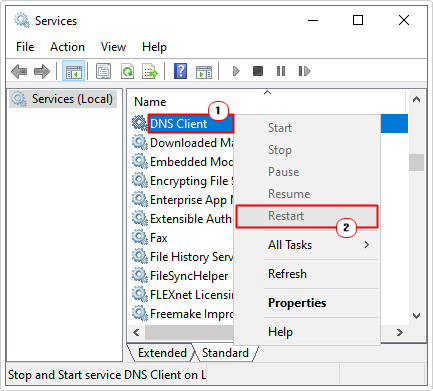
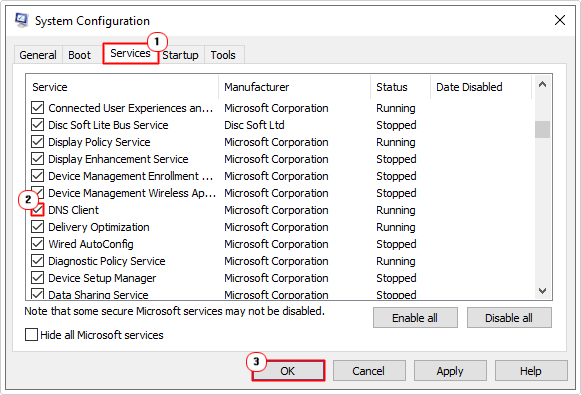
Note: If DNS Client is greyed out, then you will need to use System Configuration to restart the service. To do that, follow the steps below:
1. Press + R, type msconfig and click on OK.
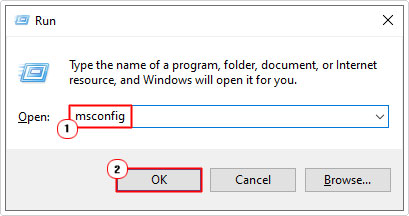
2. When System Configuration loads up, click on the Services Tab, then un-tick the box for DNS Client and click on OK.
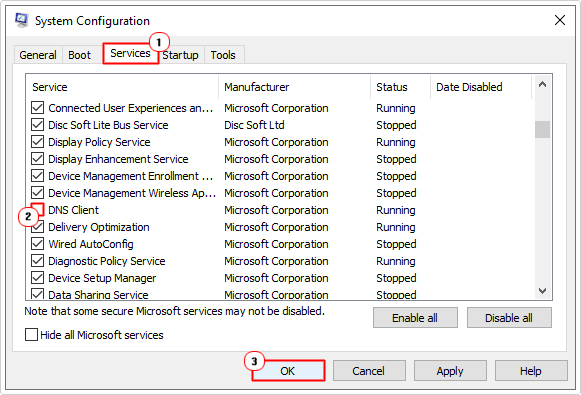
3. You will be forced to restart the system. Complete the system restart, then carry out step 2 again, only tick the box DNS Client (instead), then click on OK.
Flush DNS Cache
Given that the “Server IP address could not be found” error is typically tied to the DNS lookup service, you may want to consider flushing your DNS cache, as a possible fix.
For instructions on how to do that my post called Windows Could Not Automatically Detect Network’s Proxy Settings will show you how.
Disable VPN
Are you currently using a VPN? If so, consider disabling it to see whether or not it’s the blame for your inability to properly surf the web. This is an all too common problem, so it’s definitely worth disabling.
To disable your VPN, I suggest you follow the same steps you used to enable it. Exact instructions will vary, so consider consulting the apps manual, if you’re stuck.
Use Different DNS Servers
The purpose of the DNS server is to translate domain names into IP addresses. If the DNS servers of your ISP are slow or experiencing problems, then it could adversely affect your web browsing experience. To get around this problem you can opt to use public DNS servers instead.
For information on how to do that, check out my post on fixing error code 0x80072ee7.
Are you looking for a way to repair all the errors on your computer?

If the answer is Yes, then I highly recommend you check out Advanced System Repair Pro.
Which is the leading registry cleaner program online that is able to cure your system from a number of different ailments such as Windows Installer Errors, Runtime Errors, Malicious Software, Spyware, System Freezing, Active Malware, Blue Screen of Death Errors, Rundll Errors, Slow Erratic Computer Performance, ActiveX Errors and much more. Click here to check it out NOW!