
| Attention Before you read this post, I highly recommend you check out my resources page for access to the tools and services I use to not only maintain my system but also fix all my computer errors, by clicking here! |
Did you recently come face to face with a SYSTEM_PTE_MISUSE BSOD error? The general symptom of a BSOD error is an abrupt system crash or restart. Which can be very inconvenient, especially if you’re working on something important. Fortunately, there are ways you can rectify this problem, as I will discuss in this tutorial.
SYSTEM_PTE_MISUSE is your typical BSOD error one may encounter on virtually every iteration of Windows, as it interrupts your current Windows session and forces a reboot. The typical cause of this particular BSOD error is oftentimes linked to damaged or incompatible hardware. This means the error can linger unless direct action is taken to fix it.
The SYSTEM_PTE_MISUSE error message is accompanied by the error code 0x000000DA and can cause (when your system reboots) data loss, given the circumstances. There are a variety of reason why the error may occur. If it is a logical (software) reason, then you will oftentimes lose any unsaved data you were working on, at the time of the error. Additionally, if it is a hardware-related problem, then the error will occur over and over again, until direct measures are taken to rectify the problem (as already touched on).
To follow, we will be discussing, in greater detail, the exact causes of this error, along with verifiable methods you can use today to fix this problem. So, continue reading for that.
What Causes SYSTEM_PTE_MISUSE Errors?
As previously discussed, a SYSTEM_PTE_MISUSE error will oftentimes result in a crash and/or restart of your system. This restart (and crash) can lead to data loss and even file corruption. This particular BSOD error is not common, but that doesn’t make it any less annoying when face to face with it.
That said, the most common causes of this BSOD error are the following:
- Your system was infected with a malicious file.
- The Windows registry is corrupted.
- Your memory (RAM) is faulty or corrupted.
- A system device is using outdated, incompatible or corrupt drivers.
Additionally, the hardware device may be faulty, in which case, you will need to purchase a replacement.
With that said, let’s take a look at the ways you can fix this error.
How to Fix It
BSOD errors can be the result of either a hardware or software issue. Software issues tend to be more manageable, as you’re looking at a simple update or uninstallation, if compatibility is the issue.
However, when it comes to hardware, you need to be able to pinpoint the exact device that is causing the error, then either, update it (new drivers, new firmware etc…) or replace it. BSOD errors caused by hardware faults will continue to persist until they are dealt with.
So how can you counter this problem? By following the various measures outlined below:
Use Repair Tool to Fix SYSTEM_PTE_MISUSE Error
If you would like a system that is both free of errors and running optimally, then you need to use a PC repair tool. These applications are undoubtedly, one of the most effective ways for you to maintain your system. The tool I personally recommend comes with a very intuitive easy to use interface, making it simple to operate for PC users of all skill levels.
If your system has errors ranging from DLL, registry, app, games, BSOD and more, this tool will be able to scan, detect and repair it.
To get started, simply download the tool, then run it, and it will do everything else automatically. This tool comes with a wide range of capabilities, which it will utilise once it finishes its first thorough scan of your system.
With that said, you can learn more about this powerful tool, from the link below:
CLICK HERE TO CHECK OUT THE ADVANCED REPAIR TOOL
Update Device Drivers
One of the more common causes of SYSTEM_PTE_MISUSE errors is either an incompatible or outdated device driver. So, a simple driver update should be more than sufficient in fixing it.
However, the difficult part of this solution is being able to pinpoint exactly which device is causing the error – this can be quite tricky.
Ordinarily, you’d have two ways of doing this. The first, the manual solution, which involves you going to the websites of all the different hardware components attached to your system and downloading the latest drivers and installing them. This can be quite complex, and most especially, time consuming.
The most effective and convenient way is the automated approach. This method involves the use of a driver automation tool, to scan, detect, locate and install the latest drivers for all the devices attached to your system.
All of which can be done within a couple of mouse clicks.
If the automated approach interests you, then I suggest you visit the link below:
CLICK HERE TO CHECK OUT THE DRIVER FINDER TOOL
 The solution(s) below are for ADVANCED level computer users. If you are a beginner to intermediate computer user, I highly recommend you use the automated tool(s) above! The solution(s) below are for ADVANCED level computer users. If you are a beginner to intermediate computer user, I highly recommend you use the automated tool(s) above! |
Run a Virus Scan
It’s possible for a malicious (virus) file to have infiltrated and corrupted key system files, thus causing the SYSTEM_PTE_MISUSE error. There are thousands of malicious files that can influence your system, in equally as many ways.
Fortunately, we have internet security tools, that are specifically designed to scan, locate and remove (or quarantine) these malicious threats.
So, for this solution, I’d recommend you used the built-in Windows defender to scan, detect and possibly remove this threat.
To do that, follow the steps below:
1. First, boot into Windows as a full administrator.
2. Then press  + I, then click on Update & Security.
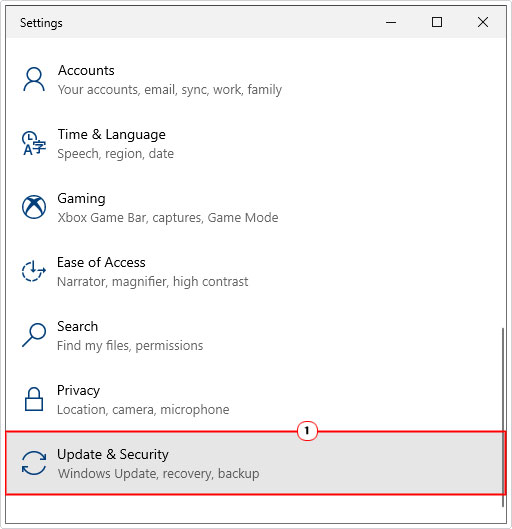
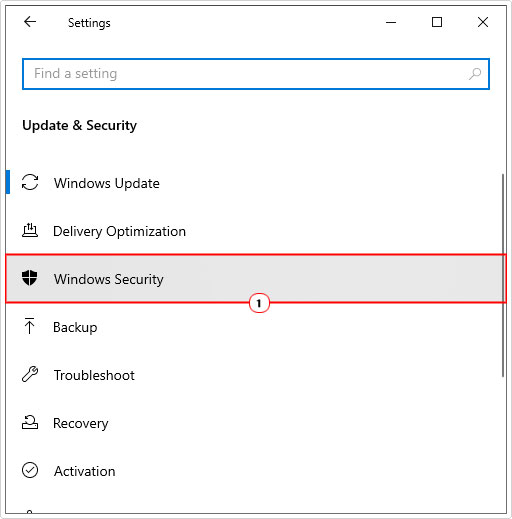
3. This will bring up the Update & Security applet, from here, click on Windows Security.
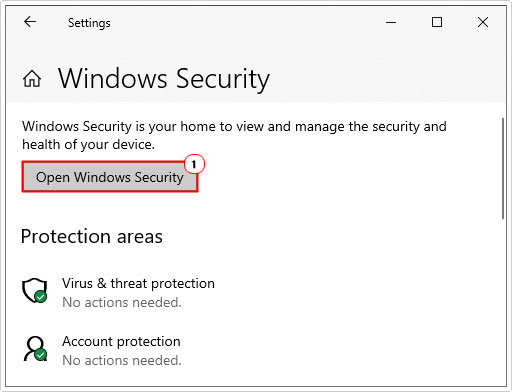
4. When Windows Security loads up, click on Open Windows Security.
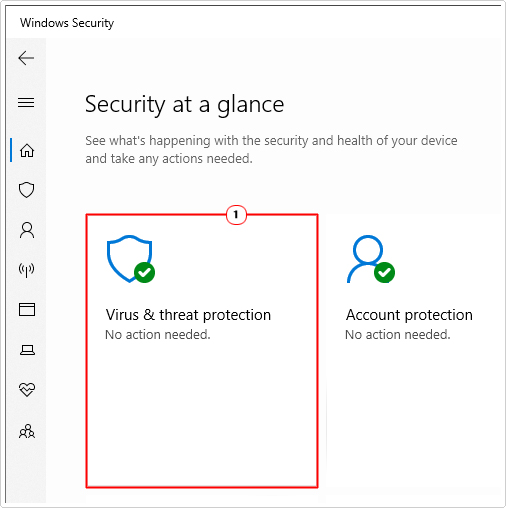
5. This will load up Windows Security, from here, click on Virus & threat protection.
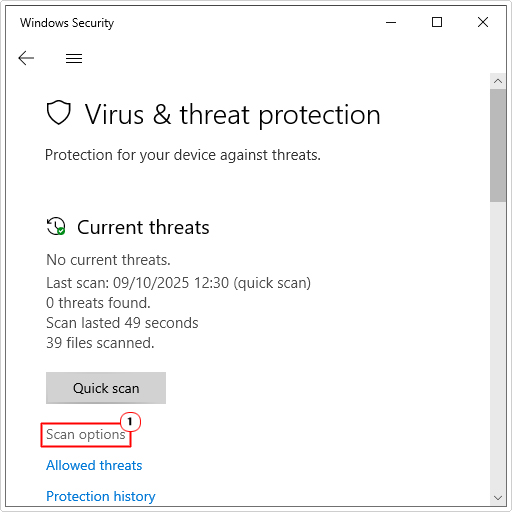
6. On the Virus & threat protection page, click on Scan options.
7. Now, select Microsoft Defender Offline scan, then click on Scan now.
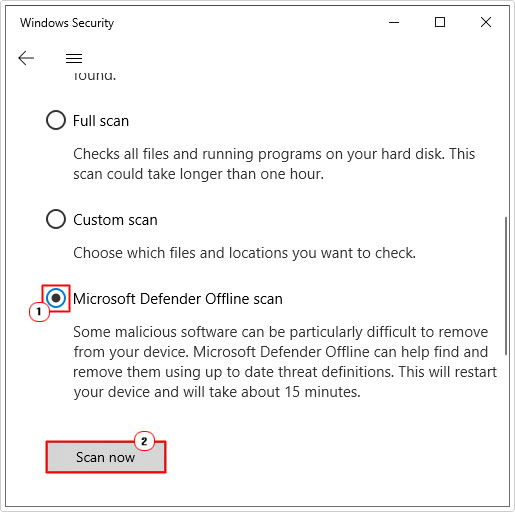
This scan can take a considerable length of time. Once it has finished, you can verify whether or not it has fixed the SYSTEM_PTE_MISUSE error.
Use System File Checker
SFC or System File Checker is a tool that comes with the Windows operating system used to replace missing or corrupt system files. If the SYSTEM_PTE_MISUSE error is due to OS corruption, then a SFC scan may be able to fix it.
It’s a fairly simple tool to get to grips with. Just do the following:
1. Boot into Windows as a full administrator.
2. Then press + R, type cmd and press CTRL + Shift + Enter.
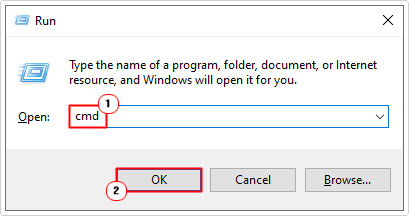
3. This will bring up Command Prompt. Then type the command below and press Enter.
SFC /Scannow
4. Windows will carry out a scan of your system files and fix them where applicable.
5. Once the scan has finished, it will tell you whether it found and fixed any errors. If it did (find an error), close Command Prompt and restart your system.
Now you can verify whether or not the scan fixed the SYSTEM_PTE_MISUSE error.
Run DISM
In the event that the scan did not fix the error, I’d suggest you gave the DISM (Deployment Image Service and Management) tool a try. Like SFC, this is also a built-in tool, only this tool is designed to restore the integrity of the OS (rather than its system files).
To use this tool, follow the steps below:
1. Follow steps 1 – 2 of Use System File Checker.
2. When Command Prompt loads up type the command below and press Enter.
Dism /online /cleanup-image /restorehealth
3. Once the scan has finished, restart Windows and check whether or not it fixed the error.
Disable PTT
PTT stands for Platform Trust Technology, and it is used for the implementation of the TPM (Trusted Platform Module) in the firmware of your systems motherboard. PTT is used primarily by Windows 10/11 for storage of credential data and key management. However, there have been reported cases, where this feature has been found responsible for the SYSTEM_PTE_MISUSE error. Thus, you can try disabling it in the BIOS.
For step-by-step instructions on how to do that, I recommend you consult your motherboard manual.
The TPM (Trusted Platform Module) works in tandem with the PTT. Thus, if you are unable to find a feature labelled PTT in your motherboard manual, then you should look at disabling the TPM instead. Both features should be located in the same area of your BIOS menu.
Update BIOS
If the SYSTEM_PTE_MISUSE error still exists, even after utilising all the methods above, then you may want to try something more holistic, like a BIOS update. The BIOS or Basic Input Output System is one of the more integral components of your system. As the system uses it (via the motherboard) to start up.
It ensures the appropriate components are run at system start-up and that all the necessary components work together and are accessible to the user.
That said, given the sensitive nature of the BIOS, updating it can be very risky. As a bad update can render your system completely inoperable. For that reason, I suggest, again, you consult your motherboard manual, and only carry out this method if you’re confident in doing so.
Are you looking for a way to repair all the errors on your computer?

If the answer is Yes, then I highly recommend you check out Fortect.
Which is the leading registry cleaner program online that is able to cure your system from a number of different ailments such as Windows Installer Errors, Runtime Errors, Malicious Software, Spyware, System Freezing, Active Malware, Blue Screen of Death Errors, Rundll Errors, Slow Erratic Computer Performance, ActiveX Errors and much more. Click here to check it out NOW!