
| Attention Before you read this post, I highly recommend you check out my resources page for access to the tools and services I use to not only maintain my system but also fix all my computer errors, by clicking here! |
“There is a problem with this Windows Installer package” is an error notification that appears when an end user attempts to either install or uninstall a program. It’s not uncommon for issues to arise when working with applications, whether first or third-party. If you’re currently battling with this problem, then fret not, as we will discuss a further, how you can properly remedy this problem.
“There is a problem with this Windows Installer package” will appear when attempting to install just about any application, whether it be Adobe Acrobat, iTunes, Football Manager, etc. on both Windows 10 & 11 systems.
So, what can you do to fix it? Before we get to the solutions, let’s dive a little deeper into its most notable causes.
What Causes “There is a problem with this Windows Installer package”?
So, what causes this error to occur? Well, a number of possible eventualities. Below I have listed the most common ones:
- App installer file is damaged (or corrupted): In situations like this, re-downloading the file should fix the problem.
- System doesn’t meet minimum recommended specifications: The “There is a problem with this Windows Installer package” error notification may appear when the system doesn’t meet the apps minimum specification requirements.
- End user lacks full access to installation folder: It’s important that the user account has administrative access when attempting to install apps and tools alike.
- Windows is outdated: You can configured Windows to run Windows Update automatically.
- Accidently downloaded the wrong installer package: This can happen when a user attempts to install a 64-bit app package on a 32-bit system.
Now that we have the most prominent causes of the “There is a problem with this Windows Installer package” error, let’s move to the solutions.
How to Fix It
As I’ve already touched on, when it comes to installing (or uninstalling) an app, it’s very important that the user account has the appropriate permissions to do so.
First things first, make sure your user account has administrative rights. To check your account level, do the following:
1. Boot into your system with your main user account.
2. Then press  + I, then click on Accounts.
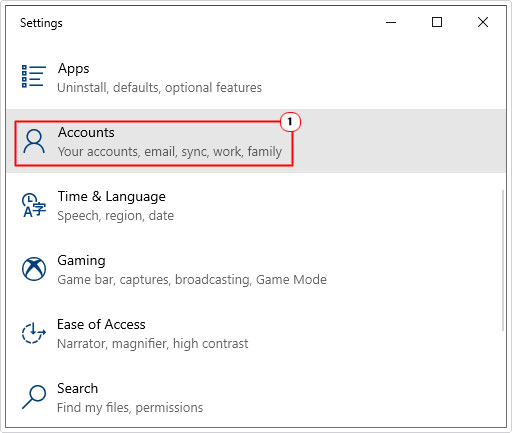
3. It should default to the Your Info page, but if it doesn’t, click on it.
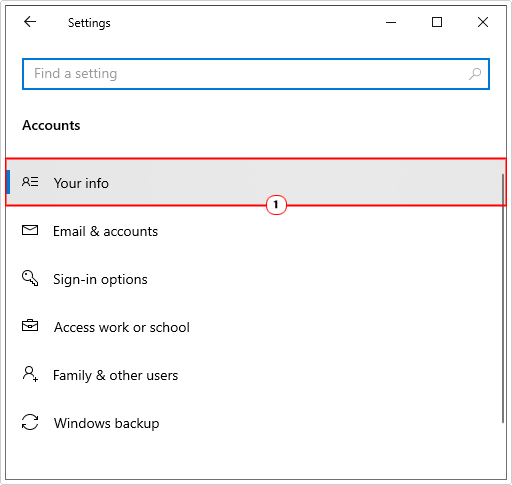
Note: Below your username, it will tell you whether or not your account has administrative access. If it does not, then you will need to log in, with an account that does.
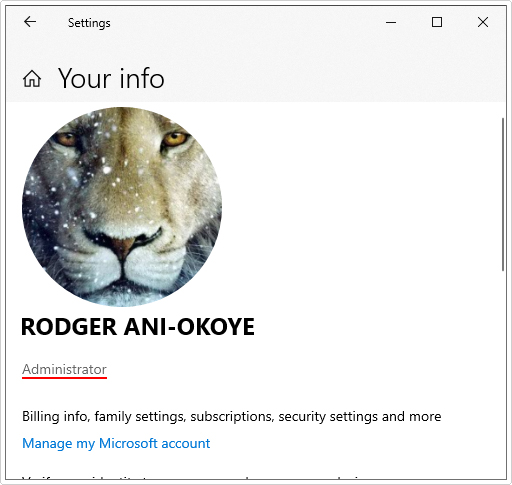
Otherwise, if your account checks out, then I suggest you follow the numerous solutions outlined below:
Run Windows Repair Tool to Fix “There is a problem with this Windows Installer package”
It’s not uncommon for your systems performance to deteriorate over time, with a more sluggish performance, constant freezing etc. This in turn can lead to an assortment of issues and even errors, like the one highlighted in this tutorial. This brings us to the Windows repair tool, and it’s many benefits.
The tool I have in mind is highly capable of fixing a plethora of problems on your system. All you need to do is download and install it.
In short, it will fix Windows errors such as BSOD, runtime, game, Update and much more. It will also optimise system performance, making it your ideal all-in-one maintenance and optimisation suite.
If, for any chance that interests you, then please visit the link below:
CLICK HERE TO CHECK OUT THE ADVANCED REPAIR TOOL
 The solution(s) below are for ADVANCED level computer users. If you are a beginner to intermediate computer user, I highly recommend you use the automated tool(s) above! The solution(s) below are for ADVANCED level computer users. If you are a beginner to intermediate computer user, I highly recommend you use the automated tool(s) above! |
Use Registry Fix
Many end users have discovered that they are able to fix the “There is a problem with this Windows Installer package” error by adding a runas key in the Windows registry.
WARNING: The registry is a very sensitive area of Windows, thus, any wrong modification to this component can render your system inoperable.
To do this, follow the steps below:
1. First, boot into Windows with administrative rights.
2. Then press + R, type regedit and click on OK.
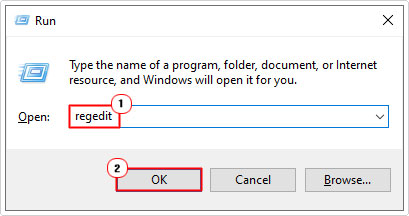
3. When the Registry Editor loads up, navigate to the following path:
Computer\HKEY_CLASSES_ROOT\Msi.Package\shell
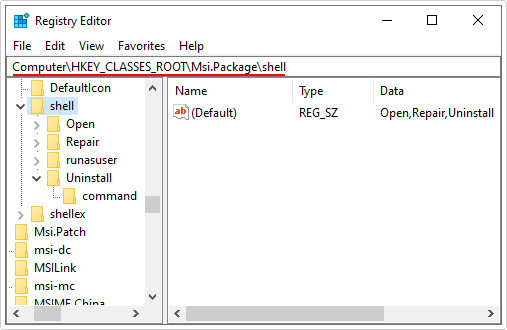
4. Now, right-click in the right pane and select New -> Key.

5. Name the new key (in the left pane) Runas.
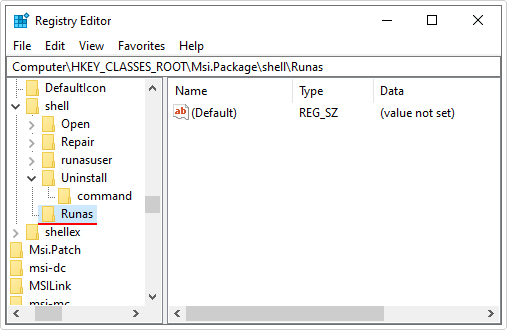
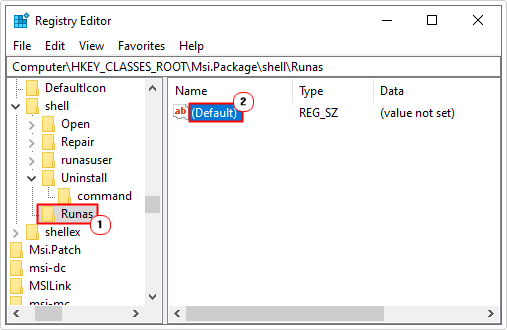
6. Next, click on Runas then double-click on (Default).
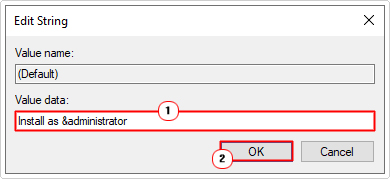
7. This will bring up the Edit string box, type Install as &administrator into the Value data box and click on OK.
8. Now, in the right pane (of Runas), select New -> Key.
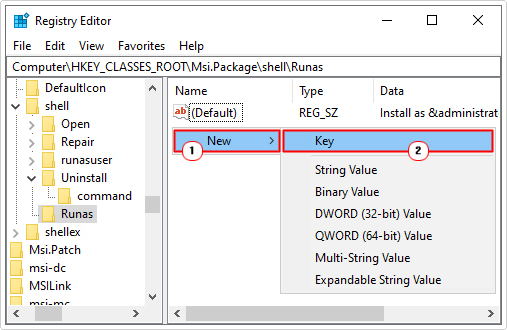
9. Name the new key Command (in the left pane).
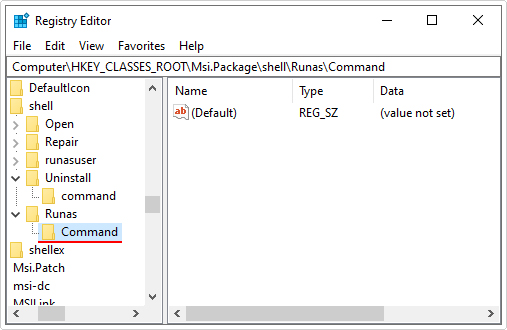
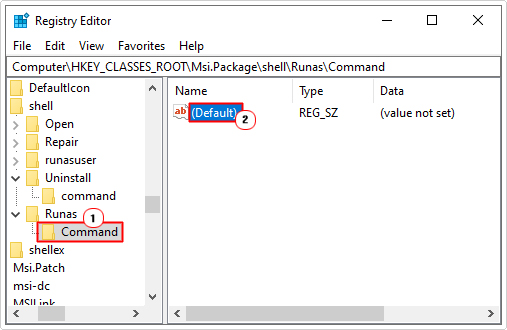
10. Click on Command, then double-click on (Default).
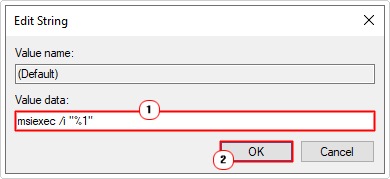
11. This will bring up the Edit String box, type msiexec /i “%1” into the Value data box and click on OK.
12. Lastly, close Registry Editor and restart your system.
Repair App
It’s possible that the app was corrupted, either during installation or during use, depending on when the error first occurred. Fortunately, many of such apps have built-in diagnostic and repair tools.
Essentially, what they do is, scan the apps installation files and replace where applicable.
Note: Not every app has this feature.
To access the feature, simply do the following:
1. Boot into your system as a full administrator.
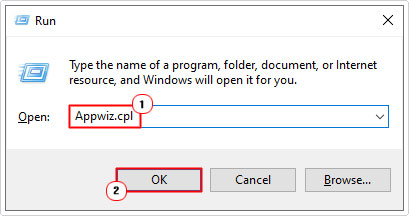
2. Then press + R, type Appwiz.cpl and click on OK.
3. When Program and Features loads up, click on the problematic app then click on Change.
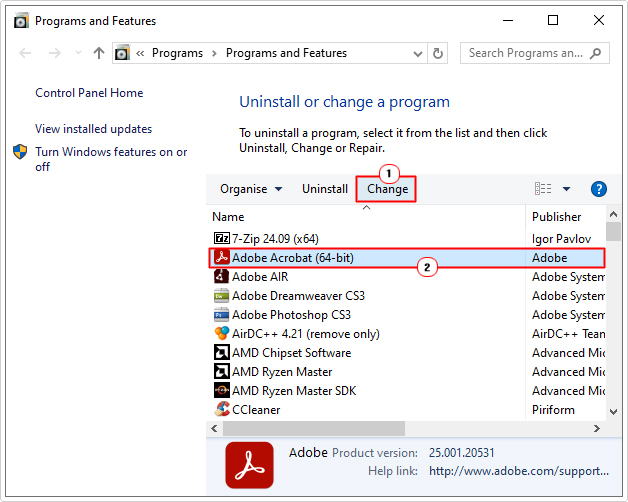
Note: Sometimes both Uninstall and Change are integrated. So click on them both, then select the repair option.
4. This will bring us to the Maintenance feature, click on Next.
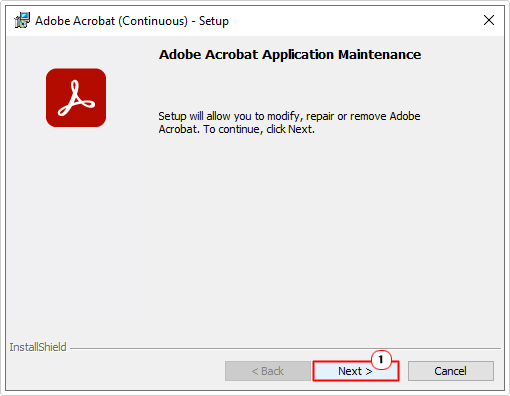
Note: Steps will vary depending on app.
5. Now, select Repair and click on Next.
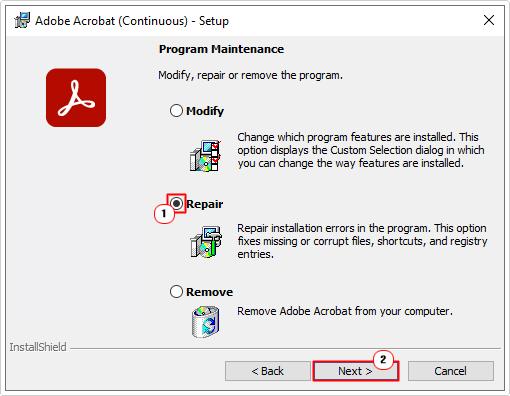
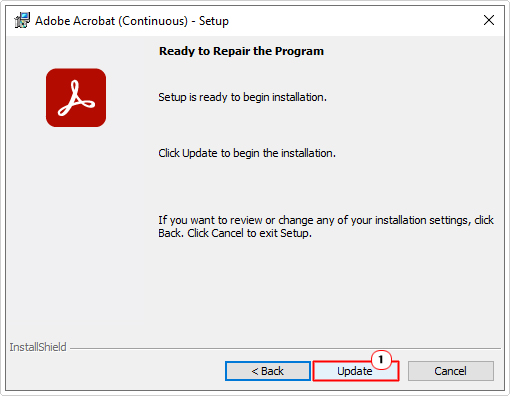
6. Lastly, click on Update to begin the repair process.
Use Program Troubleshooter
Microsoft has its own program troubleshooter tool that is designed to fix installation and uninstallation issues. However, this tool does not come preinstalled with Windows, you will need to acquire it separately.
The steps to doing this are as follows:
1. First, boot into your system as a full administrator.
2. Then, download the Program Troubleshooter from the following link: https://support.microsoft.com/en-gb/topic/fix-problems-that-block-programs-from-being-installed-or-removed-cca7d1b6-65a9-3d98-426b-e9f927e1eb4d
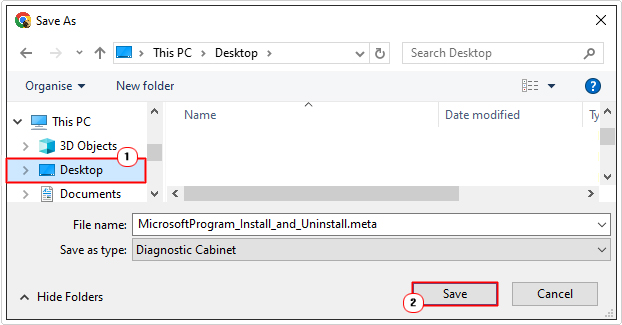
3. Click on Download troubleshooter and save the MicrosoftProgram_Install_and_Uninstall.meta file to your Desktop.
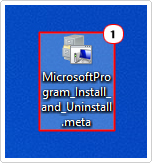
4. Go to your Desktop and double-click on MicrosoftProgram_Install_and_Uninstall.meta.
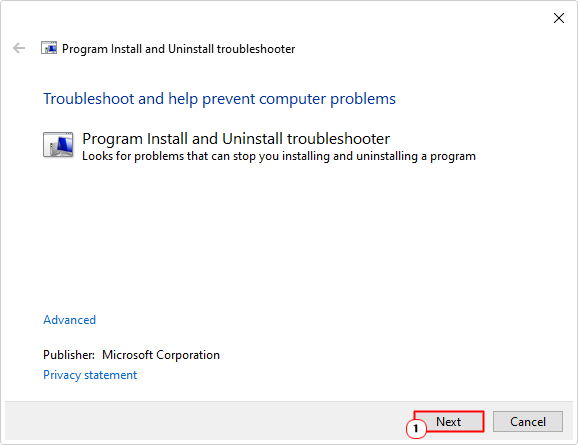
5. This will bring up the Program Install and Uninstall troubleshooter. Follow the onscreen instructions to use the tool.
Re-Register Windows Installer
It’s possible an issue has occurred with the Windows components required to install and uninstall apps on your operating system. These tools cannot be reinstalled, however, it is possible to reset and refresh them; providing you know how.
To do this, follow the steps below:
1. Boot into Windows as an admin.
2. Then press + R, type cmd and press CTRL + Shift + Enter.
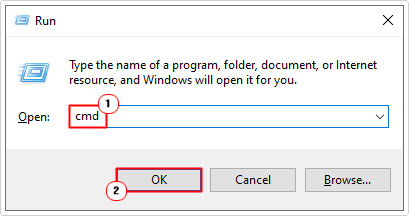
3. When Command Prompt loads up, type the following commands below pressing Enter after each line:
msiexec.exe /unregister

msiexec.exe /regserver
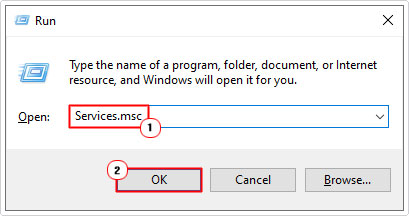
4. Now close Command Prompt and press + R, type Services.msc and click on OK.
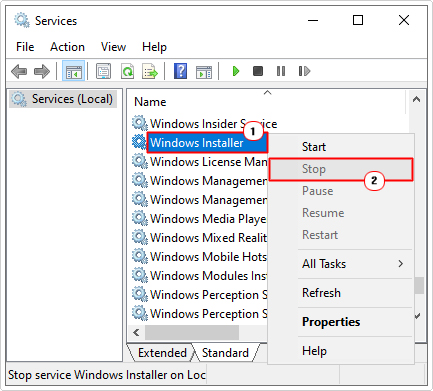
5. When Services loads up, scroll down and right-click on Windows Installer, then select Stop.
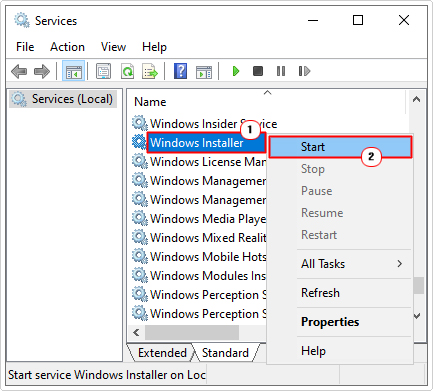
6. Repeat Step 5 only this time select Start.
7. Close Services and verify whether or not the error has been fixed.
Set Temp to Full Control
Another common reason the “There is a problem with this Windows Installer package” error can occur is if the user account does not have full access to the Temp folder. To address this problem, you can grant yourself the necessary access.
To do that, follow the steps below:
1. Boot into Windows as a full administrator.
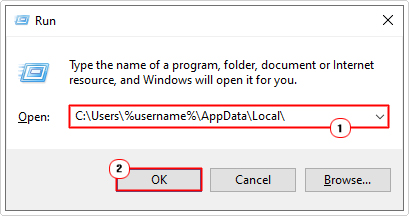
2. Then press + R, type C:\Users\%username%\AppData\Local\ and click on OK.
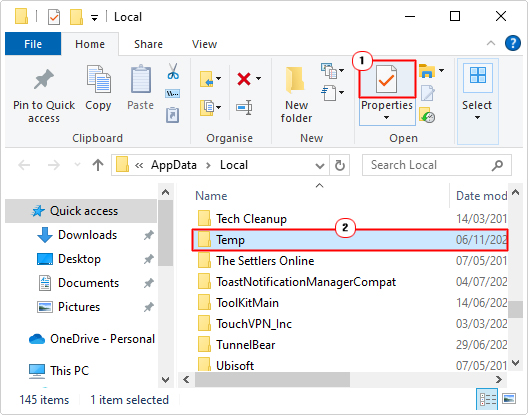
3. This will take you to the Local folder, from here, scroll down, then click on Temp and select Properties.
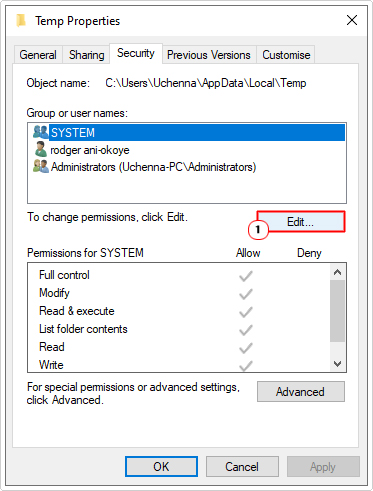
4. This will bring up the Temp Properties applet, from here, click on Security then click on Edit.
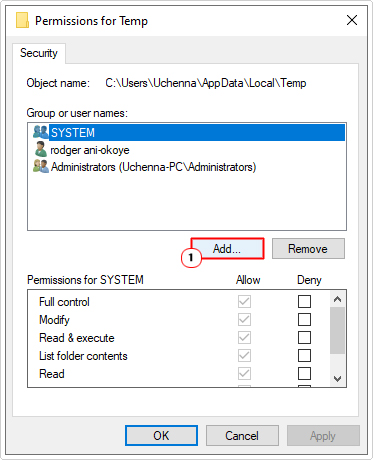
5. Next, on the Permissions for Temp applet, click on Add.
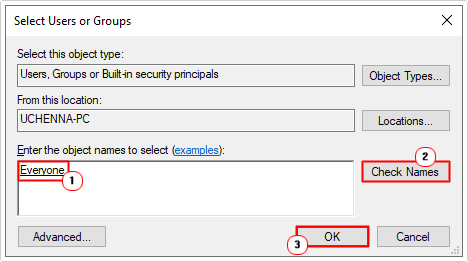
6. A Select Users or Groups box will appear, type Everyone into the Enter the object names to select box, then click on Check Names, and click on OK.
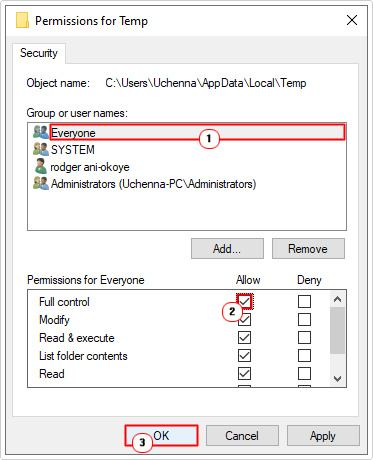
7. This will take you back to the Permissions for Temp applet, click on Everyone, then tick the Allow box for Full Control and click on OK.
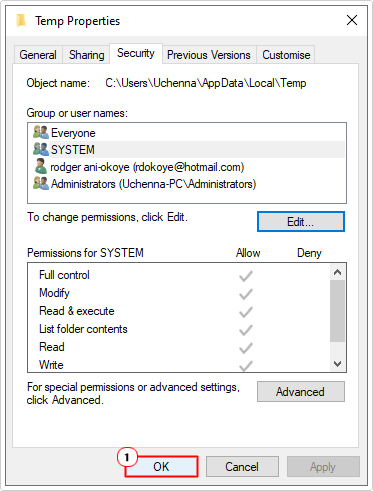
8. Click on OK for Temp Properties, then verify whether or not it has fixed the problem.
Update Windows
The last possible cause for “There is a problem with this Windows Installer package” errors is an outdated operating system. In the event that this is the cause, you rectify the problem simply by updating the OS.
To do that, follow the steps outlined in my post on fixing Microsoft Store is blocked errors.
Are you looking for a way to repair all the errors on your computer?

If the answer is Yes, then I highly recommend you check out Fortect.
Which is the leading registry cleaner program online that is able to cure your system from a number of different ailments such as Windows Installer Errors, Runtime Errors, Malicious Software, Spyware, System Freezing, Active Malware, Blue Screen of Death Errors, Rundll Errors, Slow Erratic Computer Performance, ActiveX Errors and much more. Click here to check it out NOW!