
| Attention Before you read this post, I highly recommend you check out my resources page for access to the tools and services I use to not only maintain my system but also fix all my computer errors, by clicking here! |
TiWorker.exe is a part of the TrustedInstaller (Windows Modules Installer service) component. Typically going by the name WMI Worker, its main function is updating your Windows operating system. TiWorker.exe operates in the background, checking for any new available updates and downloading and installing them, depending on your preference. TiWorker.exe high CPU usage is an issue that occurs on virtually all versions of Windows (including 11). The TiWorker.exe process runs incessantly in the background, consuming more and more resources until it inhibits system performance.
You can find the TiWorker.exe process in the following location:
C:\Windows\Servicing
The module is part of the greater TrustedInstaller component, responsible for keeping your Windows system up-to-date.
To do this, it must be constantly running, so that it can check and download updates where applicable. In the vast majority of cases, the amount of resources used is fairly minimal.
Once an update process has been completed, the TiWorker.exe process will release all previously utilised resources. This may happen during a Windows start-up phase or during a Window session. Depending on how much resources are required to complete the update, the system may prompt you to restart.
However, in instances when TiWorker.exe uses too much resources, for an extended period, you may be forced to end the process yourself.
What Causes TiWorker.exe High CPU Usage?
There are a multitude of scenarios that can result in the WMI worker consuming a considerable amount of CPU resources.
The first thing to consider is the fact that updating the OS does require a fair amount of resources. Which, in many instances can result in the Windows Modules Installer Worker using more CPU resources than you would like. But in most instances, this is temporary.
In the vast majority of cases, you won’t even notice when the CPU is being taxed by the service. Unless it is accompanied by unexpected hard drive activity.
With that said, the general causes of high CPU usage in TiWorker.exe are as follows:
- Windows update check: When the TiWorker.exe service is in use, it will require resources to check for an update. Any allocation of system resources is temporary, with normal levels returning after completion.
- Installing Windows updates: When the TiWorker.exe begins the downloading and installation process, this will consume resources. Again, temporarily, so you may notice a climb in CPU usage for the corresponding service(s).
However, there are instances when TiWorker.exe high CPU usage is not the result of an update check or installation, but the following:
- Corrupt update files, the result of previously failed updates conflicting with the attempted new update.
- Windows Modules Installer Worker has crashed (or malfunctioned).
Other things for you to consider is the infiltration of malicious files on your system. For this reason, you do not want to rule out a full virus scan of your system.
Now with that out of the way, let’s look at ways you can fix this problem.
How to Fix It
If you are witnessing a repeated pattern of the Windows Modules Installer Worker eating up more CPU resources than you would like, then you may want to act upon it.
There are several things for you to consider, so let’s start with the very basics.
Do you have a HP system? If so, it’s possible the HP Support Assistant is conflicting with the OS.
To get around this problem, you will need to uninstall the program(s). Some end users were able to pinpoint the problem to the HP LAN Assistant software.
If you don’t know how to uninstall an app, just do this:
1. Ensure you’ve booted into Windows as an admin.
2. Then press  + R, type Appwiz.cpl and click on OK.
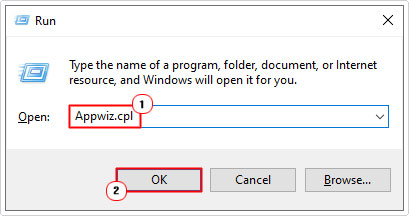
3. When Add or Remove Programs loads up, click on the HP app, then click on Uninstall.
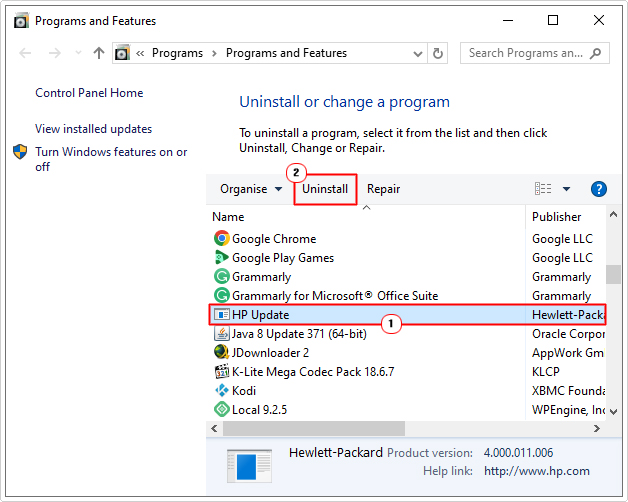
Follow the onscreen instructions to successfully remove the application.
Run Windows Repair Tool to Fix TiWorker.exe High CPU Usage
If you’re system is behaving sluggishly due to the additional load the TiWorker.exe process is putting on your system, then you definitely want to scan your system with a Windows repair tool.
The tool I have in mind is multifaceted, capable of scanning, detecting and fixing hundreds of different issues on your system.
Within a single scan, you can expect it to identify and fix DLL errors, BSOD errors, app errors, registry corruption, runtime issues and much more.
If this interests you, then I recommend you visit the link below:
CLICK HERE TO CHECK OUT THE ADVANCED REPAIR TOOL
 The solution(s) below are for ADVANCED level computer users. If you are a beginner to intermediate computer user, I highly recommend you use the automated tool(s) above! The solution(s) below are for ADVANCED level computer users. If you are a beginner to intermediate computer user, I highly recommend you use the automated tool(s) above! |
Restart Windows Modules Installer Worker
If the TiWorker.exe service is consuming more resources than you would like, then you should definitely consider restarting it (and its corresponding services). If its current behaviour is due to a malfunction, then the restart should successfully fix the problem.
Fortunately, restarting the TiWorker.exe service is simple, just do the following:
1. Boot into your system as a full administrator.
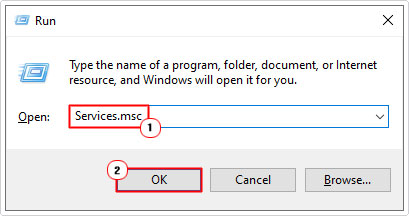
2. Then press + R, type Services.msc and click on OK.
3. When Services loads up, scroll down, then locate and right-click on Windows Modules Installer and select Stop.
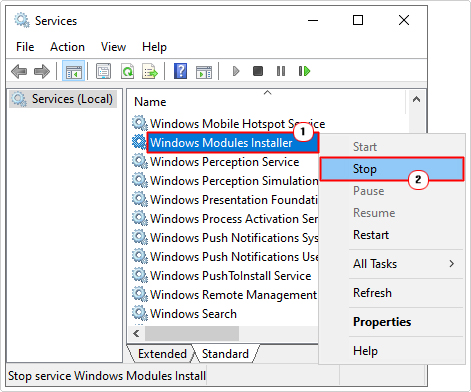
4. Repeat step 3 for Windows Update service.
5. Now right-click on Windows Modules Installer and select Start.
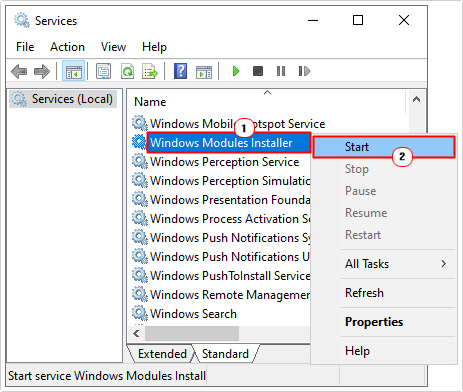
6. Repeat step 5 again, for Windows Update.
Use System Maintenance
Tasks that are scheduled to run in the background, can oftentimes fail, causing the TiWorker.exe service to malfunction. When you run the built-in System Maintenance tool, it will attempt to locate, identify and fix the issue. Essentially, this could help lower the CPU load for TiWorker.exe.
To run this tool, simply do the following:
1. Boot into Windows as an admin.
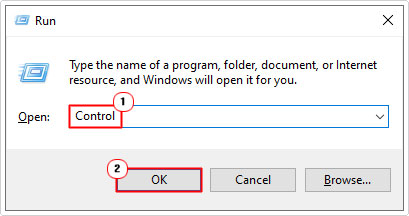
2. Then press + R, type Control and click on OK.
3. When Control Panel loads up, type Troubleshoot into the Search Control Panel box, then click on Troubleshooting.

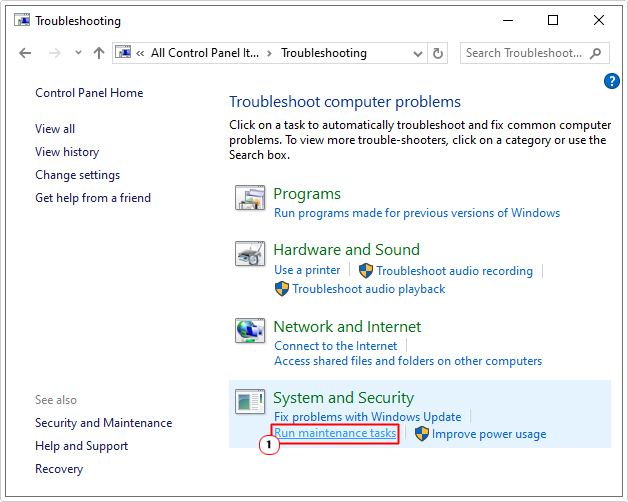
4. This will take you to the Troubleshooting screen, now click on Run maintenance tasks under System and Security.
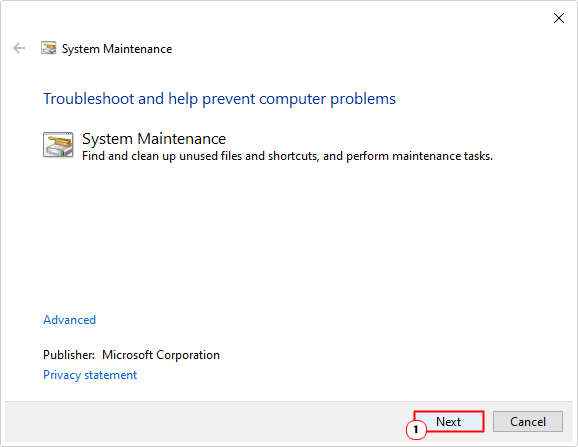
5. System Maintenance will load up, click on Next and follow the onscreen instructions.
Decrease Process Priority
When tackling a TiWorker.exe high CPU usage issue, one quick way of getting the load down, is to simply lower the services priority. This tells the OS to prioritise other services above it.
To do that, follow the steps below:
1. Boot into your system as an admin.
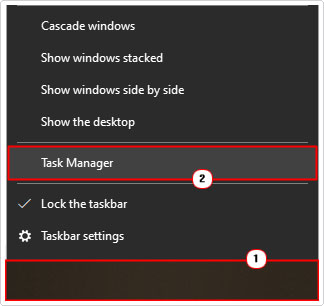
2. Then right-click on the Taskbar and select Task Manager.
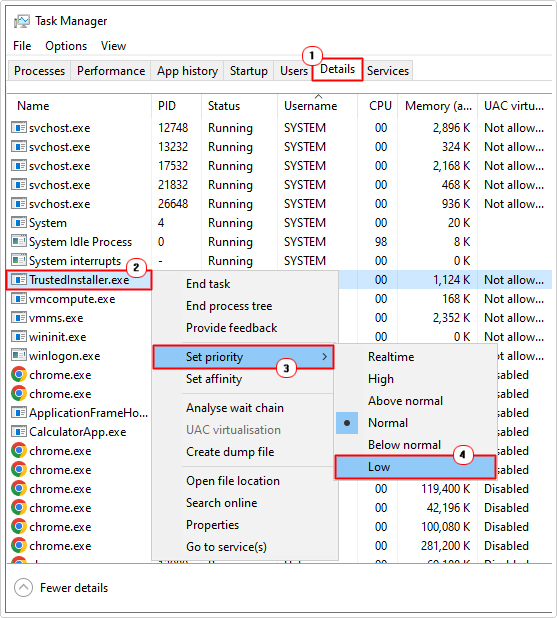
3. When Task Manager loads up, click on the Details Tab, then scroll down and right-click on TrustedInstaller.exe and select Set priority -> Low.
Clear Temp Folder
Users have reported that the TiWorker.exe high CPU usage can oftentimes be the result of data corruption in the Windows temp folder.
To get around this, you will need to delete its contents (at least as much as it will allow).
To do that, follow the steps below:
1. Boot into Windows as admin.
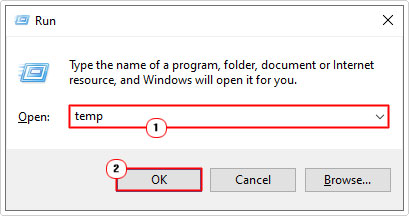
2. Then press + R, type Temp and click on OK.
3. When the Temp folder loads up, click on Select All then select Delete.

Note: Oftentimes many of the files within this folder are in use, which means Windows will NOT allow you to erase them. To get around this problem, make sure you CLOSE every program before carrying out this task.
Run System File Checker
System File Checker or SFC is a built-in command-line tool designed to replace corrupted or missing system files. A full scan could potentially fix the TiWorker.exe high CPU usage issue, if it is due to missing and or corrupted Windows Update files.
For step-by-step instructions on how to use this tool, check out my post on how to run SFC Scannow.
Are you looking for a way to repair all the errors on your computer?

If the answer is Yes, then I highly recommend you check out Advanced System Repair Pro.
Which is the leading registry cleaner program online that is able to cure your system from a number of different ailments such as Windows Installer Errors, Runtime Errors, Malicious Software, Spyware, System Freezing, Active Malware, Blue Screen of Death Errors, Rundll Errors, Slow Erratic Computer Performance, ActiveX Errors and much more. Click here to check it out NOW!