
| Attention Before you read this post, I highly recommend you check out my resources page for access to the tools and services I use to not only maintain my system but also fix all my computer errors, by clicking here! |
In this tutorial, we will be discussing the Ucrtbase.dll file and its associated (missing) errors. If, for any reason this file has been erased or corrupted, then it can prevent those apps (that require it) from running. The end result, is an attempt in futility. The most common error message typically resembles the following:
This application failed to start because ucrtbase.dll was not found. Re-installing the application may fix this problem.
Ucrtbase.dll belongs to the Microsoft Visual C++ library of files. It is a legitimate Dynamic Link Library file that ordinarily shouldn’t pose any threat to your system. In the event that you were to install an app that required the Microsoft Visual C++ Redistributable Package, then it is possible that the Ucrtbase.dll file will exist in the installation folder.
The best way to determine whether or not the Ucrtbase.dll file on your system is legitimate, is typically by its location. In most cases, you will find it in one (or both) of the following folders:
C:\Windows\System32
C:\Windows\SysWOW64
Ucrtbase.dll is one of many files that make up the Redistributable Package and can vary somewhat in size from 0.97 MB to 1.12 MB. There are quite a few apps out there that require this file to run.
In the event that you do discover Ucrtbase.dll in any location other than the ones listed above, you may want to consider carrying out a Virus Scan – just to be safe.
With that said, now that we have a general idea of what this file is, we can thus, take a closer look at its root causes.
What Causes Ucrtbase.dll Not Found Errors?
As is the case with most errors you may encounter on your Windows based system, there are a multitude of possible causes. When it comes to the Ucrtbase.dll file, we’re looking at the following:
- The app installation didn’t complete: It’s possible the app you are attempting to install, did not install correctly.
- Outdated device drivers: Depending on the type of app you are trying to run (PC game, for example), the device drivers required to run it, may be outdated.
- The Microsoft Visual Redistributable Package is corrupted: This does happens from time to time, thankfully, the InstallShield has a built in repair feature.
- Outdated Operating System: Some apps may require a specific file or feature to be present on your system for it to work. Thus, it’s important you install all pending updates to minimise future problems.
Now that we know what could be causing this error, let’s take a look at how you can fix it.
How to Fix It
It’s possible your internet security software is blocking the app from running or it’s specifically blocking the Ucrtbase.dll file. So, as a first solution, I’d have to recommend you considered disabling your security tool – at least temporarily. To do that, you will need to double-click on its Icon (in the Taskbar, on the bottom-right of the screen). When the GUI loads up, look for something under Real-Time Scanning. Disable that, and try the running the app again.
If that fails to fix the error, then consider repairing the Microsoft Visual C++ Redistributable Package.
The Ucrtbase.dll file belongs to the Redistributable Package (as earlier explained), thus, running the Repair feature will ensure that all files belonging to the package are present and in operational order. Any files that are missing, or corrupt, will be replaced where applicable. To utilise this feature, simply do the following:
1. First, ensure you’ve booted into Windows as an administrator.
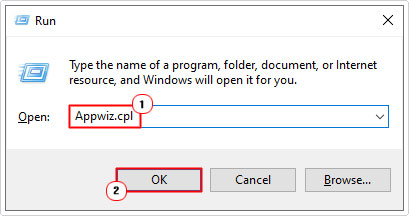
2. Then press  + R, type Appwiz.cpl and press Enter.
3. This will bring up the Program and Features applet, from here, locate and click on Microsoft Visual C++ 2015-2022 Redistributable (xXX) and click on Change.
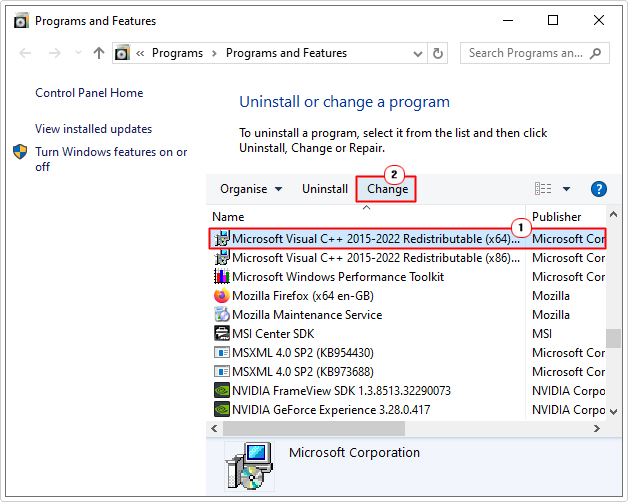
Note: You should have two versions: x64 for 64-bit operating systems and x86 for 32-bit operating systems. Click on the one that is applicable to your OS architecture.
4. This will bring up the Microsoft Visual C++ 2015-2022 Redistributable (xXX) applet, click on Repair.
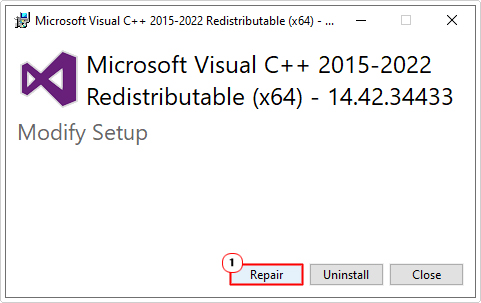
Note: If the error continues to persist even after the repair completes, you could try repeating the process for all of the Microsoft Visual C++… listed in Program and Features.
Use Windows Repair Tool to Fix Ucrtbased.dll Not Found Errors
If, after attempting the helpful solutions above, the Ucrtbased.dll not found error still exists, then you may want to try using a Windows repair tool.
The tool I have in mind is capable of scanning your system and detecting and fixing a plethora of error types, including DLL, registry, runtime, app and much more.
This tool is also capable of removing virus infections as well as optimising the performance of your system.
If by any chance that interest you, then visit the link below:
CLICK HERE TO CHECK OUT THE ADVANCED REPAIR TOOL
Update Device Drivers
As previously noted, device drivers that are outdated, corrupted or incompatible can prevent certain apps from running. The accompanying error messages can vary, with some listing specific files (Ucrtbased.dll) as the culprit. In situations like this, you may want to consider updating, firstly, you’re (GPU) Graphics Card drivers.
To do that, you will need to know the brand and version of GPU installed on your system. Then, visit the manufacturer’s website, and download the most up-to-date drivers off there.
Alternatively, if you do not have this information you can simply use a driver automation tool. The tool I have in mind, will not only locate, download and install the latest graphics card drivers for your system, it will also do it for all your hardware that requires drivers.
If the driver automation tool suits you best, then visit the link below:
CLICK HERE TO CHECK OUT THE DRIVER FINDER TOOL
 The solution(s) below are for ADVANCED level computer users. If you are a beginner to intermediate computer user, I highly recommend you use the automated tool(s) above! The solution(s) below are for ADVANCED level computer users. If you are a beginner to intermediate computer user, I highly recommend you use the automated tool(s) above! |
Re-Register Ucrtbased.dll
If the Windows operating system is unable to locate the Ucrtbased.dll file, it’s possible it is because references to the file no longer exists in the Windows registry. Fortunately, there is a way to rectify this issue. By re-registering the file, the operating system will attempt to recreate the correct file references.
To do this, follow the steps below:
1. First, boot into Windows as an admin.
2. Then press + R, type cmd and press CTRL + Shift + Enter.
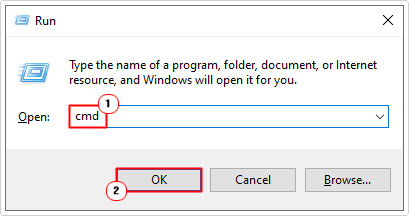
3. This will bring up Command Prompt, type the command below and press Enter.
regsvr32 ucrtbase.dll
4. Lastly, close Command Prompt and retry the problematic app.
Reinstall App
An incomplete installation process will often result in missing and/or damaged files. In situations like this, you may want to retry the installation.
There are many ways you can do this, but the most effective way is as follows:
1. First, boot into Windows as an admin.
2. Next, press + R, type Appwiz.cpl and click on OK.
3. When Programs and Features, click on the Problematic App and select Uninstall.
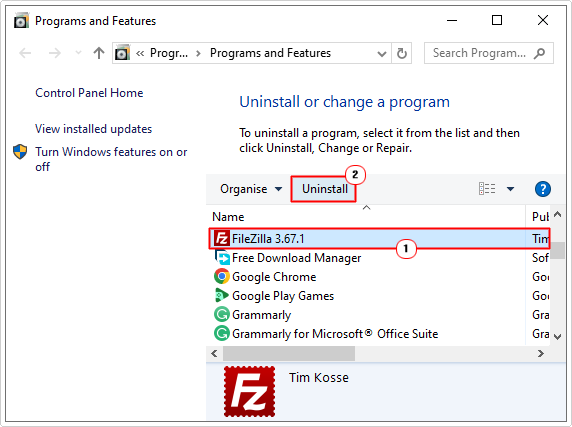
Note: Follow the onscreen instructions to remove the app.
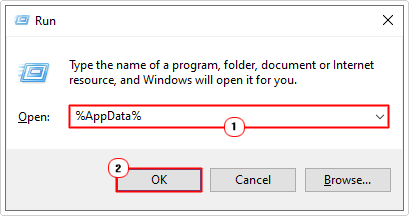
4. Now press + R, type %appdata% and click on OK.
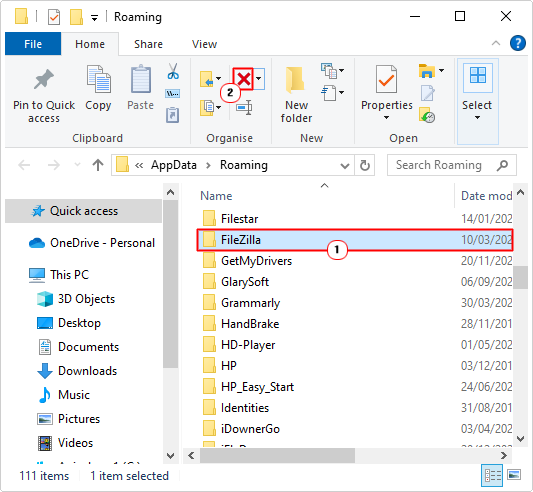
5. Click on the App folder and select Delete.
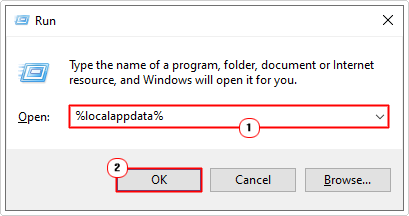
6. Again, press + R, type %localappdata% and click on OK.
7. For a second time, click on the App folder, then select Delete.
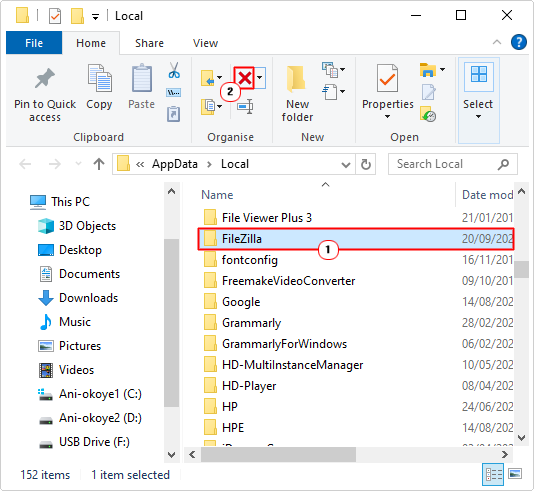
8. Now, restart your computer. When the system finishes rebooting, install the app again.
Use System File Checker
System File Checker (SFC) is a built-in Windows tool designed to scan, detect and replace missing or corrupted system files. There have been instances when people were able to fix the Ucrtbase.dll not found error by using this tool. Though, it does have its limitations.
To use it is simple. Just do the following:
1. Boot into Windows as an admin.
2. Then press + R, type cmd and press CTRL + Shift + Enter.
3. When Command Prompt loads up, type the command below and press Enter.
SFC /Scannow
4. Wait for the process to complete, then restart your system.
Note: After the scan completes, it will notify you if it detected any errors that required fixing.
Additionally, you can run the DISM (Deployment Image Servicing and Management) tool. It’s similar but more comprehensive, as it attempts to restore the integrity of the entire OS. Anyway, my post on fixing D3dx9_43.dll is missing errors will show you how to use it.
Are you looking for a way to repair all the errors on your computer?

If the answer is Yes, then I highly recommend you check out Advanced System Repair Pro.
Which is the leading registry cleaner program online that is able to cure your system from a number of different ailments such as Windows Installer Errors, Runtime Errors, Malicious Software, Spyware, System Freezing, Active Malware, Blue Screen of Death Errors, Rundll Errors, Slow Erratic Computer Performance, ActiveX Errors and much more. Click here to check it out NOW!