

| Attention Before you read this post, I highly recommend you check out my resources page for access to the tools and services I use to not only maintain my system but also fix all my computer errors, by clicking here! |
VIDEO_TDR_FAILURE is a Blue Screen of Death (BSOD) error that is typically the result of a Graphics (GPU) card driver issue. Most end users report encountering this error right after a system upgrade. However, one of the most convenient things about this specific BSOD error, is that it specifies the culprit filename. With which, you can better determine how to fix it.
This specific BSOD error can and does occur for the most common graphics card brands, such as Intel, AMDs ATI and Nvidia GeForce. Depending on the brand, the BSOD error will highlight a different file. So, for Nvidia Graphics cards it will mention the nvlddmkm.sys file, for Intel Graphics solutions, it will refer to the igdkmd64.sys and for ATI graphics cards, it will refer to atikmpag.sys or atikmdag.sys system files.
The TDR in the error name is short for Timeout, Detection and Recovery. Which is a feature of Windows operating systems. When the OS encounters a problem with the GPU, i.e. it stops responding. Windows will halt the OS to protect the hardware.
So, with that out of the way, let’s take a deeper look into its root causes.
What Causes VIDEO_TDR_FAILURE Errors?
The exact circumstances of when the error may occur can vary. You could be streaming or watching a video file and the system suddenly crashes (with a blue screen). The most common culprits of this error are as follows:
- The drivers for your GPU are outdated.
- Your graphics card is overheating, possibly due to an overzealous overclock.
- System resources are taxed, due to too many programs running in the background.
- The GPU is not compatible with your motherboard or your PSU is not providing the device with enough power.
These are just some of the many possible reasons the VIDEO_TDR_FAILURE error is rearing its ugly head. In truth, there is no official fix for this error, as the problem can be quite fluid.
Now that we have an understanding of what may be causing this error, let’s go through the many solutions you can use right now to fix this problem.
How to Fix It
Depending on how severe the problem is, you may want to consider booting into Safe Mode, but that’s purely optional.
The solutions below are listed in order of effectiveness and ease of execution, for that reason it’s recommended that you attempt them in the order that they appear.
Update GPU Drivers
The first thing you’ll want to do when you encounter a VIDEO_TDR_FAILURE error is update the drivers for the GPU specified in the error message.
As previously noted, the error will tell you which component is the root cause of the error, with that, you should know which component to attack.
If it’s an ATI GPU for example, then I suggest you visit the hardware manufacturer’s website and download the latest drivers off there. Depending on the age of the card, you may or may not need to know the model number of your device. The same rule applies for NVIDIA. For Intel, the GPU drivers are integrated into the motherboard drivers, so you will need to know the model number of your board to ensure you’re downloading and installing the correct drivers.
Alternatively, if this all seems too complicated for you, then you can simply use a driver automation tool. Such a tool will scan your system, identify all the different components inside it, and then download the latest drivers for all of them.
Very simple process that requires just a few clicks of your mouse.
If by any chance that interests you, then check out the tool in the link below:
CLICK HERE TO CHECK OUT THE DRIVER FINDER TOOL
Use Windows Repair Tool to Fix VIDEO_TDR_FAILURE Errors
Depending on the severity and root cause of the error, you may find yourself going round and round in circles, trying to cover every possible angle.
The good news is that there are repair tools, specifically designed to scan your system, identify the problematic areas and fix them.
For that reason, it’s highly recommended that you use this advanced repair tool to scan your system, identify the necessary fault(s) and apply fixes where applicable.
This tool is capable of fixing BSOD errors, appcrashes, virus infections, registry corruption and much more.
It’s also capable of making your system faster, making it double as both a maintenance and repair suite.
If by any chance that interests you, then visit the link below:
CLICK HERE TO CHECK OUT THE ADVANCED REPAIR TOOL
 The solution(s) below are for ADVANCED level computer users. If you are a beginner to intermediate computer user, I highly recommend you use the automated tool(s) above! The solution(s) below are for ADVANCED level computer users. If you are a beginner to intermediate computer user, I highly recommend you use the automated tool(s) above! |
Disable Intel GPU
Do you have a built-in Intel GPU? Did you recently upgrade your GPU solution with a NVIDIA or ATI graphics card? If so, then you will need to disable the Intel Graphics drivers so that they do not interfere with your new card.
The steps to doing this are as follows:
1. First, boot into Windows as a full administrator.
2. Then press  + R, type devmgmt.msc and click on OK.
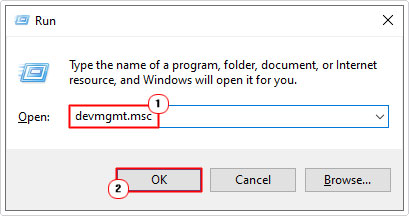
3. When Device Manager loads up, click on the > icon next to Display adapters, then right-click on the Intel GPU and select Disable device.

4. Lastly, restart your system, then verify whether or not it fixed the VIDEO_TDR_FAILURE error.
Increase TDR Delay
In some instances the VIDEO_TDR_FAILURE error isn’t a result of an error, but actually a hardware timeout. If the GPU doesn’t respond in the allotted time (determined by the TDR Delay), then the operating system will crash.
Fortunately, it is possible to increase the amount of time the OS will wait, before it will halt the system.
The instructions on how to do this can be find on my post titled AMD driver keeps crashing.
Reinstall Drivers
Another effective method at fixing driver-related BSOD errors is to carry out a reinstallation of said drivers. The most important part of this process is the uninstallation process. Using the built-in InstallShield doesn’t always remove all remnants of the previous driver, that’s why it’s recommended that you use the Display Driver Uninstall (DDU).
The instructions on how to use this tool can be found on my post on fixing Vulkan-1.dll is missing errors.
Replace File
If the solutions outlined above were unable to fix the VIDEO_TDR_FAILURE error, then you may want to try manually replacing the specified file in the error message.
Depending on the GPU brand, this will of course, differ.
If the error message specifically refers to the atikmdag.sys file, then you can find instructions on how to replace this file here.
Otherwise, I suggest you follow the steps below:
1. First, boot into Windows as an admin.
2. Then press + R, type C:\Windows\System32\DriverStore\FileRepository\ and click on OK.

3. This should bring up the File Repository folder, from here, you will need to Search for the backup copy of the problematic file.

4. Once you have located it, right-click on it and select Copy.

5. Next, press + R, type C:\Windows\System32\drivers and click on OK.
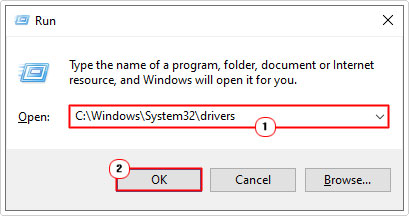
6. When the drivers folder loads up, click on Paste.

Note: A backup copy of the specified file may not exist on your system, in which case, a reinstallation or update is your only safe option.
Update Windows
Any new critical security update must be downloaded and installed to your system as soon as possible. This is because they not only improve the security of your system but also enhance its stability. This means, resolving issues like the VIDEO_TDR_FAILURE error.
The steps to updating Windows are fairly simple. Just follow the steps in my post on fixing MSVCP120.dll is missing errors.
Are you looking for a way to repair all the errors on your computer?

If the answer is Yes, then I highly recommend you check out Fortect.
Which is the leading registry cleaner program online that is able to cure your system from a number of different ailments such as Windows Installer Errors, Runtime Errors, Malicious Software, Spyware, System Freezing, Active Malware, Blue Screen of Death Errors, Rundll Errors, Slow Erratic Computer Performance, ActiveX Errors and much more. Click here to check it out NOW!