
| Attention Before you read this post, I highly recommend you check out my resources page for access to the tools and services I use to not only maintain my system but also fix all my computer errors, by clicking here! |
Available on Windows 10/11 systems, Windows Hello Face is an authentication feature that uses a biometric scan of your face to sign you into Windows. However, as is the case with all Windows features, they are not without their flaws with “We couldn’t find a camera compatible with Windows Hello Face” being a relatively common error message. In this tutorial, we will go through a number of methods you can use to fix it.
Windows Hello Face is one of the more convenient and secure methods you can use to log into Windows, as it uses facial recognition. This eliminates the need for using a passkey or complex password, every time you want to sign in. With the use of a 3D infrared camera, Windows Hello Face can create a complete digital map of your face, which the OS will then use to identify you every time you start a Windows session.
In short, this provides for a more efficient and fast way to access Windows, while ensuring the total security of your personal account(s).
A common issue that many people encounter with this feature is the “We couldn’t find a camera compatible with Windows Hello Face” error message. This error or notification appears under a number of circumstances and may not necessarily indicate an actual error.
So, what can you do about it? Before we get to the solutions, let’s take a more in-depth look into its root causes.
What Causes “We couldn’t find a camera compatible with Windows Hello Face” Errors?
As is the case with all issues you may encounter in Windows, there are a number of factors you must consider. These include the following:
- The camera installed in your system does not meet the minimum requirements for Windows Hello Face.
- Windows 10/11 may require an update.
- The HelloFace driver is corrupted or outdated.
- The Biometric Service has crashed.
A simple system reboot can install updates that may be pending; which could be preventing Windows Hello Face from properly working. That’s why I always recommend the simplest fixes first.
Anyway, let’s get to those solutions – so continue reading.
How to Fix It
Before we try anything, the first thing you must ensure is that the feature is installed and working.
Windows Hello Face comes as an option for Windows 10/11 systems. For this reason, it must be manually setup and activated before it will work. To ensure this is the case, simply do the following:
1. Boot into your system with administrative rights.
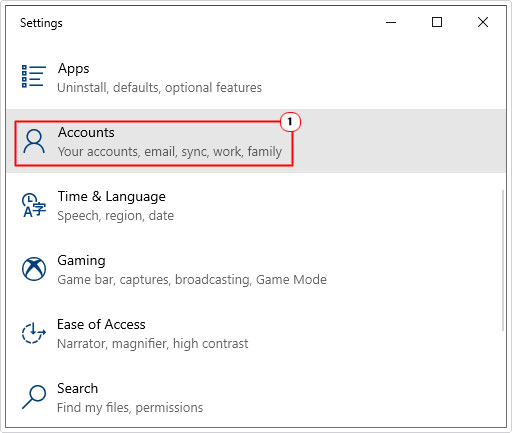
2. Then press  + I and click on Accounts.
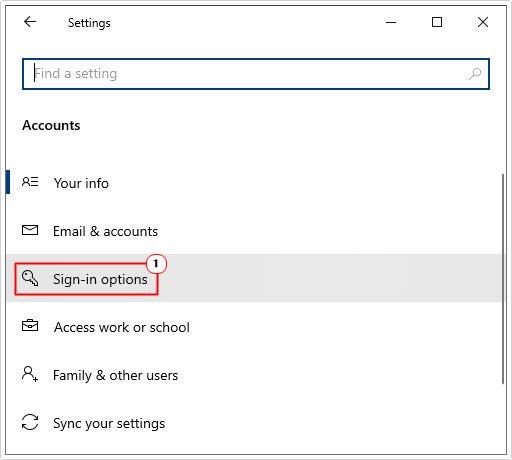
3. When Accounts loads up, click on Sign-in options.
4. This will take you to the Sign-in options screen, simply check under Windows Hello Face to determine whether or not the feature is running.
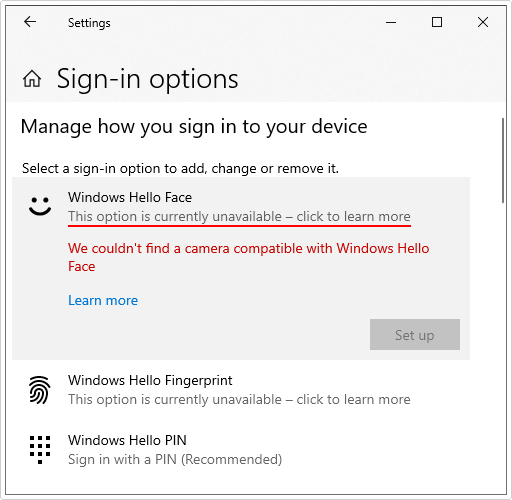
Note: If the feature is not running it will say: “This option is currently unavailable – click to learn more”.
Clicking on it should reveal the “We couldn’t find a camera compatible with Windows Hello Face” error message.
Make sure your camera is compatible with Windows Hello Face. The requirements are as follows:
An infrared (IR) or depth sensor camera.
Note: not all depth sensor cameras are capable of infrared (IR) imaging.
Depth Sensor: Some cameras use both infrared and a depth sensor to enhance facial recognition.
Infrared (IR) Camera: Infrared capabilities is a must, as this technology allows the camera to accurately map and recognise your face.
ESS Capable: The camera must support Enhanced Sign-in Security, via its firmware.
Reinstall Camera Drivers
If you have a working camera that meets the minimum requirements (highlighted above) and Windows Hello Face is still not enabling, then it’s most likely a driver issue.
It’s possible the drivers for your camera were corrupted or simply require an update. In either case, it is recommended that you go to the camera website and download the most up-to-date drivers from there.
Alternatively, if you lack the expertise to do that, you can simply use a driver automation tool like DriverFinder.
This tool, when run, will scan, detect and download all the latest drivers for the various devices attached to your system. Then install them at your request.
If that, by any chance, interests you, then I suggest you visit the link below:
CLICK HERE TO CHECK OUT DRIVERFINDER
Run Windows Repair Tool to Fix the “We Couldn’t Find a Camera Compatible with Windows Hello Face” Errors
During a single Windows session, there are numerous issues and errors you may encounter, many of which may be too complex for you to solve manually. This brings us to the automated approach through the use of a Windows repair tool.
The specific tool I have in mind is a advanced repair solution, developed by a series of professionals in the industry, designed to detect and fix the many errors an end user might encounter on their system.
These errors can range from Windows update, registry, and appcrashes to DLL and BSOD errors. It’s also capable of fixing data corruption, and removing virus infections.
Just download and install the tool, and it’ll do the rest.
If for any chance that interests you, then visit the link below:
CLICK HERE TO CHECK OUT THE ADVANCED REPAIR TOOL
 The solution(s) below are for ADVANCED level computer users. If you are a beginner to intermediate computer user, I highly recommend you use the automated tool(s) above! The solution(s) below are for ADVANCED level computer users. If you are a beginner to intermediate computer user, I highly recommend you use the automated tool(s) above! |
Install HelloFace Driver
It’s possible the HelloFace driver has not been properly installed. Fortunately, there is a workaround for this specific problem.
The exact location of the driver will vary, depending on the version of Windows you are using, so we will cover all angles for Windows 10 or 11 systems.
The instructions are as follows:
1. First, boot into your system as a full administrator.
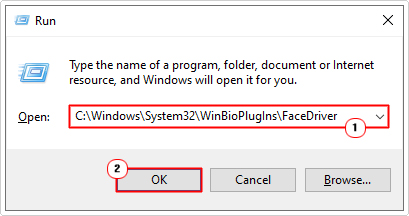
2. Then press + R, type C:\Windows\System32\WinBioPlugIns\FaceDriver and click on OK.
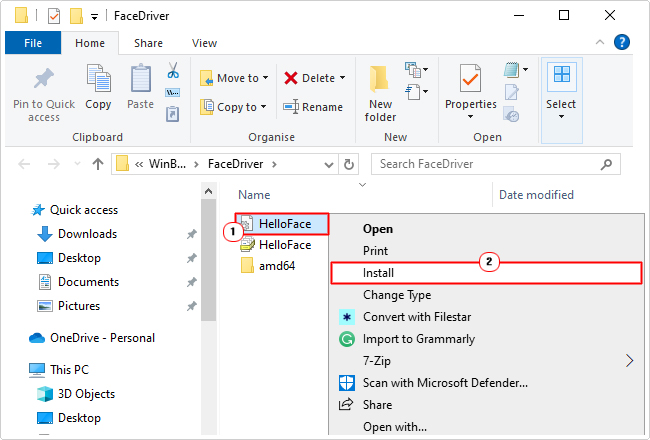
3. This will open the FaceDriver folder, simply right-click on HelloFace.inf and select Install.
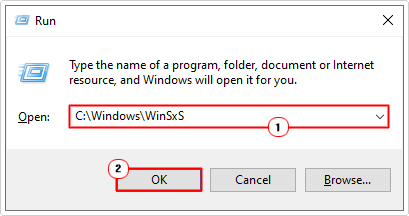
Note: If the FaceDriver does not exist, then press + R, type C:\Windows\WinSxS and click on OK.
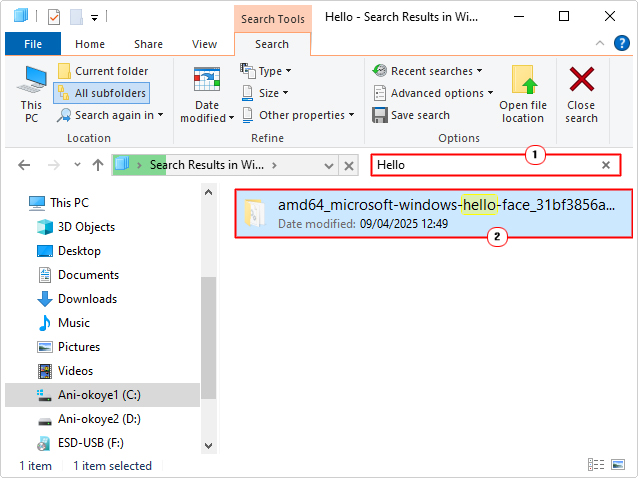
When the WinSxS folder loads up, type Hello into the Search WinSxS box, then double-click on the Windows-Hello folder.
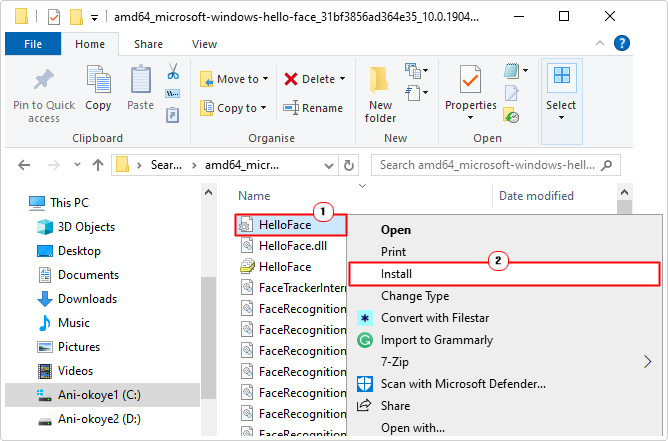
Lastly, right-click on the HelloFace.inf file and click on Install.
Now you can check to see whether or not Windows Hello Face is properly activated and recognised in Windows Settings.
Check Windows Hello Face Is Installed
If Windows Hello Face is incapable of switching your camera on, then it’s probably because the accompanying software has not been installed. To determine whether or not this is the case, simply do the following:
1. Boot into Windows as an administrator.
2. Then press + I and click on System.
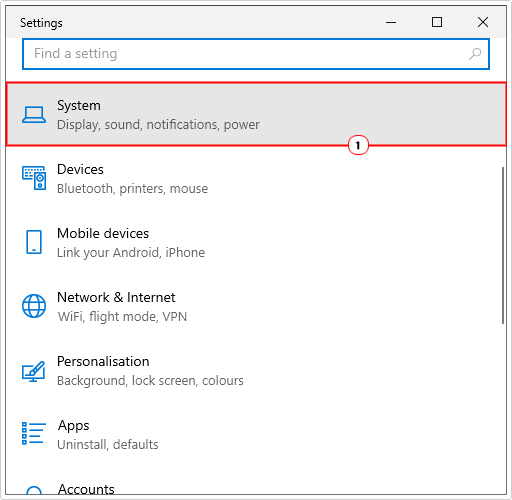
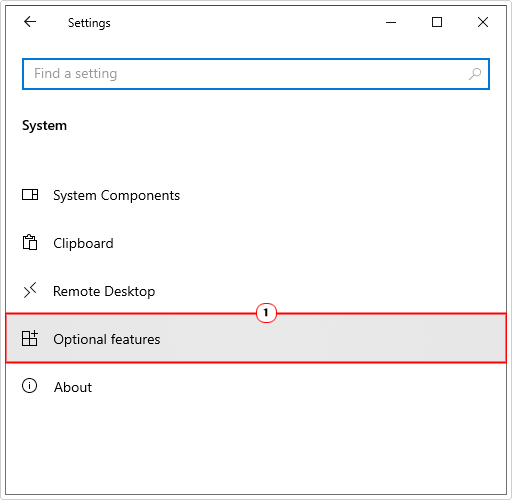
3. On the System screen, click on Optional features.
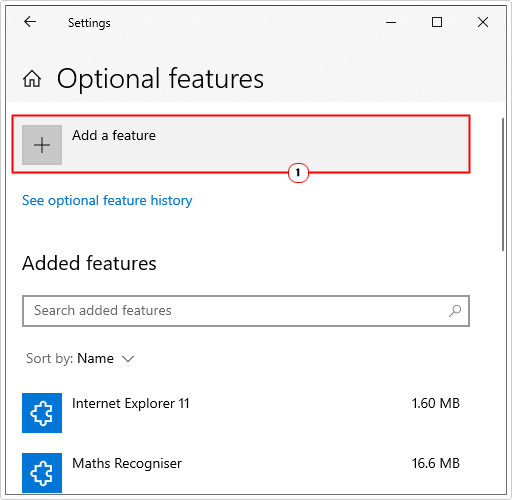
4. When Optional features loads up, click on Add a feature.
5. In the Add an optional feature search box, type Windows Hello, then tick the box next to Windows Hello Face and select Add.
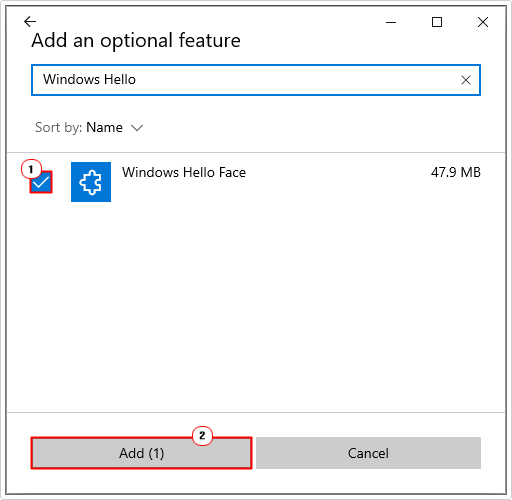
Note: If Windows Hello Face is unavailable, that means it is already installed. In which case, go back to Optional features.
Then scroll down to you find Windows Hello Face. Click on it, and select Remove.
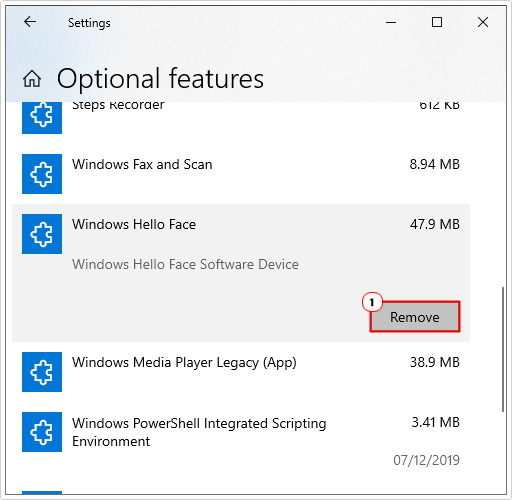
Once it has been successfully removed, you can now reinstall it, following steps 4 – 5.
Restart Windows Biometric Service
Windows Biometric Service manages the biometric device(s) on your Windows system. If the biometric feature (Windows Hello Face) is giving you the “We couldn’t find a camera compatible with Windows Hello Face” error message, you may be able to fix it, by restarting this crucial service.
1. Boot into your system as an admin.
2. Then press + R, type Services.msc and click on OK.
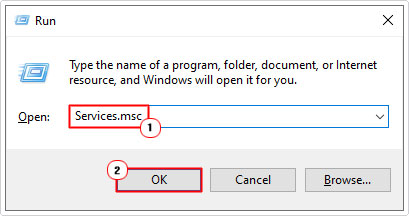
3. When Services loads up, locate and right-click on Windows Biometric Service, then select Restart.
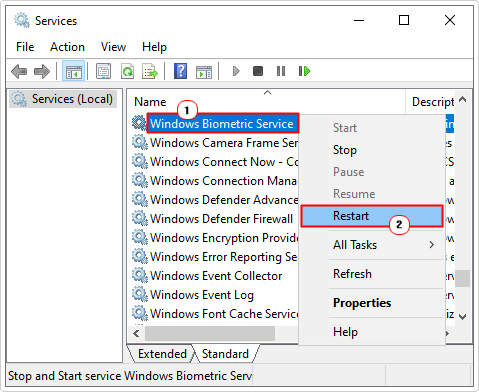
Note: If the service is not running, then click on Start.
4. Now check whether or not it has fixed the error.
Update Windows
This “We couldn’t find a camera compatible with Windows Hello Face” error is prevalent on Windows 10 (All Builds) and Windows 11 (Build 22000). Thus, to get around this problem, you may want to consider updating your OS version.
Microsoft are always updating and improving on current software and services they provide. It’s possible a better or working version of the Windows Hello Facial Recognition drivers is available via Windows Update.
The only way to know is to run Windows Update.
For step-by-step instructions on how to update Windows, check out my post on fixing Microsoft Store is blocked errors.
Are you looking for a way to repair all the errors on your computer?

If the answer is Yes, then I highly recommend you check out Advanced System Repair Pro.
Which is the leading registry cleaner program online that is able to cure your system from a number of different ailments such as Windows Installer Errors, Runtime Errors, Malicious Software, Spyware, System Freezing, Active Malware, Blue Screen of Death Errors, Rundll Errors, Slow Erratic Computer Performance, ActiveX Errors and much more. Click here to check it out NOW!