
| Attention Before you read this post, I highly recommend you check out my resources page for access to the tools and services I use to not only maintain my system but also fix all my computer errors, by clicking here! |
Whenever an end user stumbles upon an issue with Windows, there are several quick and easy approaches one can take. If it’s a network problem then the network troubleshooter is specifically primed to tackle the problem. However, this tool is not without its limitations, and as such, may describe the issue without fixing or providing a solution for it. This brings us to the error “Windows could not automatically detect this network’s proxy settings” which can oftentimes leave the end user baffled.
The error message is very descriptive, indicating an issue with the operating systems ability to detect your proxy settings. However, one thing it doesn’t state, is what can be done to overcome it.
A proxy server operates between your Windows PC and the Internet, as a sort of intermediary.
It’s tasked with sending and receiving data sent while surfing the web. For example, if you were to visit a website, and you have a proxy server configured and running, then the sites data packets will be sent to (or through) your proxy server before reaching your web browser.
The same process works both ways, so when your system issues a request, that request is sent through the proxy server.
Depending on the proxy service, this may or may not slow down your internet experience.
Proxy Servers
The best reason for using a proxy server is that it can provide anonymity while online, it can also help save bandwidth and act as an additional layer of security.
A proxy server is capable of caching web page data, essentially, compressing your traffic, and even removing ads from sites in some instances. This ultimately leads to less bandwidth usage, which can really add up, especially in work environments when you have hundreds, maybe even thousands of employee’s accessing websites.
Privacy and security are other reasons – which I have already touched on.
In the tutorial to follow, we will be going through this errors general causes, while providing a number of step-by-step solutions you can utilise today.
What Causes “Windows could not automatically detect this network’s proxy settings” Errors
In the vast majority of cases, the “Windows could not automatically detect this network’s proxy settings” error message is the result of changes made to your proxy settings.
However, in other instances, it could be one of the following:
- A firewall, antivirus or VPN app conflicting with the proxy server.
- Corrupted or outdated network drivers.
- The corruption of key system files.
- A connection to the internet that is intermittent or has been severed altogether.
To effectively resolve this problem, having a firm grasp of its cause is key.
That said, to follow are a number of solutions you can implement right now.
How to Fix It
Any issues related to one’s proxy configuration can be oftentimes complex and dynamic, especially when you have no idea of its root cause.
So, first-things-first, you’ll want to ensure your connection to the internet is working and stable. To do that, I’d recommend you rebooted your router.
Restarting the router is a relatively simple process, just do the following:
1. Locate a power button and use that to power it off. Alternatively, you can simply unplug it.
2. Wait for at least 90 seconds.
3. Then, power it back on, and wait for it to boot up.
First, you want to ensure your connection to the internet is working – once you’ve established that, then you test to see if the internet issue has been resolved. If not, consider the next solution:
Disable Proxy
If you decide to rout your internet traffic through a VPN, firewall or proxy, it must be done right, otherwise you can have interference issues, like “Windows could not automatically detect this network’s proxy settings”. Thus, one of the sure-fire ways of getting around this issue is to simply disable the “proxy” altogether.
To do that, follow the steps below:
1. First, boot into your system as a full administrator.
2. Next, press  + I, then click on Network & Internet.
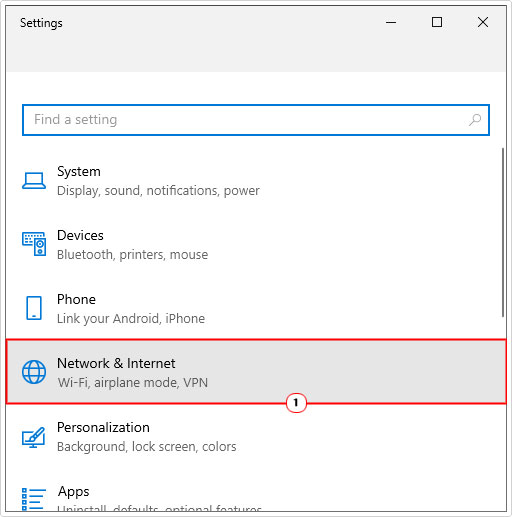
3. On the Network & Internet screen, click on Proxy.
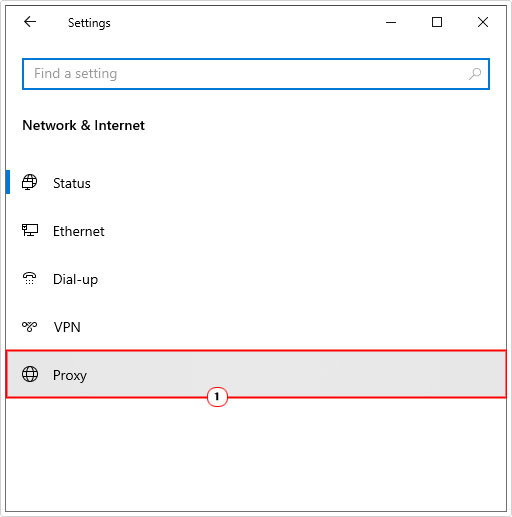
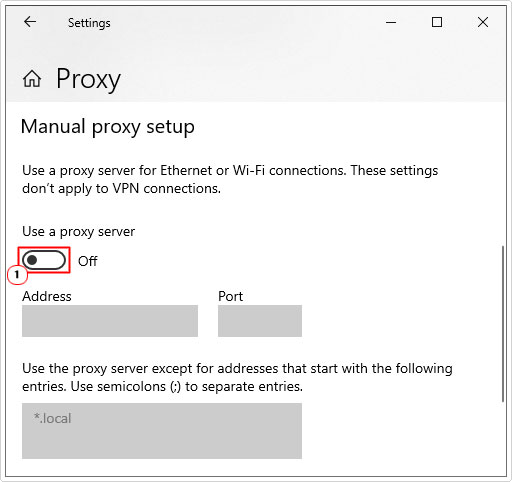
4. Scroll down to Manual proxy setup and set Use a proxy server to off.
It’s also possible you have an internet security tool, VPN or firewall interfering with your internet connection. In which case, you should consider disabling them – temporarily, at least.
The process of disabling such tools, will vary, depending on the brand and version, so I suggest, if stuck, you consult the manual of those tools.
Alternatively, if you use Windows Firewall, then the steps to disabling that, can be found on my post on fixing error code 0x8007003b.
Use Windows Repair Tool to Fix “Windows Could Not Automatically Detect Network’s Proxy Settings”
It’s not uncommon for a computer to have internal issues, especially if you use it over an extended period of time. As already highlighted, the proxy server issue could be the result of Windows corruption, in which case, your best approach would be to use a Windows repair tool.
This tool when run, is capable of fixing a wide range of Windows-related problems, such as runtime errors, installer errors, registry corruption, ActiveX errors and much more.
It’s also capable of speeding up your system, making it run as fast as it did the first day you bought it.
There’s no expertise required to use it, just download and run.
If that interests you by any chance, then please visit the link below:
CLICK HERE TO CHECK OUT THE ADVANCED REPAIR TOOL
Update Network Drivers
The drivers for the device(s) that you use to connect to the internet may be corrupted or outdated. In either case, you can benefit from a driver update.
To do that, you will need to identify the drivers required for your network device (Wi-Fi/Ethernet) and download it off the internet.
The best approach is to simply download the latest drivers for your motherboard.
However, if you don’t know what motherboard you have, then you can always use a driver automation tool like DriverFinder.
It will, when run, detect, download and install the latest drivers for all your system devices. All within a few simple clicks.
If this tool interests you, then visit the link below:
CLICK HERE TO CHECK OUT DRIVERFINDER
 The solution(s) below are for ADVANCED level computer users. If you are a beginner to intermediate computer user, I highly recommend you use the automated tool(s) above! The solution(s) below are for ADVANCED level computer users. If you are a beginner to intermediate computer user, I highly recommend you use the automated tool(s) above! |
Check IP Settings
If you are still receiving the “Windows could not automatically detect this network’s proxy settings” error message, then you may want to consider removing or disabling any manual DNS or IP settings you have configured.
To do that, follow below:
1. Boot into your system as a full administrator.
2. Then press + R, type ncpa.cpl and click on OK.
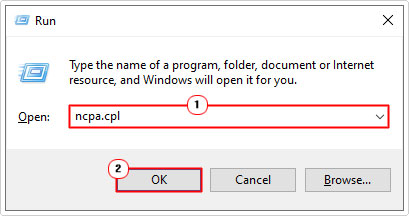
3. When Network Connections loads up, right-click on your Network Device and select Properties.

Note: Your Network Device is the device you use to connect to the internet. So if it’s Wi-Fi, then you’ll want to right-click on your Wireless Connection.
4. This will bring up your Connection Properties applet. From here, click on Internet Protocol Version 4 (TCP/IPv4) and select Properties.
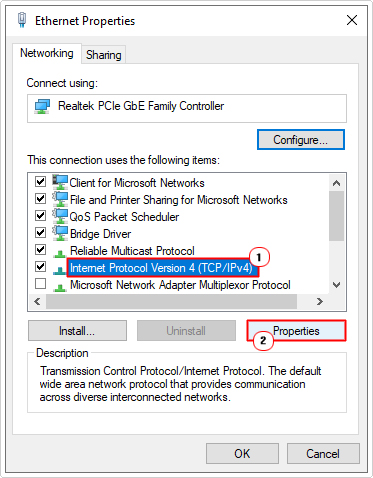
5. Internet Protocol Version 4 (TCP/IPv4) Properties will appear. On the General Tab, click on Obtain an IP address automatically and Obtain DNS server address automatically (if they aren’t already selected). Then click on OK.

6. Now you can test to see whether it has fixed the error.
Reset Your Network Configuration
Windows has a number of network tools that you can use to troubleshoot and potentially fix network problems. Depending on the severity of the problem, a quick series of commands may be all you need to fix this problem.
Either way, when it comes to resetting your network configuration you have two options. The first is as follows:
Using Command Prompt
1. Boot into your computer as a full administrator.
2. Then press + R, type cmd and press CTRL + Shift + Enter.
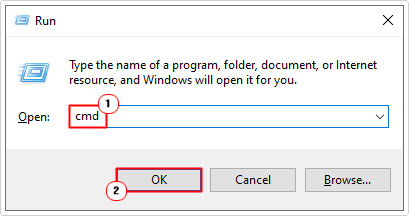
3. This will bring up Command Prompt, from here, type the following commands, pressing Enter after each line:
netsh winsock reset
netsh int ip reset
ipconfig /release
ipconfig /renew
ipconfig /flushdns
Using Windows
If Command Prompt appears to complex, then you can always carry out the same function(s) through the Windows GUI, making the whole process a little easier.
Anyway, the instructions are as follows:
1. Follow steps 1 – 2 of Disable Proxy.
2. Next, from Network & Internet, click on Status.
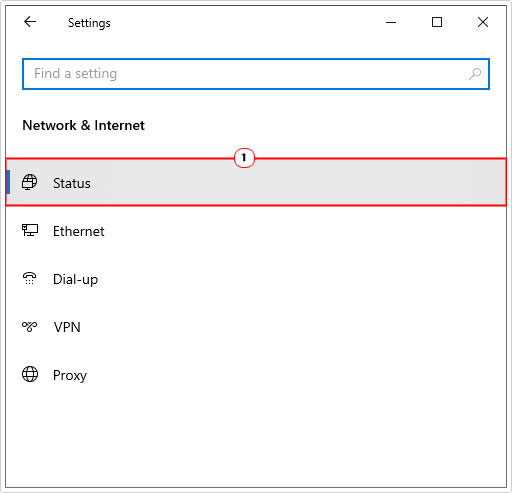
3. This will bring up the Status screen. Scroll down and click on Network reset.

4. On the final Network reset screen, click on Reset now.

Run SFC
Oftentimes “Windows could not automatically detect this network’s proxy settings” errors can be the result of Windows corruption. Essentially, key system files have been either erased, moved or corrupted.
In instances like this, you can fix it by running System File Checker. This tool when run, will scan Windows and replace any missing or corrupted system files.
That said, it’s not without its limitations, as it will not replace ALL Windows files, only those integral to the OS.
Anyway, for instructions on how to run this tool, check out my post on how to run SFC Scannow.
Are you looking for a way to repair all the errors on your computer?

If the answer is Yes, then I highly recommend you check out Advanced System Repair Pro.
Which is the leading registry cleaner program online that is able to cure your system from a number of different ailments such as Windows Installer Errors, Runtime Errors, Malicious Software, Spyware, System Freezing, Active Malware, Blue Screen of Death Errors, Rundll Errors, Slow Erratic Computer Performance, ActiveX Errors and much more. Click here to check it out NOW!