
| Attention Before you read this post, I highly recommend you check out my resources page for access to the tools and services I use to not only maintain my system but also fix all my computer errors, by clicking here! |
Web browsers come with their own security measures designed to protect the end user from visiting suspicious websites. These measures are designed to be preventative in nature – to stop malicious activity before it can have any meaningful ramifications for the system. This brings us to the error notification “Your connection is not private”. Though more of a warning, many interpret it as an error notification.
When a user is about to visit a potentially unsecure website, the web browser automatically blocks the site. In the vast majority of cases, this is warranted action. However, there are those rare instances when this may be a mistake. When the browser may be blocking a site that doesn’t have any notable issues with it.
When it comes to browser-related errors, I’ve encountered and tackled a plethora of them. From ERR_CACHE_MISS to browser optimisation. No one wants to surf the internet to find the latest graphics cards, only to discover they’ve been tricked into giving up their personal data to a doorway site. It’s for this reason, precautions are made to ensure any site you visit is safe.
There are many quick and simple ways you can use to check for this. The simplest is to look for the padlock symbol. Another method is the “Your connection is not private” warning, however, in most cases you can bypass this warning and enter the site anyway. However, this should be done at your own risk.
Error Overview
So, what exactly is the “your connection is not private” error message (or warning)? In short, it is exactly what it sounds like. An error message indicating an unsecure connection.
This error message only shows on sites that are using HTTPS (or at least, should be). Whenever you access a site, the web browser will attempt to send a request to the server hosting the website. If the website is a HTTPS then the browser will try to validate its certificate, to ensure it is up-to-date and registered. Other aspects of this process involve the TLS handshake. Essentially, the sites HTTPS certificate it matched up against the Certificate Authority (CA).
If the web browser discovers that the SSL certificate is invalid, then it will attempt to prevent you from accessing it – hence the warning message. This is of course, by design; for your benefit. If the certificate is invalid, is means data sent to and from the website will not be encrypted – essentially making the website unsafe. Especially for those who intend to login into it or purchase something from it.
What Causes “Your Connection Is Not Private” Errors?
In short, the “your connection is not private” error message indicates a problem with the SSL (HTTPS) certificate. As previously explained these certificates secure the HTTPS connections of a website.
There are a number of reasons why such an error may occur, with the most common listed below:
- The SSL certificate has expired: SSL certificates have a start and expiry date, which means they must be regularly renewed to remain valid and working.
- Corruption of browser cache data: Sometimes data stored by the browser can become corrupted and trigger an error. A simple browser restart may fix it, however, this depends greatly on its severity.
- Your Date/Time settings are incorrect: If the date and time of your operating system is incorrect, it could adversely affect the SSL certificate of the site you are trying to visit.
- Domain Name System Error: There could be a domain mismatch, this means, the domain of the site doesn’t match the domain stored in the DNS.
- Windows has been infected with a malicious file: Probably the more common culprit when it comes to errors such as this. It’s possible a malicious file has infiltrated your system and damaged/corrupted integral system files.
“Your connection is not private” Error Message
When the error message appears, it will usually appear as its own page. The vast majority of browsers will present the error as a warning. The differences are in the accompanying codes.
Microsoft Edge
If you use Microsoft Edge, then you should see a warning message that is no different from what pertains on Google Chrome, with the appropriate message followed by an exclamation point.
The most common codes associated with this error in Microsoft Edge are:
- DLG_FLAGS_SEC_CERT_CN_INVALID
- NET::ERR_CERT_COMMON_NAME_INVALID
Google Chrome
When “Your connection is not private” appears in Google Chrome, you should be immediately taken to a privacy error page. It will follow all the same characteristics of Microsoft Edge.
However, the major difference is in the accompanying codes. Which are:
- NET::ERR_CERT_COMMON_NAME_INVALID
- NET::ERR_CERT_DATE_INVALID
Mozilla Firefox
There isn’t any major or significant different between Firefox and the two other major browsers. The only noticeable difference is that the word “private” is usually replaced for “secure”.
The most common codes associated with this browser are as follows:
- MOZILLA_PKIX_ERROR_MITM_DETECTED
- SEC_ERROR_EXPIRED_ISSUER_CERTIFICATE
How to Fix It
Logging into a website that is identified as unsecure is NOT recommended. However, if you are certain that there is nothing wrong with the site, then there are two things you must consider. The first, is whether the problem exists on the websites end (possibly a broken or outdated SSL certificate). The second is whether the problem lies with your computer.
So, what can you do to fix it? A number of things, but I suggest you start with something simple, like Refreshing the page.
It’s possible the warning message was a mistake. So, press the F5 key or click on the Refresh button and check whether or not that fixes the problem.
If the problem persists, then you should check that the sites SSL certificate has not expired.
It’s not uncommon for the SSL certificate of a site to expire without the website owner knowing. A wide range of websites have fallen prey to this same mishap, even those belonging to Blue-chip companies.
To check, simply copy the domain URL and paste it into a SSL checker.
Note: Simply search in Google for “SSL Checker” and you should find a number of these sites.
Access the Site via HTTP
If the SSL certificate is invalid, you can still access the site, through HTTP. Simply remove the “s” at the end of HTTPS and it should grant you access to the site. However, because you’re accessing an unsecure site, it’s advisable that you do not give out any sensitive information to the site.
Disable Antivirus Scanner
Another possibility is that your internet security tool is blocking the website. It’s possible this could be the result of a false positive.
So, as a viable solution, consider disabling your tool before attempting to access the site again. For step-by-step instructions on how to do that, check out my post on fixing “You Need Permission to Perform This Action” errors.
Use Windows Repair Tool to Fix “Your connection is not private” Errors
If the connection issue continues to persist, even after attempting the simple steps above, then you should definitely consider using a Windows repair tool.
The tool I have in mind is a advanced repair solution. A tool designed to scan, detect and fix various issues and errors on one’s PC.
After a single scan, expect it to detect and fix registry corruption, DLL errors, app crashes, blue screen of death errors, and much more.
Additionally, it is also highly adept at speeding up your system, making it run more optimally.
If any of that interests you, then please visit the link below for more information:
CLICK HERE TO CHECK OUT THE ADVANCED REPAIR TOOL
 The solution(s) below are for ADVANCED level computer users. If you are a beginner to intermediate computer user, I highly recommend you use the automated tool(s) above! The solution(s) below are for ADVANCED level computer users. If you are a beginner to intermediate computer user, I highly recommend you use the automated tool(s) above! |
Check Time & Date
It’s possible the “your connection is not private” warning may be the result of an incorrect time and date. This is because your web browser relies on the time and date settings of your operating system to validate sites SSL certificates. So if the time is wildly incorrect, it can trigger the warning error, when visiting some websites.
Fortunately, fixing this problem is relatively simple. My article on fixing SEC_ERROR_OCSP_FUTURE_RESPONSE in Firefox will show you how.
Clear SSL State
Another method you can use to fix SSL certificate issues is by clearing all SSL certificate data stored on your system.
It’s a fairly simple process, just do the following:
1. First, ensure you’ve booted into your system as a full administrator.
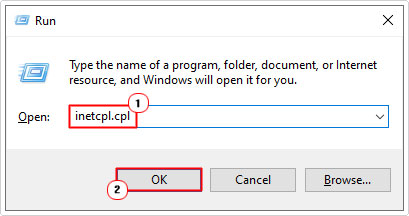
2. Next, press  + R, type inetcpl.cpl and click on OK.
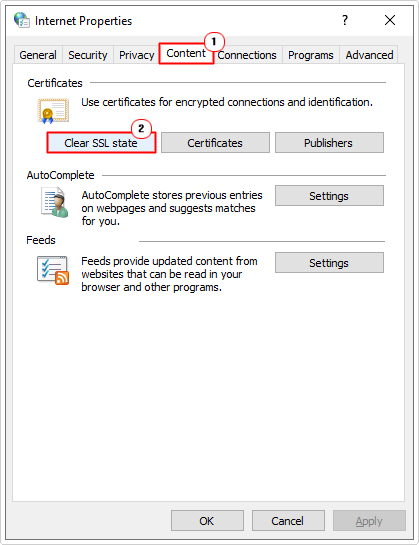
3. This will bring up the Internet Properties applet, from here, click on the Content Tab, then click on Clear SSL State.
4. Lastly, restart your browser, then verify whether or not this fixed the error.
Update DNS
It’s possible the error is the result of a downed DNS. Did you change your DNS recently? Maybe you could consider setting them back or changing them to a more reliable public DNS like those provided by Google.
Either way, you can find instructions on how to do this, from my post on fixing error code 0x80072ee7.
Subject Alternative Domain Check
Each issued SSL certificate has a Subject Alternative Name. This essentially refers to any variations in the domain name. So, for example, the domain names:
https://www.domain.com
https://domain.com
Would be registered as two desperate domains.
If you encountered an accompanying error code like:
- SSL_ERROR_BAD_CERT_DOMAIN
It could mean that variations of the domain were not properly registered. This is less of an issue today, because HTTPS redirects are typically used to get around it. That said, consider accessing the site with and without the “www.” To see whether or not that makes a difference.
Are you looking for a way to repair all the errors on your computer?

If the answer is Yes, then I highly recommend you check out Advanced System Repair Pro.
Which is the leading registry cleaner program online that is able to cure your system from a number of different ailments such as Windows Installer Errors, Runtime Errors, Malicious Software, Spyware, System Freezing, Active Malware, Blue Screen of Death Errors, Rundll Errors, Slow Erratic Computer Performance, ActiveX Errors and much more. Click here to check it out NOW!